Your hashtag feed can be working perfectly and still look broken. The screen is up, the source is connected, the refresh is running. Nobody has posted yet, so the wall shows three posts from your own marketing account while people file past it.
I have watched a hashtag wall sit empty for the first twenty minutes of a conference. The feed worked fine. Nobody had posted yet.
That gap costs more than it looks like it should. Freeman's 2025 Trends Report found that attendees who hit a standout, goal aligned moment are 85% more likely to return. Only 40% say they have had one. Meanwhile 78% of organizers believe they are delivering them.
The fix is not a better tool. A live hashtag feed does two different jobs, and the settings that work for one break the other.
Why a hashtag beats asking people to tag your account
Ask attendees to follow your handle and you get everything you post, including the pre event promos. You also miss every attendee post that never tags you directly.
A hashtag pulls the other way. It gathers posts from your brand and your attendees into one feed.
Your handle feed shows your marketing. A hashtag feed shows the room.
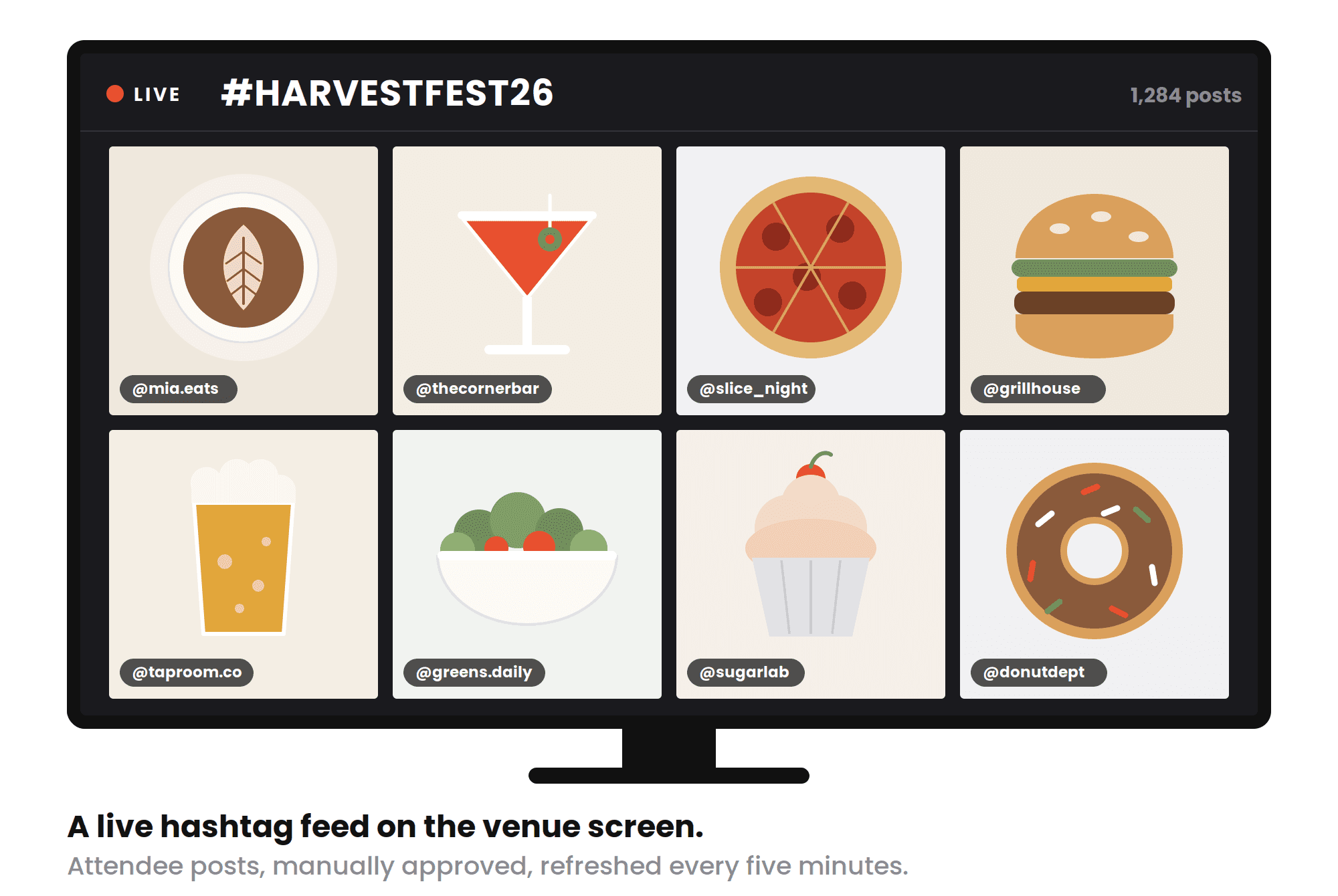
What makes an event hashtag actually work
As you might guess, generic hashtags aren't going to work so well. You need an event-specific hashtag. It's important to note that if you're going to an event with multiple brands/vendors, there will likely be an event hashtag and then you can create your own brand-specific event hashtag. Ask attendees to use both when engaging directly with your brand.
Otherwise, if the event is just for your brand and even a special occasion, you only need the one hashtag.
In order for people to start using your hashtag, it needs to meet certain criteria, including:
Relevant and descriptive - A common strategy is to include your event name, date (can just be the year), or event name + location.
Unique - Do proper research to ensure that the hashtag you choose is not already in use for a different purpose. Live hashtag feeds pull all posts with that hashtag, so you don't want posts from another event coming up in your feed.
Short - A short hashtag is easier to remember. Most people at your event will probably be using a smartphone, which is not easy to type on. Keeping your hashtag short will make it easier to type.
Easy to understand - Using acronyms and abbreviations is a great way to keep your hashtag short. However, make sure the hashtag you settle on is not too complicated that people cannot decrypt it. Also, if your hashtag is more than one word, consider using capital letters to make it easier to read.
Doesn't send the wrong message - Ask others to read over your hashtag before you start using it. While it might sound great to you, make sure it can't be misinterpreted to say something completely different, such as inappropriate words and phrases like these epic hashtag fails.
Our guide to choosing the right hashtags covers how to check a tag before you commit to it.
Then put the hashtag into the tool before you print it on anything. I always tell event teams to run the feed for a full day before the event. You want to see what the hashtag actually pulls in. A tag that reads clean on paper can turn out to be shared with a fitness influencer or a football club.
How to set up your feed before the doors open
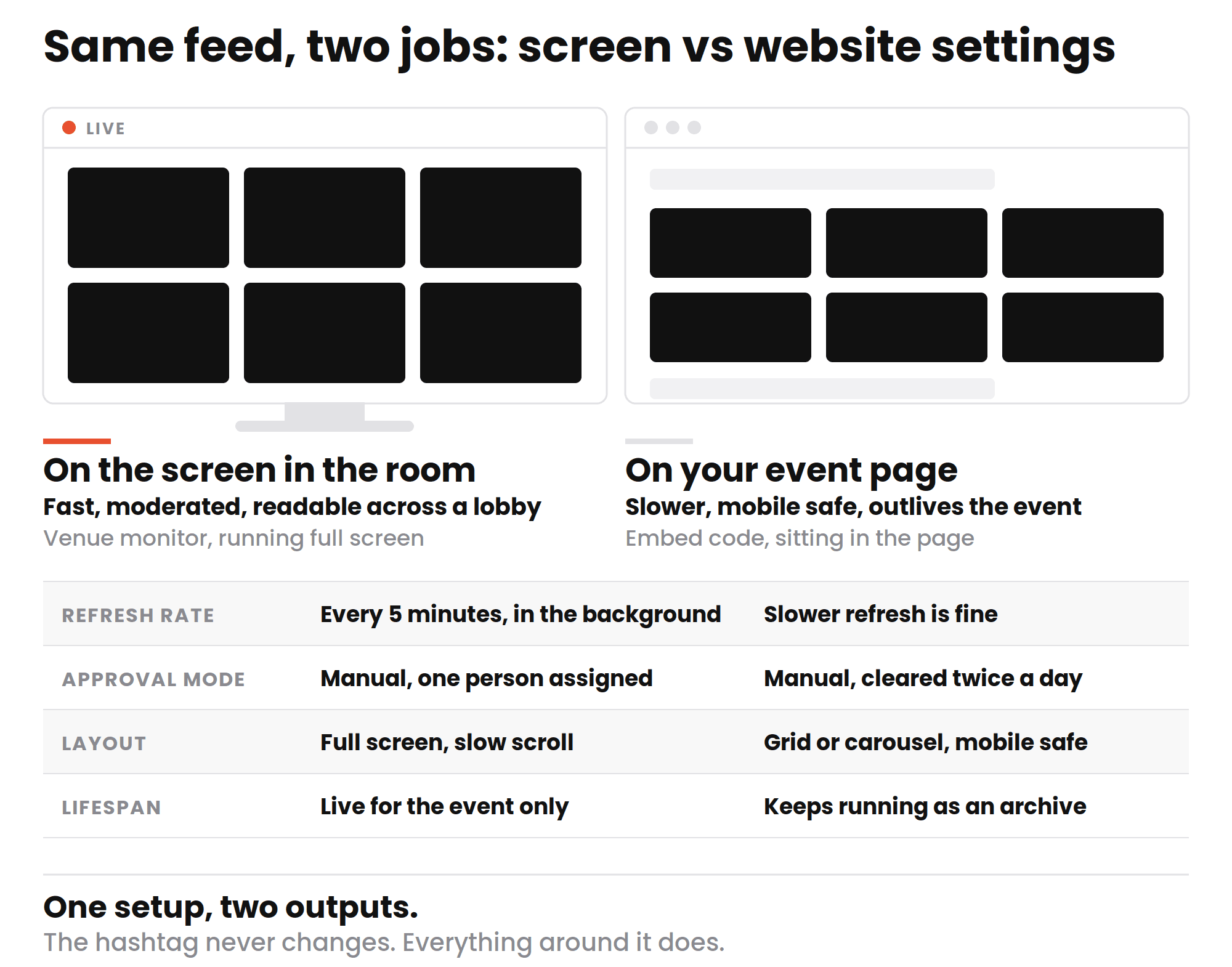
Every setting in your aggregator ships with a default, and those defaults were chosen for websites. A website visitor lands, scrolls, and leaves. A lobby screen holds the same people for an hour, and they notice everything you left alone.
Step 1. Create the feed and add your hashtag as a source
Create a new feed, pick your networks, and then add the hashtag as a source. Instagram, X, Facebook and TikTok cover most events.
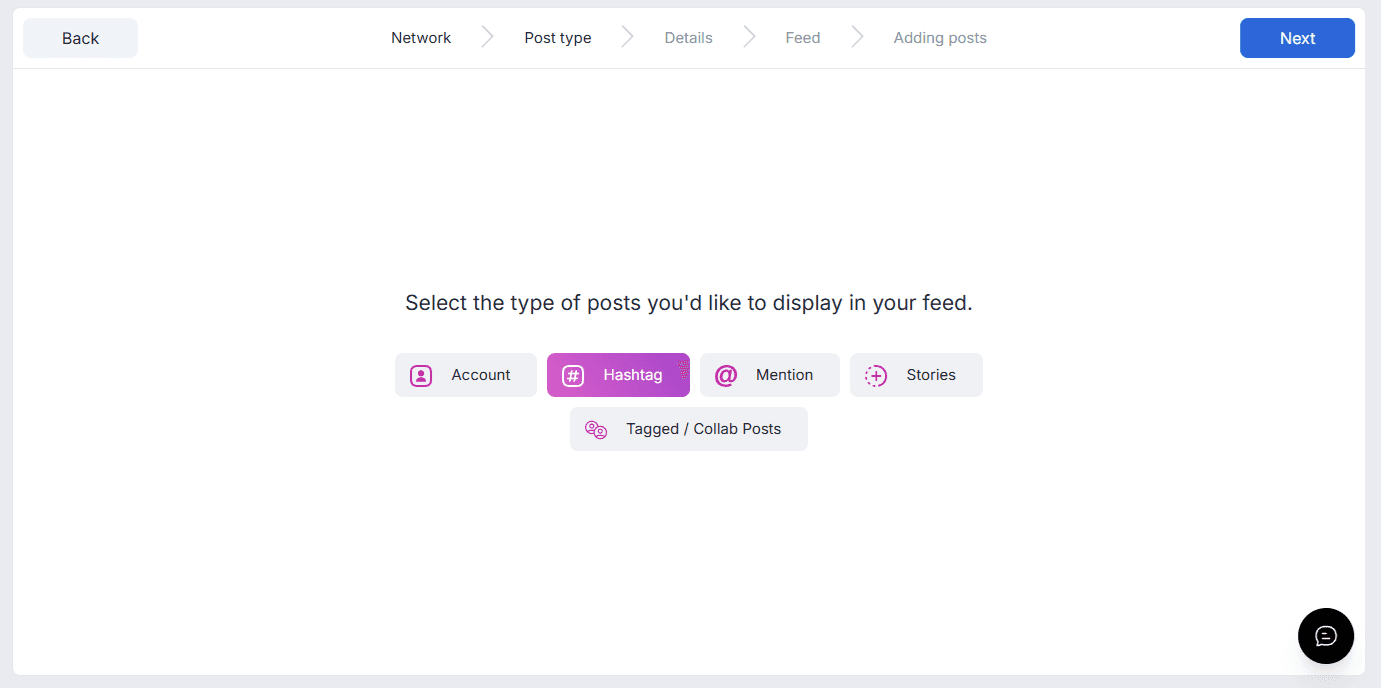
Start by selecting the social network, then choose hashtag as the type of posts, then enter the hashtag text on the next screen.
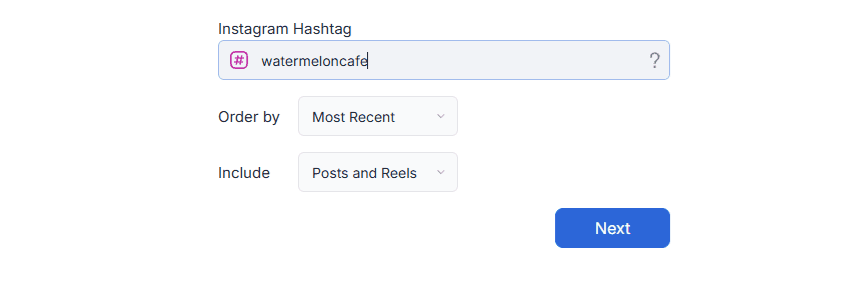
Add a second hashtag if a main event tag runs alongside your own brand tag. Attendees use both, often in the same post, and one feed catches them either way.
Step 2. Set moderation to manual approval
Automatic approval is built for your own content. Manual approval is what you use when posts come from strangers, which at an event is all of them.
Manual sounds like work until you set up moderation rules. Those block profanity and specific users before your queue sees them.
"Assign one person to moderation who is not also running the event. The queue backs up when you are busiest. That is exactly when the best content arrives." — Dave Ganley, Technical Director, Curator
Step 3. Choose your refresh rate and scroll speed
A website feed can refresh slowly. Visitors arrive at different times and nobody watches it. A screen is different. The same people watch it for an hour.
Curator's event product pulls new posts every five minutes in the background, with no page reloads. Scroll speed is the other setting to check. Too fast and the wall is a blur, too slow and the same four posts sit there while the room fills up.
"A five minute refresh feels instant in a room. A sixty minute refresh feels broken. Same feed, same content, completely different experience, and most teams never check which one they are on." — Thomas Garrood, Co-founder, Engineering, Curator
Step 4. Put it on the screen and on your event page
Grab the embed code and paste it into your event page. For the venue monitor, open the same feed full screen in a browser and leave it running.
That covers you through the event. The website version has a longer job, though, so give it its own feed on the same hashtag. Set that one to a slower refresh and a grid layout, and it keeps working as an archive once the screens are packed away.
What it looks like when the feed is doing its job
Freeman's 2025 Trends Report asked organizers and attendees to name their peak moments. Organizers said keynotes and galas. Attendees said vendor relationships (41%), learning (20%), and networking (19%).
An event hashtag wall bought as spectacle loses to the gala. One that helps people find each other does not.
A conference lobby screen
Put it where people queue for coffee. Have speakers reference the hashtag from stage.
A university ran the feed on three lobby screens during orientation week. Two staff cleared the approval queue between sessions. By day three the queue was nearly empty. Students had worked out what got shown.
More on hashtag feed display setup.
An event page on your website
Some of your audience is not in the room. They are coming a different day, they could not travel, or they are weighing up next year. Every attendee using the hashtag reaches their own followers. That is how #CES trends every January, pulling in people who were never going to attend. A hashtag widget catches them.
The week after the event
The feed becomes an archive. Those posts are next year's promotion, and the branding you set up is what makes them reusable. Pick a font, theme and layout that match your brand. Put your logo on the wall, small in a corner or large across the top.
Live hashtag feed FAQs
How far in advance should you set up a live hashtag feed?
Build the feed two to three weeks out and leave it running. That gives you time to see what the hashtag pulls in and adjust your moderation rules. You can still change the tag if it is already taken. The wall then opens with posts on it.
What refresh rate does a live hashtag feed need at an event?
Five minutes is the working standard for a live hashtag wall. Attendees post, look up, and expect to see it quickly. Anything near an hour reads as broken to a room watching one screen. Curator's event plan refreshes every five minutes.
Do you need permission to show attendee posts on a hashtag wall?
Using an event hashtag signals intent to participate, which is why a live hashtag feed for events works at all. Reusing that content later in ads is a different question, and the safe move is to ask. Curator's rights management add on handles the requests.
Where to go from here
The screen and the website are two jobs. Fast refresh and manual approval for the room. Mobile safe layout and a longer lifespan for the site. One hashtag, one setup, two outputs that behave differently on purpose.
Running a live installation? The Curator event plan is built for it. Ten sources, five minute updates, and no Curator branding on the wall. The free plan is built for websites, and a lobby screen is not a website.
Previous post: