Want to showcase more than one video without cluttering your page? When you embed a YouTube playlist on your website, you can display an entire series in one clean player. It keeps visitors watching longer and makes your content easier to explore.
Playlists update automatically when you add new videos to YouTube. That means less manual work for you and fresh content for your audience. It’s perfect for tutorials, product demos, webinars, customer testimonials, or any video series you want front and center.
In this guide, we’ll show you exactly how to embed a YouTube playlist on your website. You’ll learn how to grab the YouTube playlist embed code, paste it into your site, and customize it if needed.
We’ll also cover how to use a widget or plugin for more control, plus platform-specific tips for WordPress, Wix, Squarespace, Shopify, and Webflow. Let’s get started.
How to embed a YouTube playlist on your website
This method is simple. You connect your playlist, customize how it looks, and copy a ready-made embed code to paste into your site.
Your videos can appear in a grid, carousel, or clean list layout that fits your website design.
Step 1. Create a new feed and choose approval settings
Start by logging into your Curator dashboard.
From the main screen, click “Create New Feed.” This is where you’ll build your YouTube playlist widget.
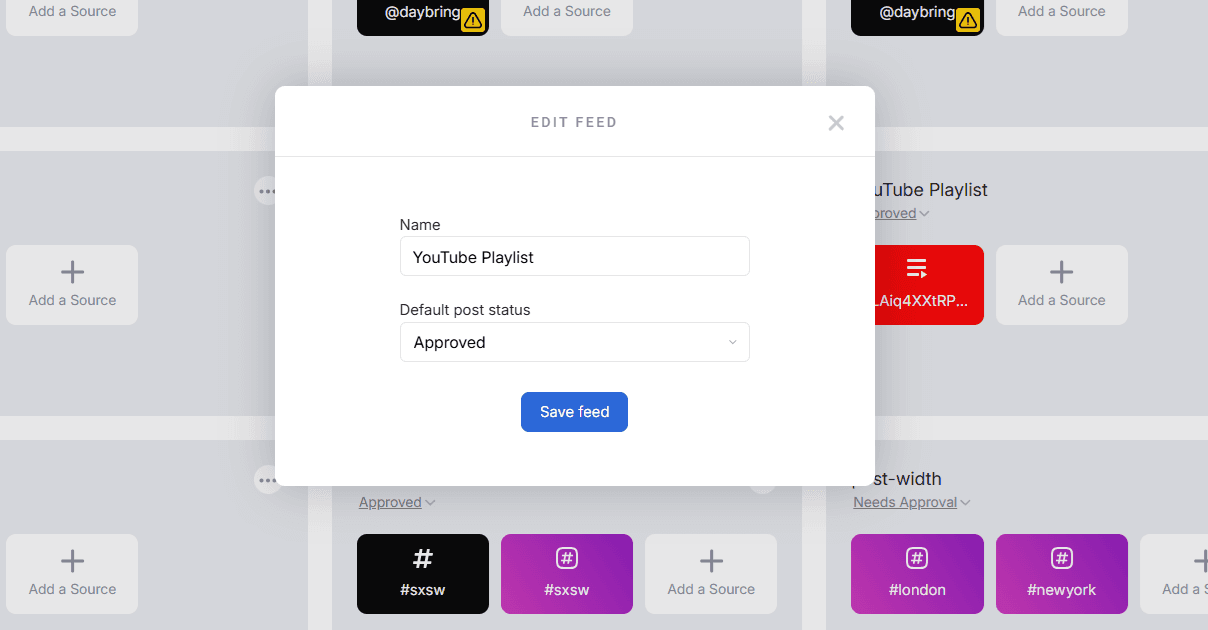
Next, give your feed a name. This is for internal use only, so choose something clear like “YouTube Tutorials,” “Product Demos,” or “Webinar Series.” Naming feeds properly helps if you manage multiple content streams.
Click Create to move to the next step.
Before adding your playlist, you’ll choose how content gets published to your feed.
Curator gives you two options:
Auto-approve
Manual approval
If you’re embedding a playlist from your own YouTube channel, auto-approve is usually the best choice. Every video added to that playlist will automatically appear on your website.
If you’re curating content from multiple sources or want tighter control, choose manual approval. This allows you to review videos before they go live on your site.
For most businesses embedding their own YouTube playlist, auto-approve keeps things simple and hands-free.
Click Next when you’re ready.
Step 2. Add YouTube as a source and select playlist
Now it’s time to connect your playlist.
Click Add Source, then select YouTube from the list of platforms.
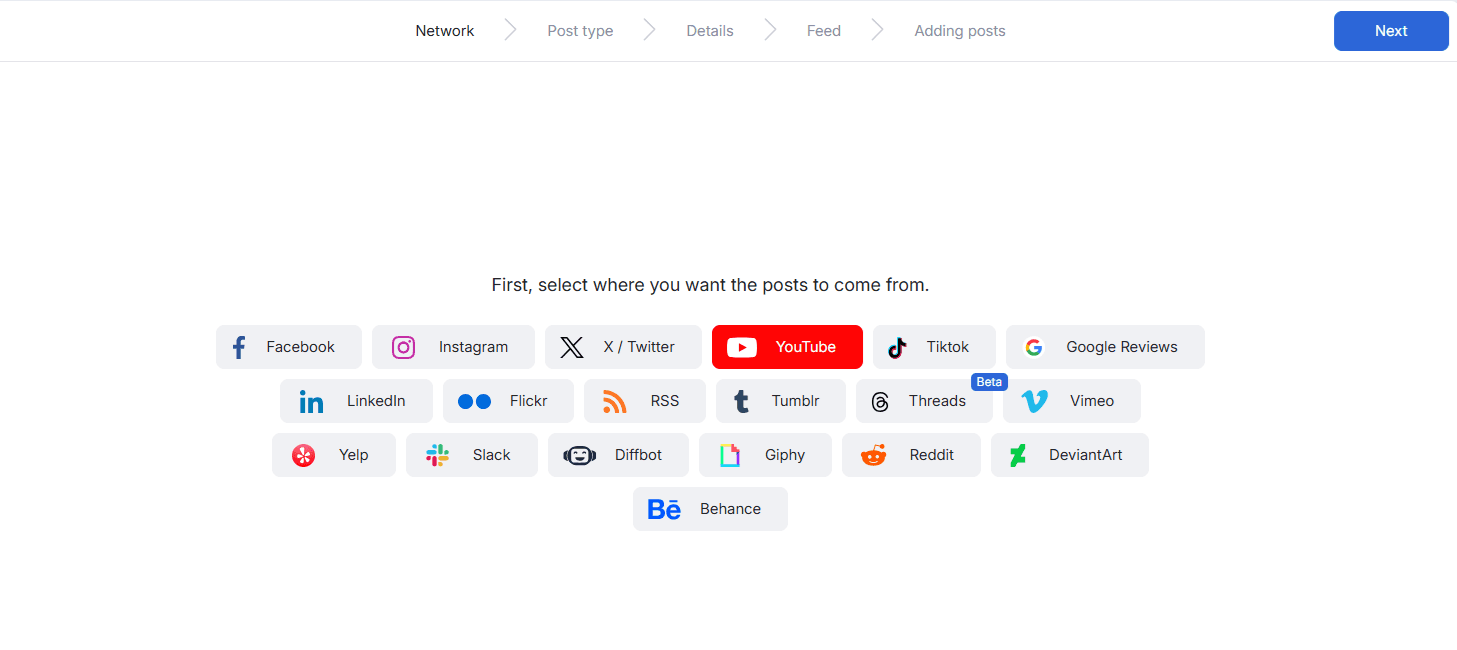
You’ll see three options for YouTube:
Channel
Hashtag
Playlist
To embed a specific playlist, simply choose Playlist.
This is important. If you select Channel, Curator will pull in all recent videos from the entire channel. If you want everything from the channel rather than one playlist, here is how to embed a YouTube feed instead.
If you select Hashtag, it will collect videos tagged with that hashtag. To display only a specific collection of videos, you must choose Playlist.
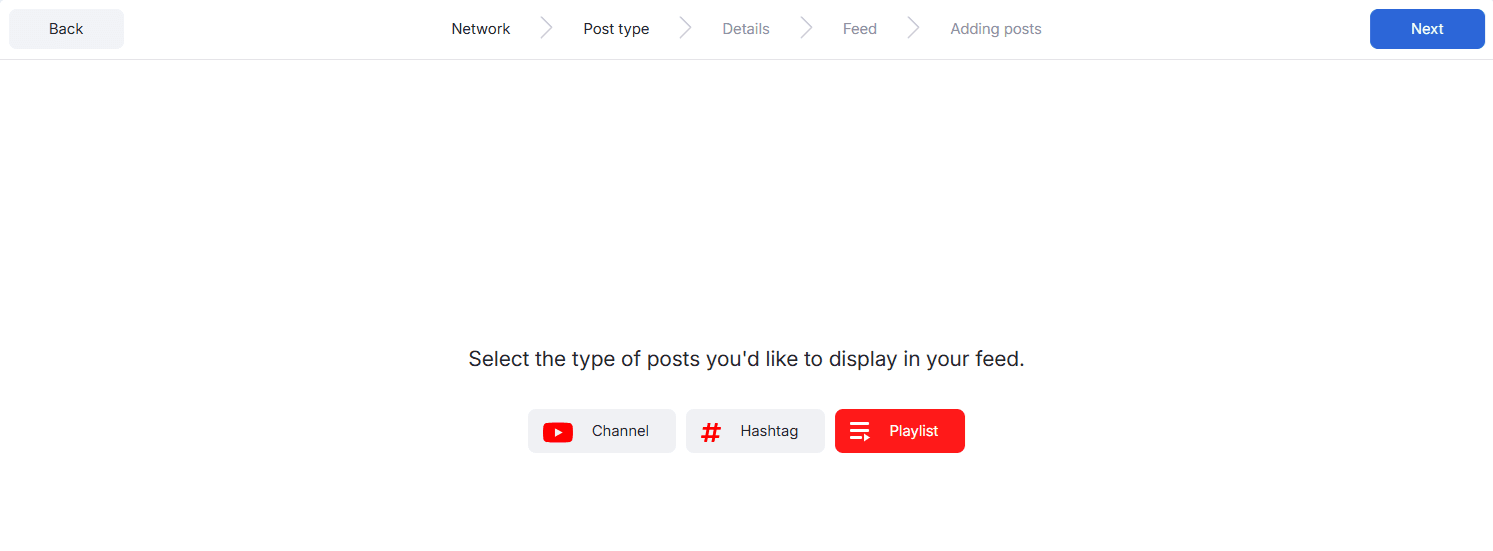
After selecting Playlist, you can either connect your YouTube account or paste the playlist URL directly.
If you paste the URL, Curator will automatically detect the playlist ID and begin importing the videos. Within seconds, your selected playlist will appear inside your feed dashboard.
From here, you can review the imported videos and confirm everything looks correct.
Click Next to continue.
Step 3. Moderate by approving and denying posts
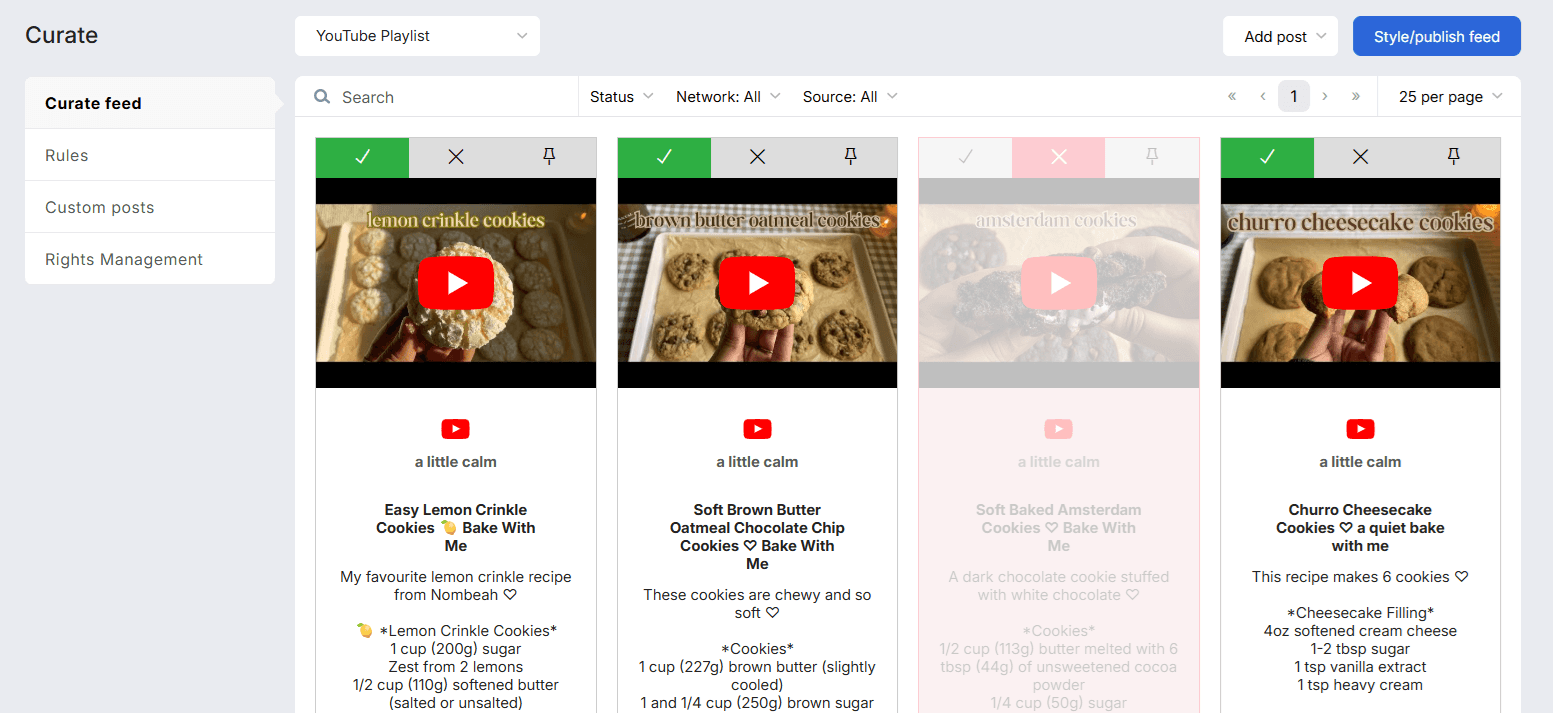
Now that your playlist has been imported, you’ll see all the videos displayed inside your Curator feed dashboard.
If you selected auto-approve, every video in the playlist will already be live inside your feed. Any new videos added to that YouTube playlist will automatically appear on your website as well.
If you selected manual approval, this is where you review each video before it goes live.
You’ll see simple approval controls next to every post. With one click, you can:
Approve a video to publish it
Deny a video to keep it hidden
Remove videos that are outdated or no longer relevant
This is especially useful if:
You only want to display specific videos from a larger playlist
You’re running a limited-time campaign
You want to highlight featured content first
You’re curating multiple playlists into one widget
You can also reorder approved videos to control how they appear on your website. For example, you might move your newest product demo or most popular tutorial to the top of the feed.
Moderation ensures your embedded YouTube playlist feels intentional and curated — not just automatically pulled in.
Once you’ve approved the videos you want to display, click Style / Publish Feed to move on to customization.
Step 4. Customize your playlist widget
Now comes the fun part—design.
Instead of using YouTube’s standard player, Curator lets you display your playlist in a customizable layout. This gives your website a cleaner, more professional look.
First, choose your layout. You can select from options like:
Grid (great for video libraries or tutorials)
Carousel (ideal for homepage sections)
List (simple and streamlined)
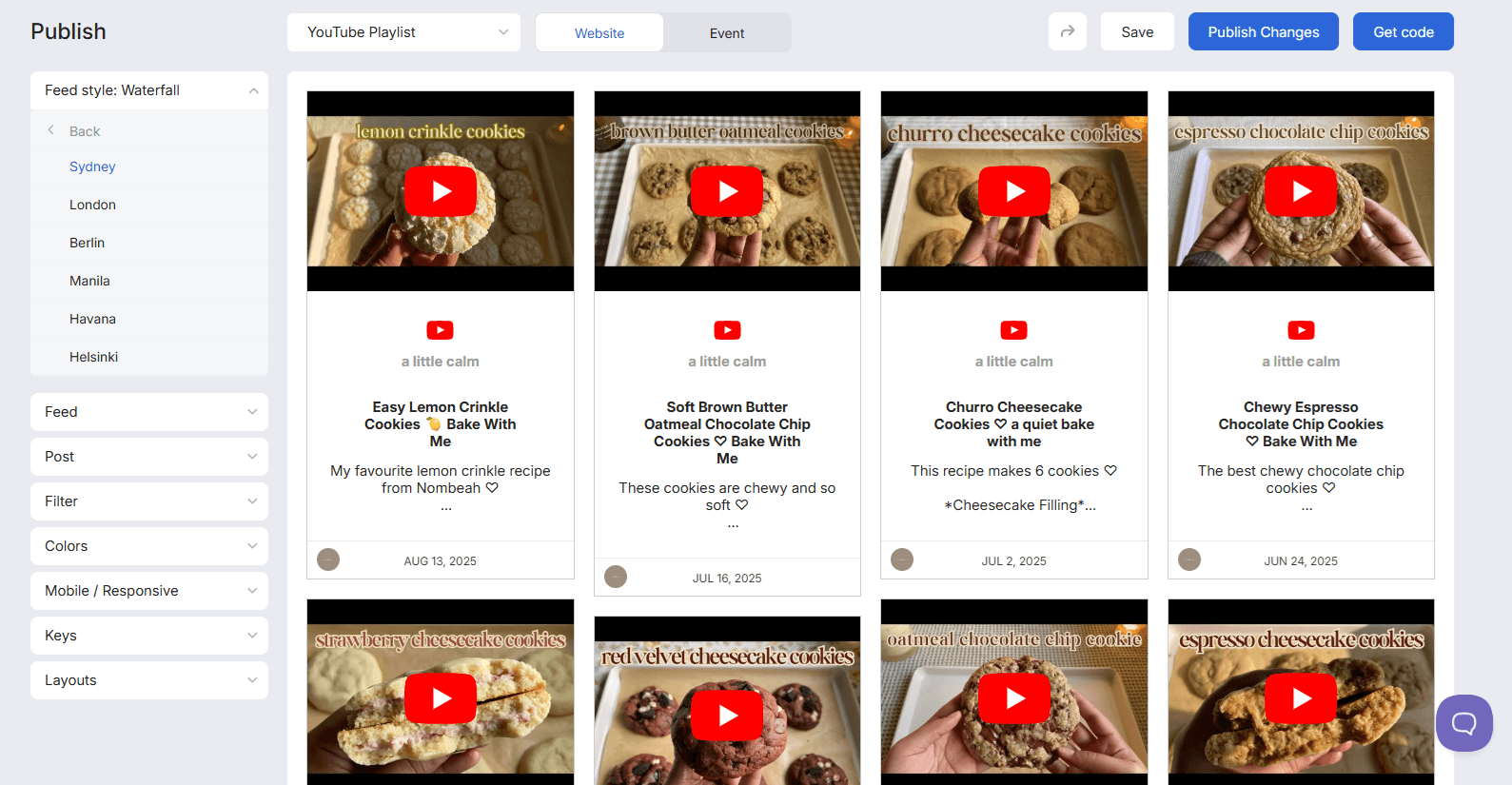
Once you’ve chosen a layout, you can fine-tune the design.
Adjust the spacing between videos to create breathing room. Change fonts to match your website’s typography. Update colors so buttons and text align with your brand guidelines.
You also control how many videos appear at once. Show a single row for a compact section, or multiple rows if you want a full video gallery.
If you selected manual approval earlier, this is where you can moderate videos. You can hide specific videos, reorder content, or remove items that no longer fit your goals.
For businesses running product demos, course libraries, or testimonial playlists, this level of control makes a big difference. Your videos feel integrated into your site instead of embedded as an afterthought.
Take a few minutes to preview the widget on desktop and mobile. Curator’s layouts are responsive by default, so they adjust automatically to screen size.
When everything looks right, move on to publishing.
5. Generate embed code
Once your YouTube playlist widget is ready, click Publish, then select Get Code.
Curator will generate a lightweight embed script for your feed.
Copy the full embed code provided.
Curator acts as a YouTube playlist code generator, giving you clean, SEO-friendly embed code. Unlike bulky iframe embeds, this script loads efficiently and keeps your site fast.
Now it’s time to add the playlist to your website.
Where you paste the code depends on your platform. The process is similar everywhere: add an HTML or embed block, then paste the iframe code.
WordPress
In the WordPress editor, add a Custom HTML block.
Paste the YouTube playlist embed code into the block. Then preview the page to make sure it displays correctly.
If you prefer a no-code approach, you can also use a YouTube playlist plugin. Plugins offer more design control and layout options.
Wix
In Wix, click Add → Embed → Embed HTML.
Paste your iframe code into the HTML box. Resize the element as needed to fit your layout.
Squarespace
Add a Code Block to your page.
Paste the iframe code inside the block and click Apply. Save your changes and preview the page.
Shopify
In Shopify, you can paste the code into a Custom Liquid block or add it to a custom section in your theme editor.
If you’re editing theme files directly, place the code where you want the playlist to appear.
Webflow
Drag an Embed element onto your page in the Designer.
Paste the YouTube playlist embed code into the custom code area and save.
Across all platforms, the process is the same: insert an embed element and paste the code.
Why use a social media aggregator to embed your YouTube playlist?
YouTube’s native embed works fine for basic use. But it limits your layout and design control.
With social media aggregator, you can:
Display videos in a grid instead of a single player
Match fonts and colors to your brand
Control spacing and layout
Moderate content
Keep your site lightweight and fast
For small and medium businesses, this means your video content feels intentional. It becomes part of your site’s design, not just an external player dropped onto the page.
Alternative method: embed directly from YouTube (basic Iframe)
While Curator gives you more control over layout and design, you can also embed a YouTube playlist directly using YouTube’s default embed code. This method is quick and works well if you’re fine with the standard YouTube player.
First, go to YouTube Studio or your channel homepage and click “Playlists.” Select the playlist you want to display and make sure it’s set to Public or Unlisted.
Next, click “Share,” then choose “Embed.” YouTube will automatically generate an iframe embed code. This is your YouTube playlist embed code. It works like a single video embed, but loads the full playlist inside one player.
Copy the entire iframe code and paste it into an HTML or Embed block on your website. You can adjust the width and height in the code if needed.
Before publishing, preview the page. Test playback, check mobile responsiveness, and confirm autoplay settings match your preference.
Customizing your YouTube playlist embed code
You can adjust your YouTube playlist embed code to better fit your website’s layout and goals. Most changes require only small edits to the iframe URL.
First, update the width and height values inside the iframe tag. This controls the size of the player. If your site is responsive, you may prefer setting the width to 100% in a styled container instead of using fixed pixel values.
You can also enable or disable autoplay by adding a parameter to the URL. For example, adding &autoplay=1 will start the playlist automatically (muted, depending on browser rules).
To hide player controls, add &controls=0. This removes the standard YouTube buttons for a cleaner look.
If you want the playlist to start at a specific video, use the &index= parameter to define the starting position.
To loop the playlist, add &loop=1 and include the playlist ID again in the URL.
Example:
<iframe src="https://www.youtube.com/embed/videoseries?list=PLAYLIST_ID&autoplay=1&loop=1" width="560" height="315"></iframe>
Best tools for embedding a YouTube playlist
The right tool lets you display playlists in custom layouts, improve performance, and keep your site looking polished.
Here are four strong options to consider.
1. Curator
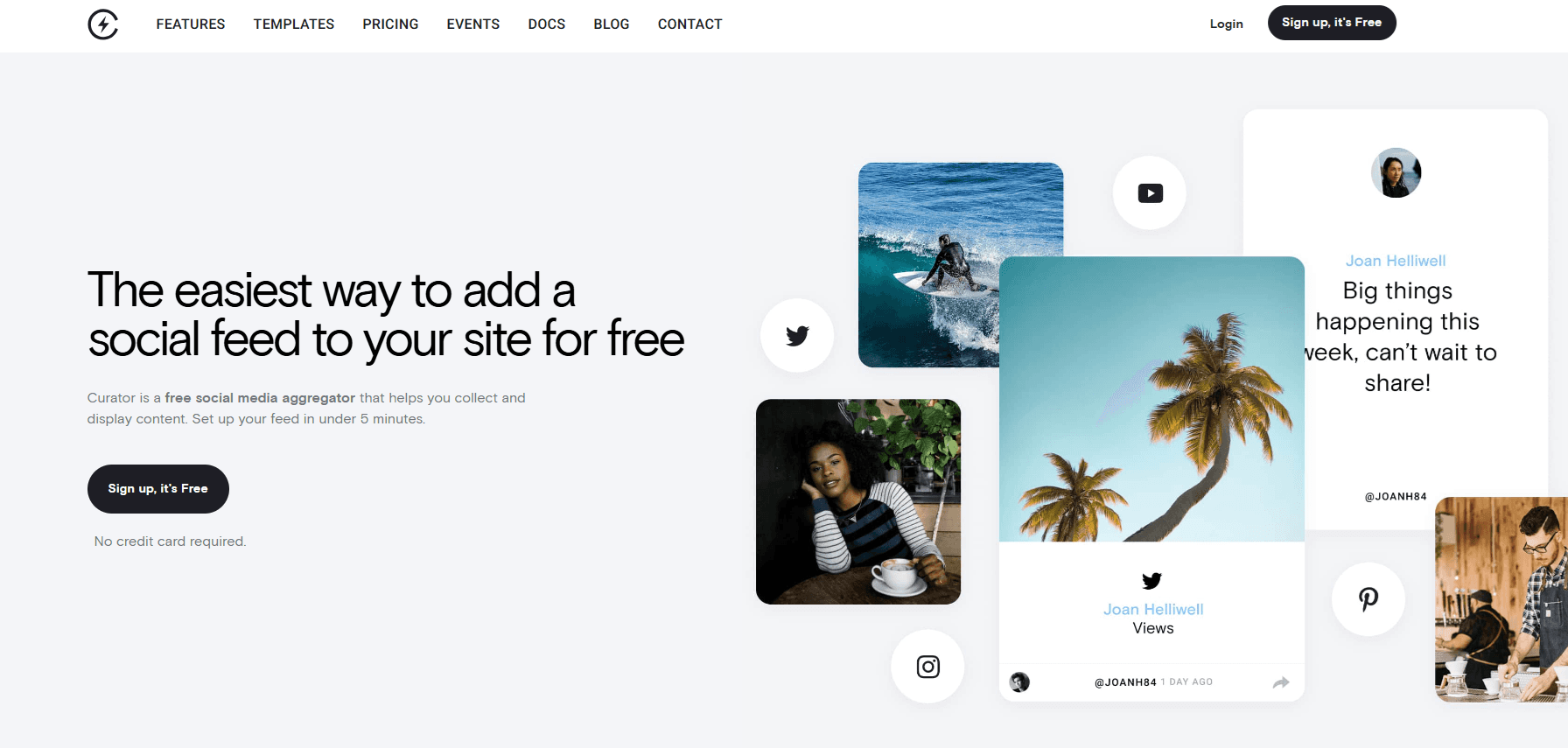
Key features:
Pull in YouTube playlists, channels, or hashtags
Grid, carousel, and list layouts
Full design control (colors, fonts, spacing)
Content moderation and approval workflows
Lightweight, SEO-friendly embed code
Works beyond WordPress (Wix, Squarespace, Shopify, Webflow)
When to use it:
Curator is ideal if you want more than just a basic playlist embed. It’s especially useful for businesses that want full design control or need to combine YouTube with other content sources like Instagram, Facebook, or reviews.
Because it’s platform-agnostic, it’s also a smart choice if you may move away from WordPress in the future. You’re not locked into one ecosystem.
If you’re aggregating Shorts, check out our tutorial on embedding YouTube shorts in your website.
Pricing summary:
Curator offers a free plan with limited sources and monthly views. Paid plans start at $25/month and include more sources, faster updates, and advanced features.
2. Smash Balloon

Key features:
Display playlists, channels, and live streams
Fully responsive layouts
Multiple feed types in one page
Customizable player controls and styling
Caching for performance optimization
When to use it:
Smash Balloon is a strong option if you want a dedicated YouTube plugin built specifically for WordPress. It’s great for businesses that want tight integration with their WordPress theme and more layout control than the default YouTube iframe provides.
It’s also helpful if performance is a concern, since the plugin includes built-in caching to reduce load times.
Pricing summary:
Smash Balloon offers a free version with limited features. The Pro version starts at around $49/year for a single site, with higher-tier plans for multiple sites and additional features.
3. Embed Plus
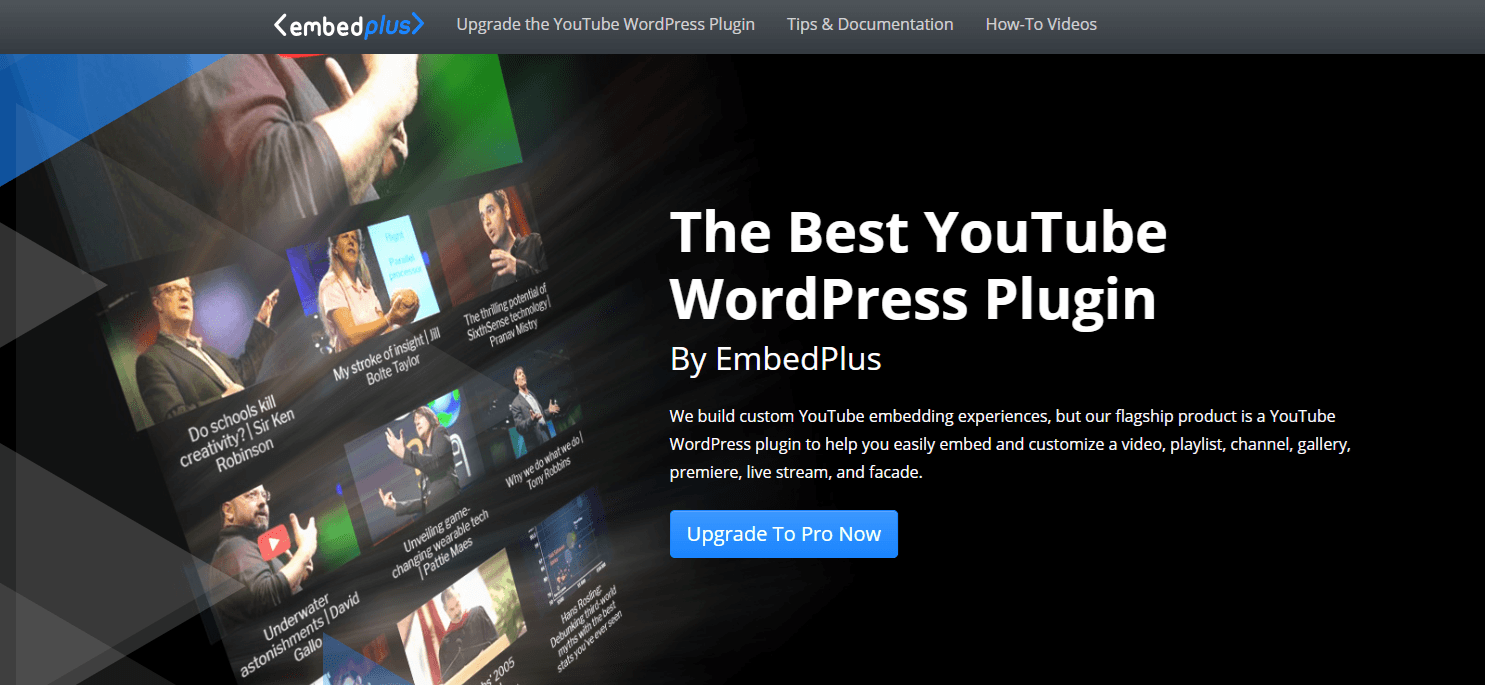
Key features:
Advanced playlist embedding options
Custom start times and looping
Lazy loading for improved speed
GDPR compliance tools
Live stream support
When to use it:
Embed Plus is a good choice if you want detailed control over how your YouTube playlist behaves. It’s more technical than some alternatives, but it gives you fine-grained settings for autoplay, looping, and player behavior.
If you’re comfortable adjusting settings and want more control without writing custom code, this plugin can be a solid fit.
Pricing summary:
A free version is available with core features. Premium plans start around $39/year and unlock advanced customization and support.
4. WP YouTube Lyte
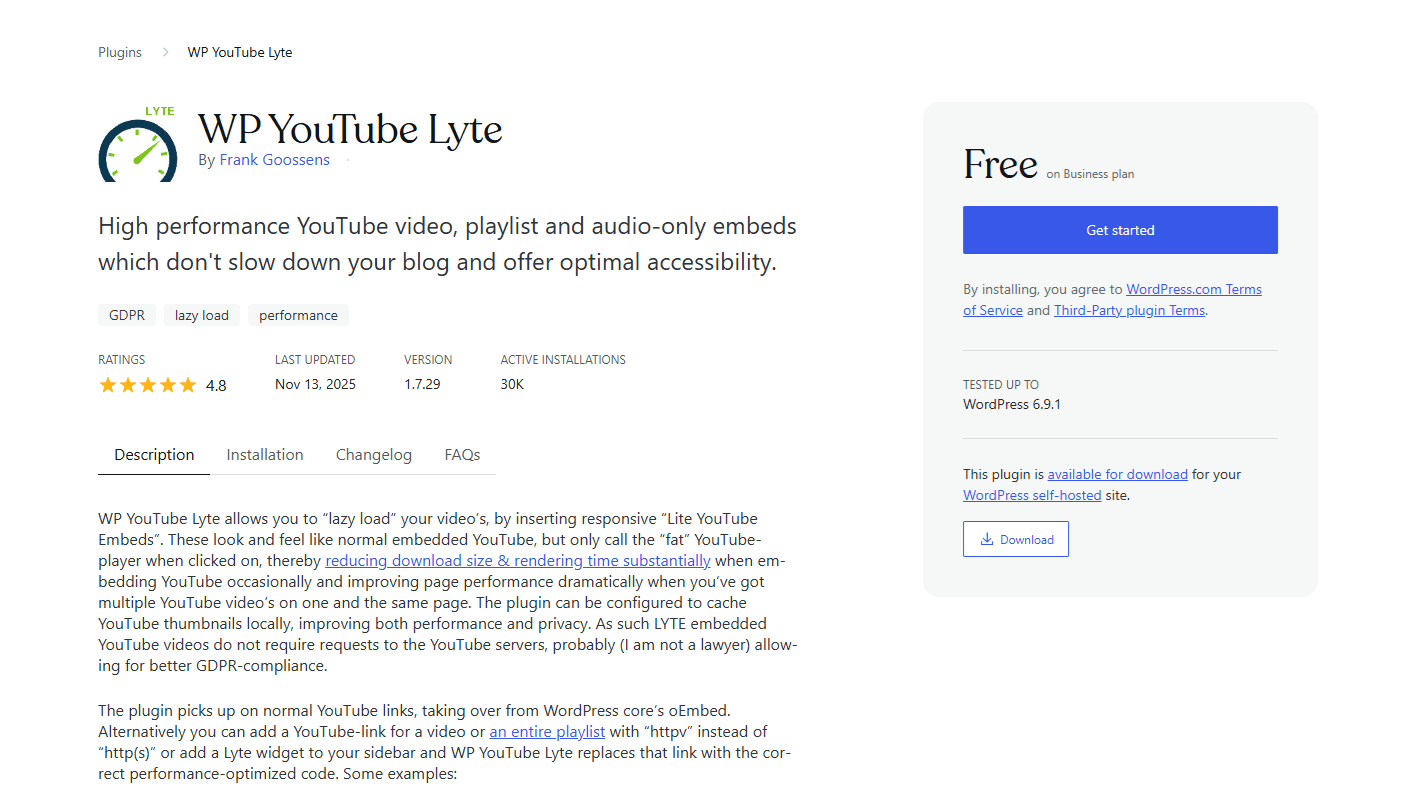
Key features:
Lightweight video embedding
Lazy loading to improve page speed
Simple playlist support
Minimal configuration required
When to use it:
WP YouTube Lyte focuses on performance. It delays loading the full YouTube player until a visitor clicks the video, which can significantly improve page speed scores.
If your main goal is keeping your site fast while still embedding a YouTube playlist, this is a practical option. It’s less about design flexibility and more about efficiency.
Pricing summary:
WP YouTube Lyte is free to use. Some advanced integrations may require additional tools, but the core plugin does not have a paid tier.
The best plugin depends on your goals. If you want full customization and cross-platform flexibility, Curator is the most versatile choice. If you prefer a WordPress-native solution with deeper YouTube controls, Smash Balloon or Embed Plus may be a better fit.
Benefits of embedding a YouTube playlist instead of a single video
Embedding a single video works fine. But embedding a YouTube playlist gives you more value with the same amount of effort.
Here’s why.
Automatically updates
When you embed a playlist, it updates automatically whenever you add new videos to that playlist on YouTube. You don’t need to replace code or edit your page each time you publish something new.
That means less maintenance and more fresh content on your site.
Better engagement
A playlist keeps visitors watching longer. Instead of viewing one video and leaving, they can move directly to the next video without searching your channel.
More watch time often means more trust—and more conversions.
Encourages binge-watching
Playlists are designed for sequential viewing. Whether it’s a tutorial series, product walkthrough, or webinar collection, viewers can follow along step by step.
This creates a smoother experience and increases the chances they’ll watch multiple videos in one session.
Great for course libraries
If you offer training, onboarding videos, or educational content, playlists keep everything organized. Visitors can see all lessons in one place and progress in order.
It feels structured and intentional.
More professional presentation
A playlist looks cleaner than embedding multiple individual videos across a page. It centralizes your content and reduces clutter.
For businesses, that polished presentation makes a strong impression.
Does embedding a YouTube playlist affect SEO?
Embedding a YouTube playlist can support your SEO when used strategically. It won’t automatically boost rankings on its own, but it can improve the signals search engines pay attention to.
First, playlists often increase time on page. When visitors watch multiple videos in one sitting, they stay on your site longer. Longer session duration can signal that your content is valuable and engaging.
Second, embedding a playlist does not duplicate content in a way that hurts your SEO. The videos are hosted on YouTube, and the embed simply displays them on your page. You’re not republishing the video files or copying metadata in a way that creates penalties.
Performance is also important. A poorly implemented embed can slow a page down, but when done correctly, it won’t hurt your site speed.
To keep your site optimized:
Use lazy loading when possible
Avoid embedding multiple heavy players above the fold
Use a lightweight widget instead of bulky iframes
Tools that support lazy loading and optimized scripts help your videos load only when needed. This improves performance and protects your page speed scores.
In short, embedding a YouTube playlist won’t damage your SEO—and when it improves engagement and watch time, it can actually work in your favor.
If you’re a WordPress user, learn more about the best YouTube WordPress plugins.
Frequently asked questions
How do I embed a YouTube playlist without showing other suggested videos?
To keep viewers inside your playlist, use the playlist embed link, not a single video link. The playlist iframe uses the videoseries URL with your playlist ID. This ensures the player shows only videos from that playlist instead of unrelated suggested content.
Can I embed a private YouTube playlist?
No, private playlists cannot be embedded. Your playlist must be set to Public or Unlisted. Public playlists are visible to everyone. Unlisted playlists do not appear in search results but can still be viewed and embedded using the direct link.
How do I make the playlist responsive?
To make your playlist responsive, place the iframe inside a container with a flexible width. Set the iframe width to 100 percent and control height with CSS. Many website builders handle this automatically, especially when using embed blocks or widgets.
Can I embed a playlist on Wix or Squarespace?
Yes, you can embed a playlist on both platforms. In Wix, use the Embed HTML element and paste your iframe code. In Squarespace, add a Code Block and insert the embed code. Save and preview to confirm it displays correctly.
Is there a YouTube playlist code generator?
Yes. When you click Share and then Embed on a playlist, YouTube automatically generates the embed code. Tools like Curator also act as enhanced code generators, giving you cleaner, customizable, and SEO friendly embed code for your website.
Ready to add a YouTube playlist to your website? Get started with Curator.
Previous post: