How to Embed YouTube Shorts on Your Website in 5 Easy Steps
Dayana Mayfield
on
Social Media
Want to showcase short-form video content without sending visitors away from your site? Embedding YouTube Shorts lets you display engaging, vertical videos directly on your website, so people stay focused on your brand instead of clicking over to YouTube.
Shorts are built for attention. They’re fast, mobile-first, and highly engaging. That makes them perfect for product highlights, quick tips, behind-the-scenes clips, and customer testimonials. A few well-placed Shorts can bring energy to a landing page or homepage in seconds.
If you pull Shorts from your YouTube channel or a dedicated playlist, your website can update automatically whenever you publish something new. That means less manual work and fresher content for your visitors.
In this guide, you’ll learn how to grab the YouTube Shorts embed code, paste it into your website, and customize it to fit your layout. We’ll also show you how to use a widget or plugin for more control, plus platform-specific tips for WordPress, Wix, Squarespace, Shopify, and Webflow.
How to embed YouTube Shorts on your website
Embedding YouTube Shorts on your website is simple. Display multiple vertical videos in a clean layout, copy one embed code, and paste it into your site.
Here’s how to do it step by step.
Step 1. Create a new feed and choose approval settings
Start by logging into your dashboard.
From the main screen, click “Create New Feed.” This is where you’ll build your YouTube Shorts widget.
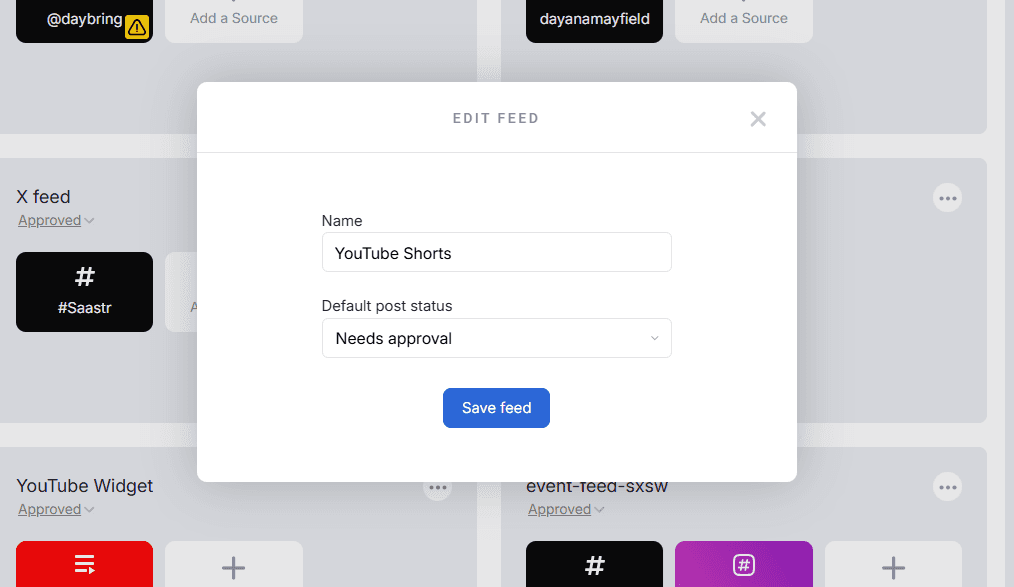
Give your feed a clear name. Use something simple like “YouTube Shorts,” “Product Shorts,” or “Quick Tips.” If you manage multiple feeds, good naming keeps everything organized.
Next, choose how you want videos to be published.
You’ll see two options:
Auto-approve
Manual approval
If you’re pulling Shorts from your own YouTube channel, auto-approve is usually the easiest choice. Every new Short will appear on your website automatically. You don’t have to log in each time you publish.
Manual approval gives you more control. You can review each video before it goes live. This works well if multiple team members upload content or if you want to feature only certain Shorts. If you publish a lot of standard YouTube videos, you should manual approval, so that you can only select and display Shorts content.
For most small businesses, auto-approve keeps things simple. If you run campaigns or rotate featured content, manual approval may be better.
Click Next to continue.
Step 2. Add YouTube as a source and select Shorts
Now it’s time to connect your content.
Click Add Source, then choose YouTube from the list of platforms.
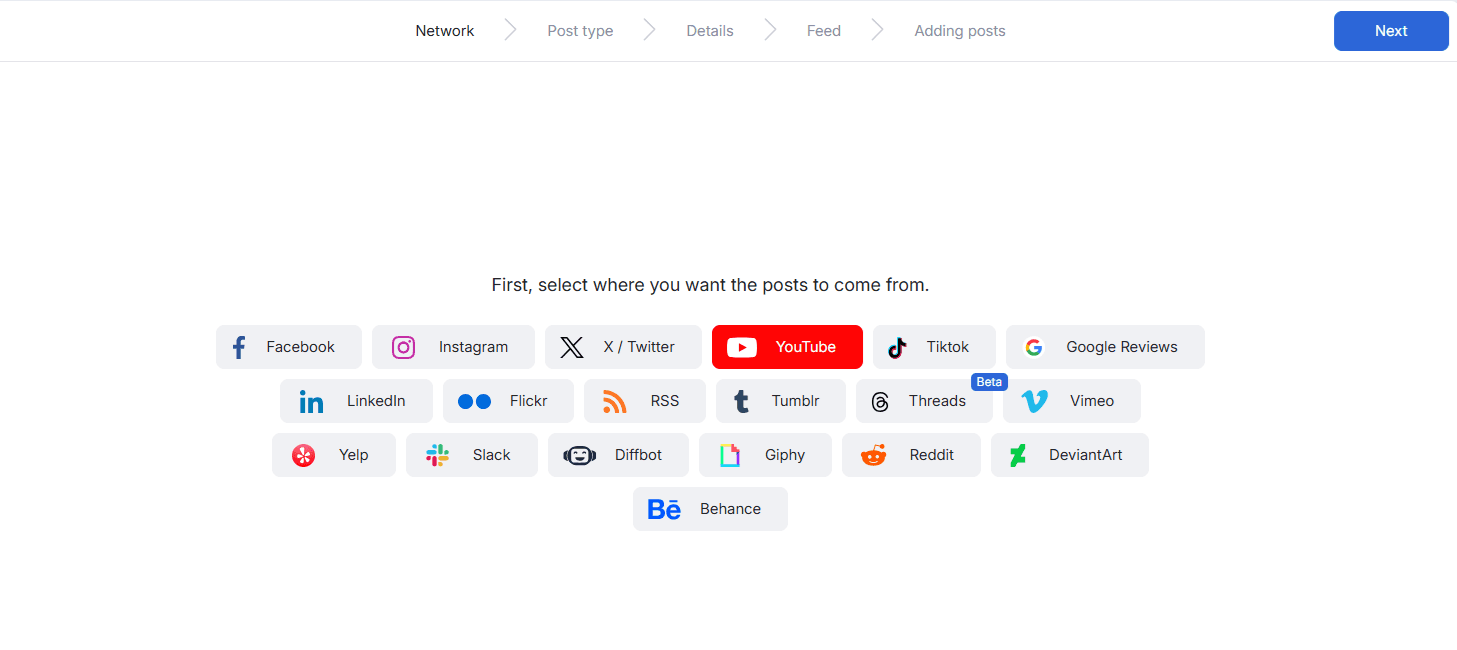
You’ll typically see a few options. For Shorts, you can choose:
Channel – This pulls in all videos from your channel, including Shorts. Check out this page instead if you want a full YouTube feed rather than Shorts alone.
Playlist – Use this if you’ve organized your Shorts into a dedicated playlist.
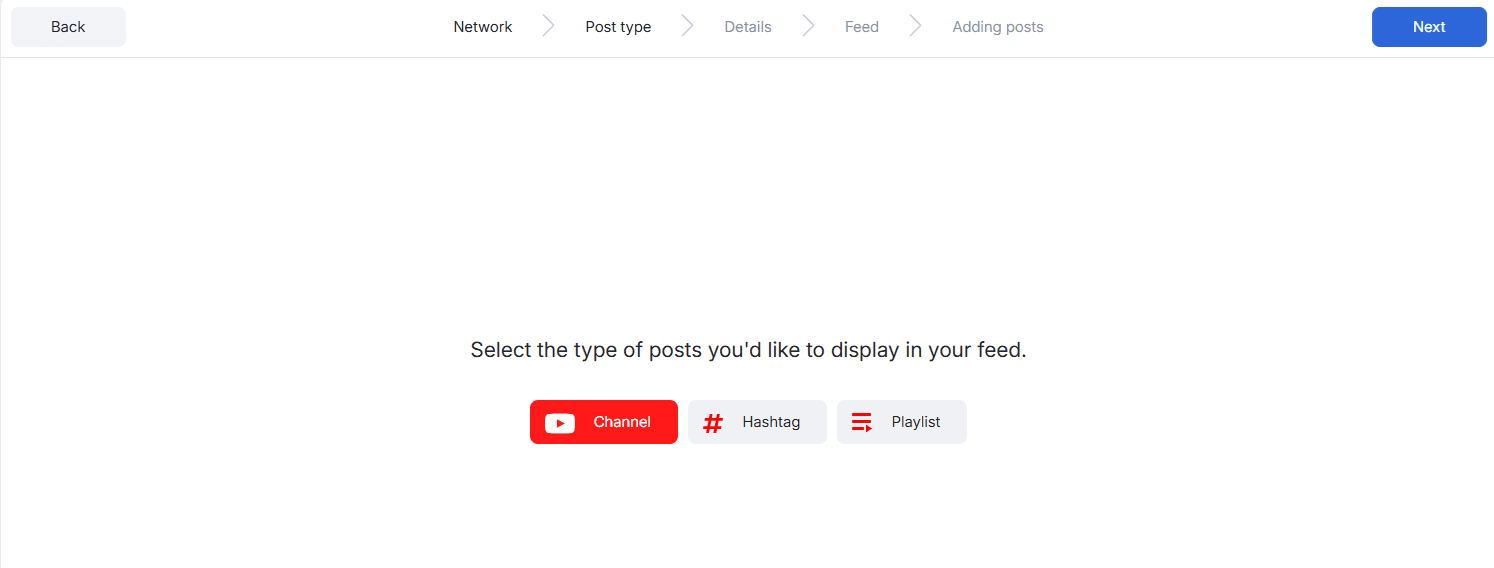
If you regularly publish both long-form videos and Shorts, a playlist gives you more control. It keeps your Shorts separate and focused.
Shorts appear as vertical videos. When displayed in a widget, they maintain their vertical format, which works especially well on mobile screens.
Next, connect your YouTube account or paste your channel or playlist URL. The system will automatically detect the content and begin importing your videos.
Within a few seconds, your Shorts will appear in your feed dashboard. Take a quick look to make sure everything loaded correctly.
Click Next when you’re ready.
Step 3. Moderate by approving and denying posts
Once your videos are imported, you’ll see them displayed in your dashboard.
If you selected auto-approve, all imported videos will already be active in your feed. Any new videos you publish to YouTube will sync automatically.
If you chose manual approval, you’ll review each Short before it appears on your website.
Remember that Curator aggregates both standard YouTube videos and Shorts, so if you only want Shorts to appear in your feed, make sure to only approve the vertical-orientation videos, not the horizontal-oriented ones.
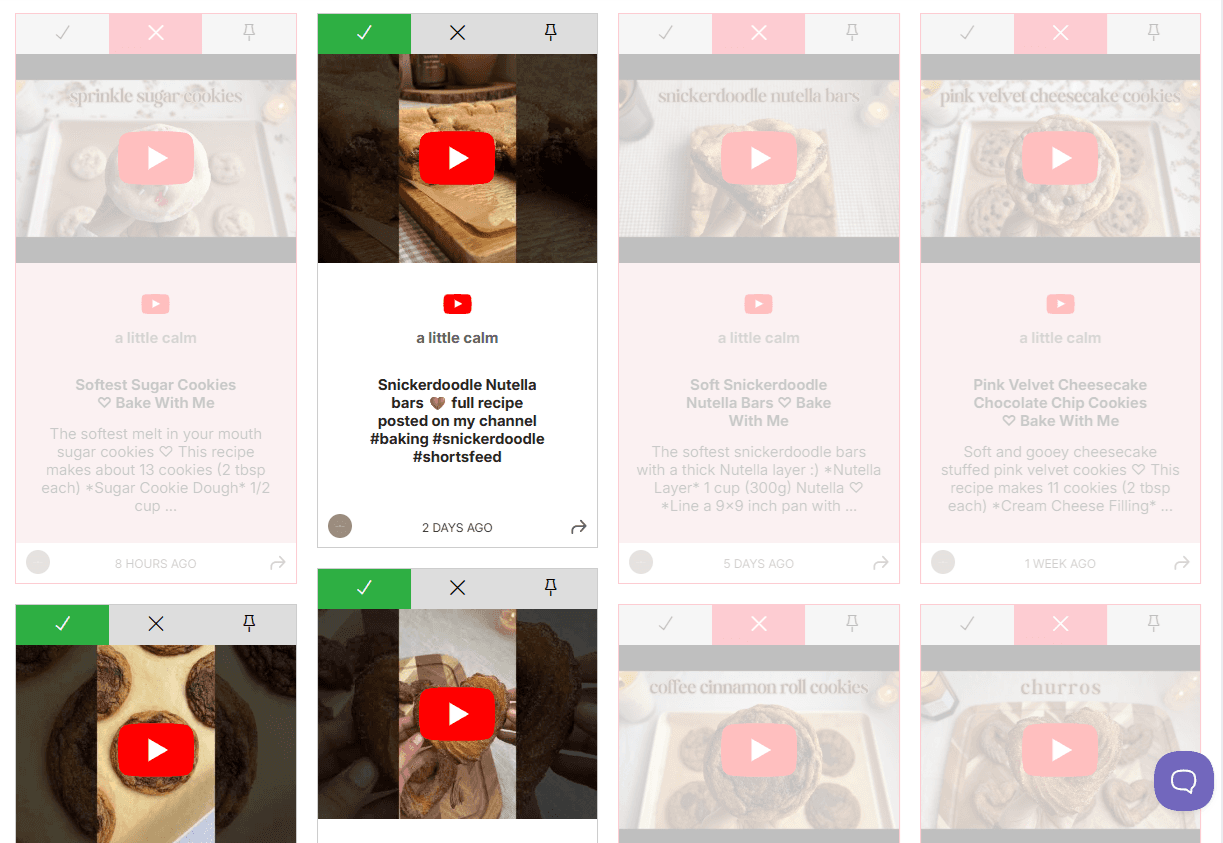
Each video has simple controls next to it. You can:
Approve a Short to publish it
Deny a Short to keep it hidden
Remove content that no longer fits your goals
You can also reorder videos. Drag your best-performing Short to the top. Highlight a product demo. Move seasonal content higher during a promotion.
This step matters more than people think. A curated feed feels intentional. It shows visitors that your content has purpose, not just volume.
When your selection looks right, click Style / Publish Feed to move to design.
Step 4. Customize your Shorts widget
Now you can shape how your Shorts appear on your website.
Instead of showing one video in a standard player, you can choose a layout that fits your page.
Common layout options include:
Grid – Ideal for a Shorts gallery or resource page
Carousel – Great for homepage sections
Masonry or vertical-friendly layouts – Designed to complement vertical video
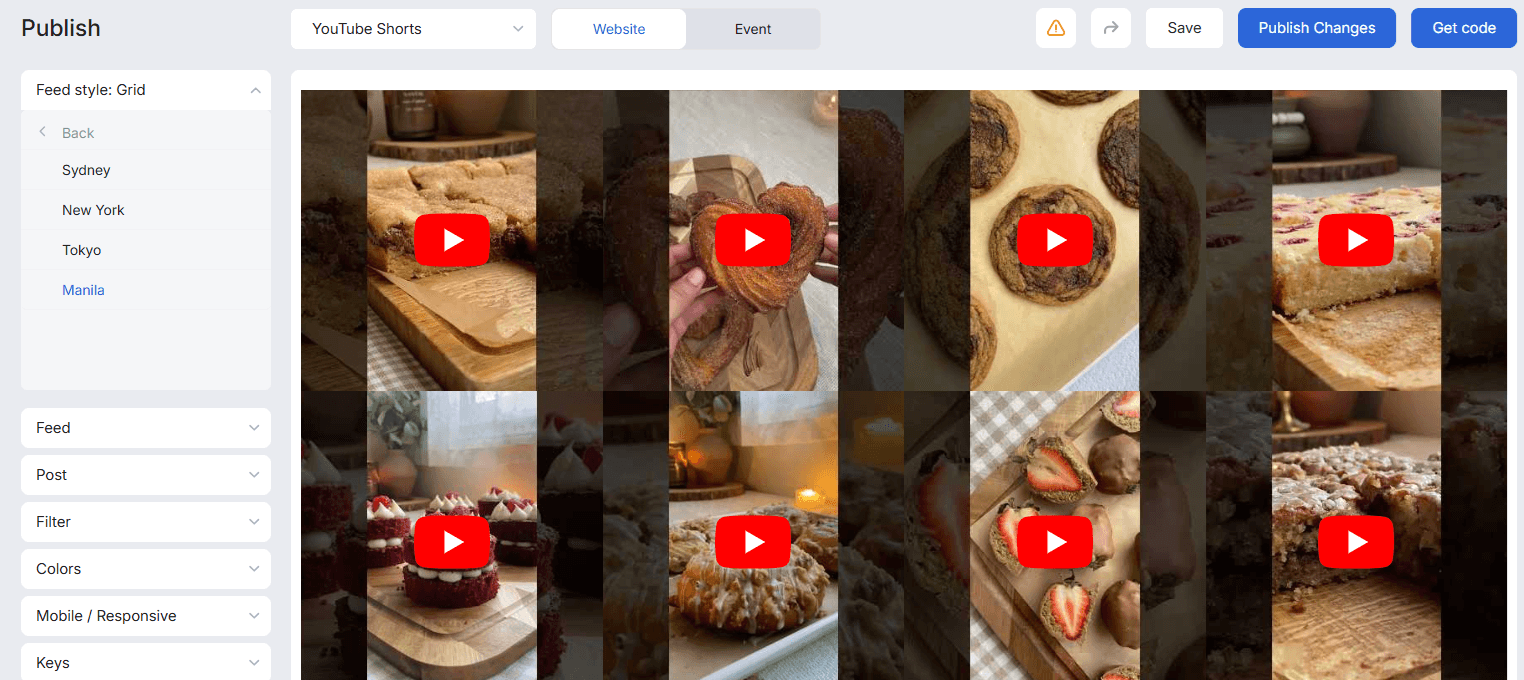
If you want visitors to scroll through multiple Shorts quickly, a grid works well. If you want a clean, compact section, a carousel may be better.
After choosing your layout, adjust the design.
You can customize:
Spacing between videos
Background colors
Text colors
Fonts
Number of videos per row
Keep it simple. Match your brand colors and typography so the widget feels native to your site.
Mobile responsiveness is especially important for Shorts. Since they’re vertical by nature, they already work well on smaller screens. Preview the feed on both desktop and mobile to confirm spacing looks balanced.
Most layouts automatically adjust to screen size, so you won’t need extra code.
When everything looks right, click Publish.
Step 5. Generate embed code
Once your feed is ready, it’s time to add it to your website.
Click Publish, then select Get Code.
You’ll receive a lightweight embed script. This acts as your YouTube Shorts code generator and widget generator in one. Instead of embedding each Short manually, you use one piece of code to display your entire feed.
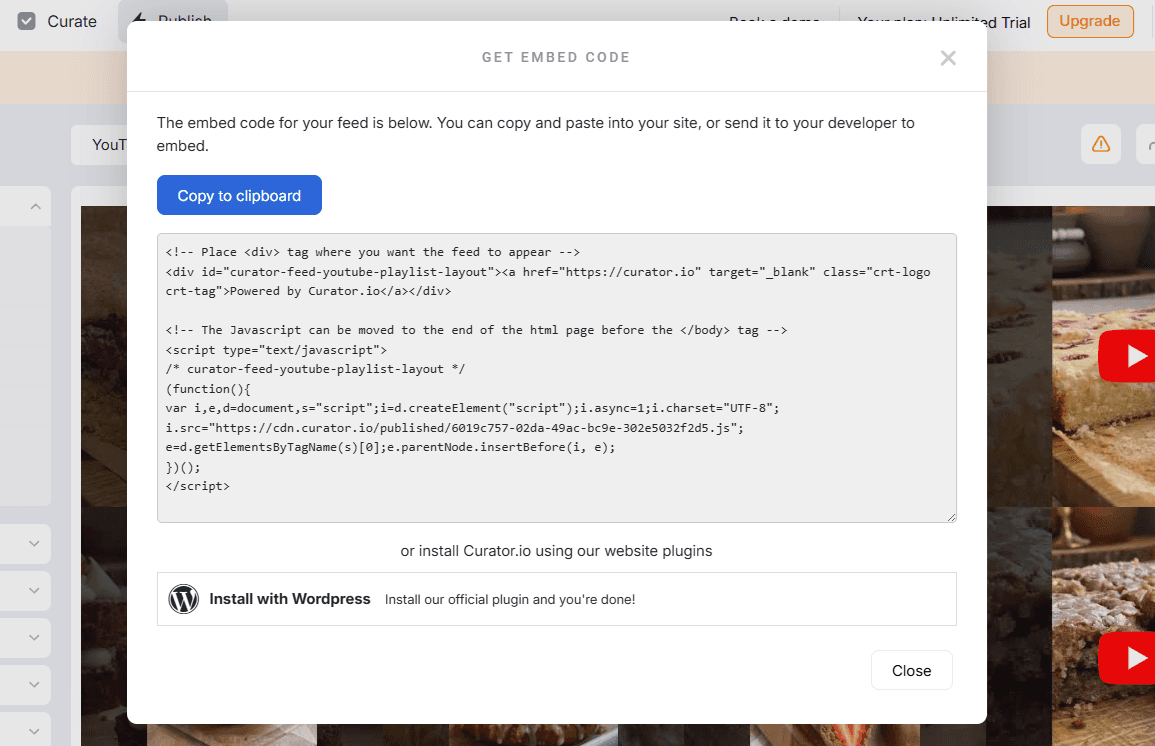
Copy the full embed code.
Now open your website editor and paste the code into an HTML or embed block. The exact location depends on your platform, but the process is similar everywhere.
In WordPress, add a Custom HTML block.
In Wix, use Embed HTML.
In Squarespace, insert a Code Block.
In Shopify, use a Custom Liquid section.
In Webflow, drag in an Embed element.
Paste the code, save your changes, and preview the page.
Your YouTube Shorts will now appear directly on your website. When you publish new Shorts to your channel or playlist, the feed can update automatically, depending on your approval settings.
That’s it. One connection. One embed code. Ongoing, fresh short-form video on your site.
For small and medium businesses, this approach saves time and keeps your content dynamic. Your website stays active without constant manual updates, and your visitors get engaging video content where it matters most.
Platform-specific embedding instructions
Once you’ve copied your embed code, adding it to your website is quick. Most website builders follow the same basic process: insert an embed or HTML block and paste the code.
WordPress
In the WordPress editor, click the + icon and add a Custom HTML block. Paste your embed code directly into the block, then preview the page to confirm everything displays correctly.
If you want more design control inside WordPress, you can also use a YouTube plugin. Some plugins offer layout settings, lazy loading, and additional styling options.
Wix
In Wix, click Add → Embed → Embed HTML. Paste your embed code into the HTML box and click Update. Resize the element as needed to fit your layout.
Squarespace
Add a Code Block to your page. Paste the embed code into the block, click Apply, and save your changes. Preview the page to check spacing and responsiveness.
Shopify
In Shopify, add a Custom Liquid block within your theme editor. Paste the embed code into the block and save.
Webflow
Drag an Embed element onto your page in the Designer. Paste the embed code into the custom code field and save.
Across all platforms, the process is the same: add an embed element and paste your code.
Why use a social media aggregator to embed your YouTube Shorts?
Embedding YouTube Shorts directly works, but it’s limited. A social media aggregator gives you more control over how your videos look and function on your site.
Instead of a single vertical iframe, you can display multiple Shorts at once. This makes your page feel active and engaging. Visitors can scroll, browse, and watch without clicking back and forth.
Design flexibility is another big advantage. You can match your brand colors, adjust spacing, and choose layouts that fit your website. Your Shorts feel like part of your site, not an external element dropped onto the page.
Moderation also matters. You can approve, hide, or reorder videos to highlight the content that supports your goals. That’s helpful if you’re running promotions, launching products, or updating campaigns.
Performance is important too. A well-built widget uses lightweight, SEO-friendly embed code that won’t slow down your site. That keeps your pages fast and your visitors happy.
With a social media aggregator, you can:
Control layout and design
Display multiple Shorts in one section
Moderate and reorder content
Keep your site lightweight
Combine Shorts with other social feeds
For growing businesses, this means more flexibility without more work. You get engaging video content that looks intentional and stays easy to manage.
Alternative method: embed directly from YouTube (basic iframe)
You can also embed a YouTube Short directly from YouTube using the default iframe. Open the Short you want to display, click Share, then select Embed. YouTube will generate an iframe embed code automatically.
Copy the full code and paste it into an HTML or embed block on your website. If needed, adjust the width and height inside the iframe to better fit your layout. Save your changes and preview the page to make sure the video displays correctly on desktop and mobile.
This method works well for adding a single Short quickly. However, it only displays one video at a time. You won’t have much control over layout or styling, and the standard YouTube player will keep its default appearance.
Customizing your YouTube Shorts embed code
You can fine-tune your YouTube Shorts embed code with a few simple adjustments to better match your layout and performance goals.
Adjust width and height: Edit the
widthandheightvalues inside the iframe tag to control the size of the video. This helps you fit the Short neatly into your page design.Set a responsive container: Place the iframe inside a container with a flexible width (like 100%). This ensures the Short scales properly on mobile and tablet screens.
Enable autoplay (
&autoplay=1): Add&autoplay=1to the video URL inside the iframe to start playback automatically. Keep in mind that many browsers mute autoplay by default.Hide controls (
&controls=0): Add&controls=0to remove standard YouTube player buttons for a cleaner look.Loop video (
&loop=1): Add&loop=1to replay the Short automatically after it ends.Use lazy loading for performance: Add
loading="lazy"to the iframe to delay loading until the video is visible on screen. This helps improve page speed.
Best tools for embedding YouTube Shorts
The right tool helps you display YouTube Shorts in clean layouts, improve performance, and keep your site looking professional. Here are four strong options to consider.
1. Curator
Key features:
Pull in YouTube channel content, including Shorts
Display Shorts in grid, carousel, or list layouts
Full design control (colors, fonts, spacing)
Content moderation and approval workflows
Lightweight, SEO-friendly embed code
Works with WordPress, Wix, Squarespace, Shopify, and Webflow
When to use it:
Curator is ideal if you want more than a single embedded Short. It’s a strong choice for businesses that want full layout control and the ability to moderate content. It’s also helpful if you want to combine YouTube Shorts with other social feeds.
Pricing summary:
Curator offers a free plan with limited sources and monthly views. Paid plans start at $25/month and include more sources, faster updates, and advanced features.
2. Smash Balloon

Key features:
Display YouTube feeds, playlists, and live streams
Responsive layouts
Multiple feed types on one page
Custom styling options
Built-in caching for performance
When to use it:
Smash Balloon works best for WordPress users who want deeper YouTube integration. It gives you more layout flexibility than a basic iframe and includes performance optimization tools.
Pricing summary:
A free version is available with limited features. Pro plans start at around $49/year for a single site.
3. Tagembed
Key features:
Aggregate YouTube feeds, playlists, and Shorts
Drag-and-drop widget builder
Custom themes and layout options
Content moderation tools
Real-time updates
When to use it:
Tagembed is a good fit for businesses that want a visual builder and quick setup. It works well if you plan to display YouTube Shorts alongside other social platforms in one unified feed.
Pricing summary:
Tagembed offers a free plan with limited views. Paid plans start at approximately $19/month, with higher tiers unlocking more feeds and features.
4. Elfsight
Key features:
YouTube gallery widget with multiple layout styles
Grid, slider, and masonry options
Customizable player elements
Responsive design
Works across major website builders
When to use it:
Elfsight is ideal for non-technical users who want a polished YouTube Shorts gallery without coding. It’s especially useful if design flexibility is your priority.
Pricing summary:
Elfsight offers a free plan with limited views. Paid plans start at around $5–$10/month depending on usage and features.
Benefits of embedding YouTube Shorts instead of linking to YouTube
Embedding YouTube Shorts directly on your website keeps visitors where you want them—on your site. Instead of clicking away to YouTube, they can watch your content without leaving your page. That means more time spent with your brand.
Short-form videos are designed to grab attention quickly. When visitors can scroll through multiple Shorts in one place, engagement naturally increases. They’re more likely to watch more than one video in a single visit.
Shorts also encourage binge-style viewing. One quick clip leads to another. This works especially well for tutorials, tips, behind-the-scenes content, or product highlights.
For product showcases, Shorts are powerful. You can demonstrate features, share quick customer testimonials, or highlight use cases in under a minute. It’s fast, clear, and easy to digest.
Since Shorts are vertical and mobile-first, they look great on smartphones. Embedding them on your site improves the mobile experience without extra design work.
Finally, embedding Shorts creates a more professional presentation. Your content feels integrated into your website instead of redirecting visitors to another platform.
Does embedding YouTube Shorts affect SEO?
Embedding YouTube Shorts can support your SEO when used thoughtfully. While it won’t automatically boost rankings, it can improve important engagement signals.
First, Shorts often increase time on page. When visitors watch one or more videos, they stay longer. Longer session duration can signal that your content is helpful and relevant.
There are no duplicate content issues to worry about. The video is hosted on YouTube, and the embed simply displays it on your site. You’re not republishing the file itself, so it won’t create SEO penalties.
Performance does matter. Video embeds can slow down a page if they aren’t handled properly. That’s why optimization is important.
Use lazy loading whenever possible. This delays loading the video player until it’s visible on screen, which helps maintain fast page speeds.
It’s also smart to avoid placing too many heavy video embeds above the fold. Keep your layout clean and balanced so your page loads quickly and feels smooth for visitors.
When implemented carefully, embedding YouTube Shorts can enhance engagement without harming your SEO. If you're a WordPress user, learn more about the best YouTube WordPress plugins.
Frequently asked questions
How do I embed YouTube Shorts without showing suggested videos?
Use the standard YouTube embed code and avoid linking to a regular watch page URL. While you can’t remove all suggested videos at the end, embedding from your own channel reduces unrelated content. A curated widget gives you more control over what appears.
Can I embed multiple Shorts in a grid layout?
Yes. Instead of embedding one Short at a time, you can use a feed or widget to display multiple Shorts in a grid. This allows visitors to browse and choose what to watch. It also keeps your page organized and visually clean.
How do I make YouTube Shorts responsive?
Set the video width to 100% inside a flexible container so it adjusts to screen size. Many website builders handle this automatically. You can also use lazy loading to improve performance while keeping the layout mobile-friendly.
Can I embed Shorts on Wix or Squarespace?
Yes. Both platforms allow you to add custom embed code. In Wix, use the Embed HTML element. In Squarespace, add a Code Block. Paste your embed code, save, and preview to confirm everything displays properly.
Is there a YouTube Shorts code generator?
YouTube automatically generates embed code when you click Share and then Embed on a Short. Some third-party tools also act as code generators, allowing you to create customizable, lightweight embed scripts for displaying multiple Shorts at once.
Add a YouTube shorts feed to your website. It's easy, reliable, and free. Get started with Curator.
Previous post: