Want to keep your website fresh without constantly updating it yourself? Adding an RSS feed is one of the easiest ways to automatically pull in the latest blog posts, news articles, podcasts, or other updates from sources you trust.
Whether you're a blogger sharing industry news, a business displaying content from your partners, or a publisher curating feeds from multiple sites, RSS feeds can save time and boost engagement. They help you show timely, relevant content that updates on its own, keeping visitors on your site longer.
In this guide, we’ll show you exactly how to add an RSS feed to your website using Curator. We'll walk you through every step, including screenshots tips for styling your feed to match your brand.
We’ll also share a list of top RSS tools and offer embed tips for platforms like WordPress, Wix, and Squarespace.
Let’s get started with the easiest way to bring dynamic content to your site.
How to add an RSS feed to your website in 6 simple steps
Adding an RSS feed to your website is easier than ever with a tool like Curator.
Whether you're displaying blog posts, podcast episodes, or curated news, RSS feeds help you keep your website fresh — automatically.
Here’s a simple, step-by-step guide to embedding an RSS feed on your site using Curator.
Let’s get started.
Step 1. Create a new feed
After logging into your Curator dashboard, the first thing you'll do is create a new feed.
Click the "Create New Feed" button.
Give your feed a name. This name is just for internal use, so you can label it something like "Blog Feed," "Podcast Updates," or "Industry News."
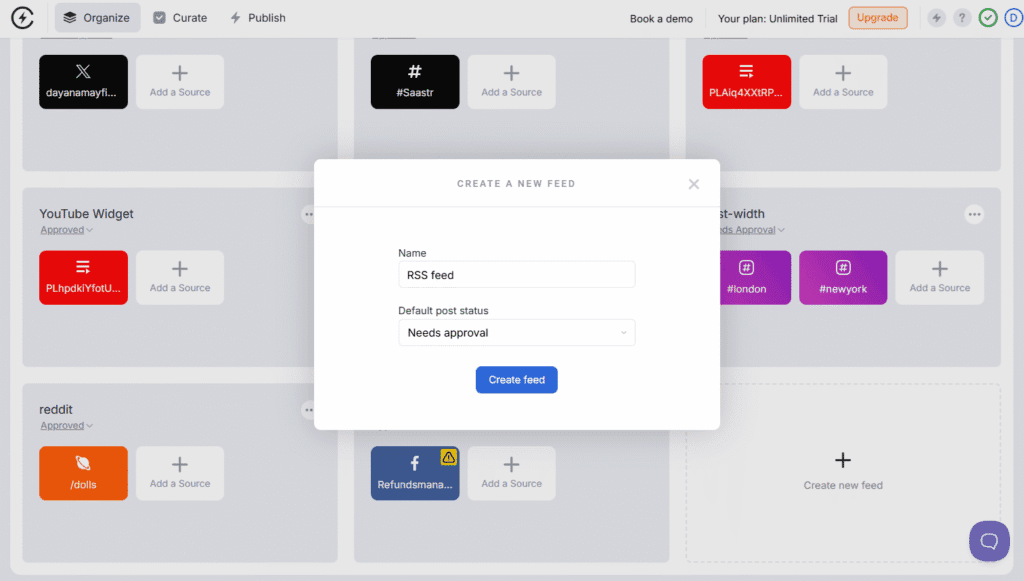
Click Create, and you’re ready to move to the next step.
Step 2. Choose your approval method
Next, you’ll decide how posts get published to your feed.
Curator gives you two options:
Auto-approve
Manual approval
If you trust the RSS source and want your feed to update automatically with every new post, auto-approve is the easiest option.
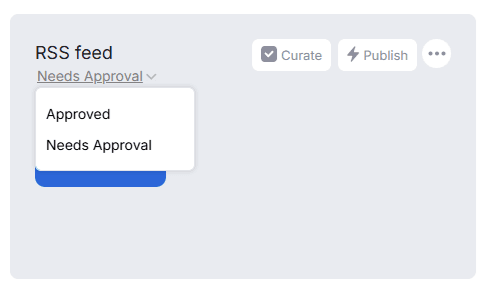
But if you want to filter content and only show certain posts, choose manual approval.
Best practices for RSS feed approval:
Use auto-approval for feeds you control (like your own blog).
Use manual approval for external feeds or curated industry content.
Keep your feed clean by removing duplicates or irrelevant posts.
Set aside time regularly to review and approve new content if you're not auto-approving.
Once you’ve selected your approval setting, click Next.
Step 3. Add the RSS feed
Now it’s time to add your RSS source.
Click Add Source, then select RSS from the list of source types.

Paste in your RSS feed URL.
Not sure what your RSS feed URL is?
In most cases, you can simply add /feed to the end of your website or blog URL.
For example:
WordPress blog:
yourdomain.com/feedSquarespace:
yourdomain.com/blog?format=rssBlogger:
yourdomain.com/feeds/posts/default
If you’re using a third-party platform or podcast host, check their documentation for the correct RSS link.
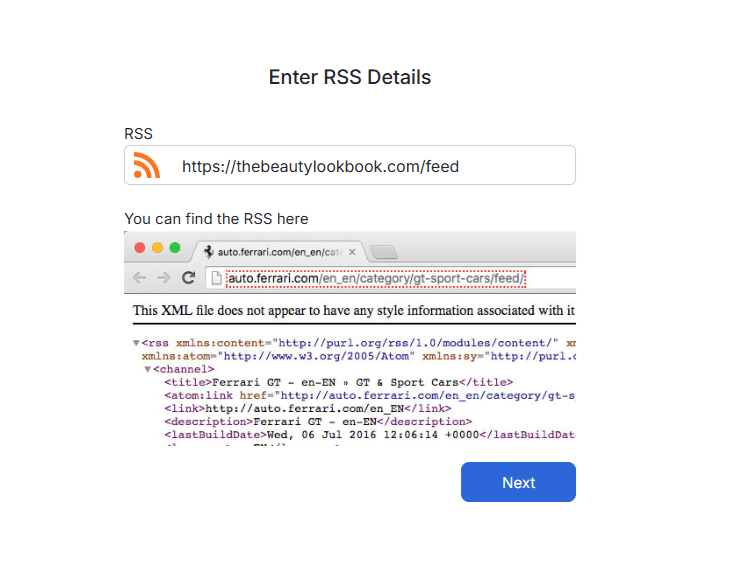
After you’ve added the URL, click Next and Curator will pull in your latest posts.
Step 4. Curate posts
Once your feed is connected, Curator will display the most recent items.
If you chose manual approval, this is where you can go through and decide which posts should appear on your site.
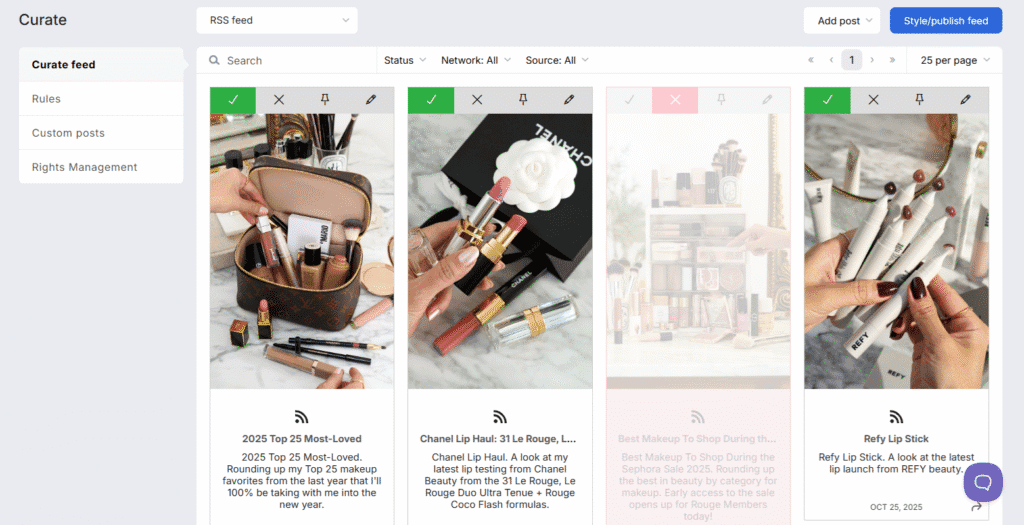
You’ll see a simple interface where you can approve or deny each item with a click.
Once you’re happy with the selection, click Style / Publish Feed.
This takes you into the design step.
Step 5. Stylize your feed
Now comes the fun part—designing your RSS feed so it looks great on your website.
Start by choosing a template. Curator offers several layouts, such as grid, carousel, or list, depending on your content and where you plan to embed it.
After picking your layout, you can customize:
Colors: Match your brand colors or website theme.
Fonts: Choose typography that complements your site.
Borders & Spacing: Adjust padding, margins, and borders.
Text Description: Decide how many lines of text show per post.
Post Layout: Choose how many posts appear per row, and how many rows are visible at once.
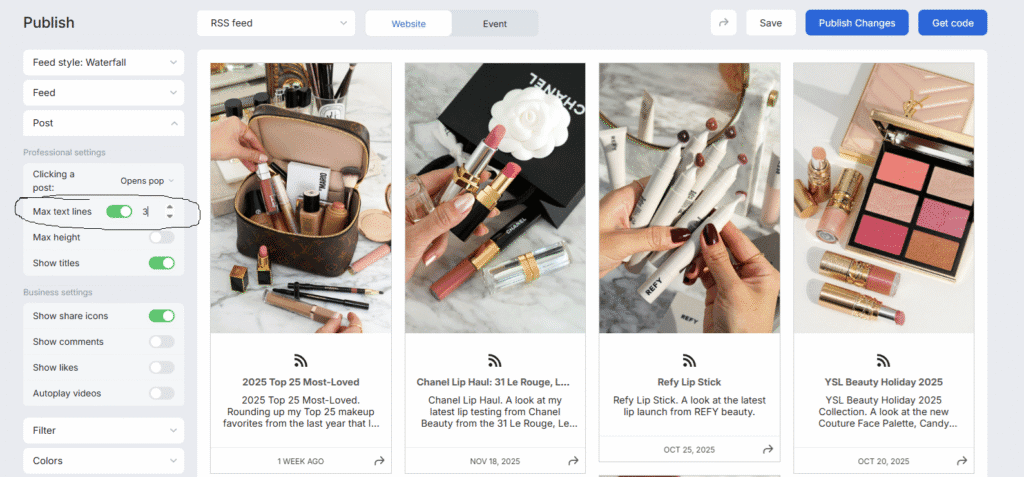
For even more control, you can add custom CSS to make the feed blend seamlessly with your site.
Take a moment to preview the feed and make adjustments until it feels just right.
Step 6. Embed it in your website
Once your feed looks the way you want, it’s time to embed it on your website. Click Publish then Get Code to get the code.
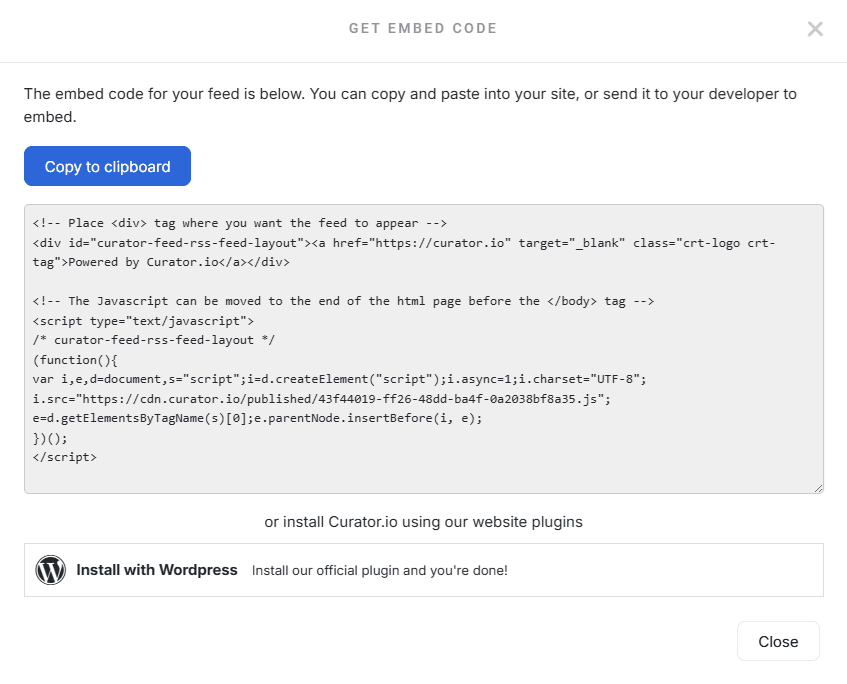
Curator gives you an HTML embed code—just like a YouTube video or a social media widget.
Copy the code.
Then paste it into your site where you want the feed to appear.
Where you place it depends on your website builder:
In WordPress, you can paste it into a Custom HTML block or widget area.
In Wix, use the Embed HTML element.
In Squarespace, add a Code Block.
In Webflow, drop it into an Embed element in the Designer.
In Shopify, paste it into a theme file or use a custom section.
After you paste the code and publish the page, your feed will appear live—and it will update automatically whenever new items are added to the RSS feed.
7 tools for adding an RSS feed to your site
1. Curator

Curator is a simple, powerful RSS and social media aggregator that helps you display content on your website in just minutes. Use it to automatically pull in blog posts, updates, or user-generated content and showcase it beautifully.
Top features:
connect RSS, social, and review sources
20+ plug-and-play feed templates
approval workflows and moderation rules
full CSS styling and layout control
lightweight, SEO-friendly embed code
unlimited admin users
analytics and reporting tools
works with any website builder
Pricing:
Curator offers a generous free plan that includes 3 sources, 2,000 views/month, and unlimited admin users. Paid plans start at $25/month and include faster update times, more sources, and advanced features like API access and post editing.
2. RSS.app

This platform makes it easy to generate and embed RSS feeds from almost any website — no coding required. It’s a great choice for users who want to create custom feeds or add dynamic content to their site with minimal effort.
Top features:
generate RSS feeds from almost any URL
customizable widgets with multiple layout options
support for over 1,000 websites and platforms
RSS builder and advanced filters
bundles, collections, and approval tools
automated alerts via email, Slack, or Telegram
RSS to JSON, CSV, and email integrations
team collaboration and API access
Pricing:
RSS.app offers a 7-day free trial with no credit card required. After that, plans start at $8.32/month when billed annually. All plans include widgets, feeds, alerts, and filtering tools, with more sources, refresh speed, and integrations available on higher tiers.
3. Feedwind

With Feedwind, you can quickly create and customize dynamic RSS widgets for your website. It supports multiple content sources, offers flexible display options, and works with all major website builders. Ideal for adding news, updates, or events feeds with minimal setup.
Top features:
fully responsive, mobile-friendly widgets
scroll options with vertical, horizontal, or auto modes
multiple feed sources per widget
custom CSS and keyword filtering (paid plans)
display up to 200 posts per widget
support for RSS, Facebook, Google Calendar, Instagram, YouTube, and X
real-time updates as frequently as every 5 minutes
easy integration with WordPress, Squarespace, Wix, and more
Pricing:
Feedwind offers a free plan with 1 widget, 1 feed, and updates every 12 hours. Paid plans start at just $0.75/month, with a 14-day free trial. Higher tiers unlock more widgets, faster refresh rates, keyword filtering, and full CSS control.
4. Elfsight
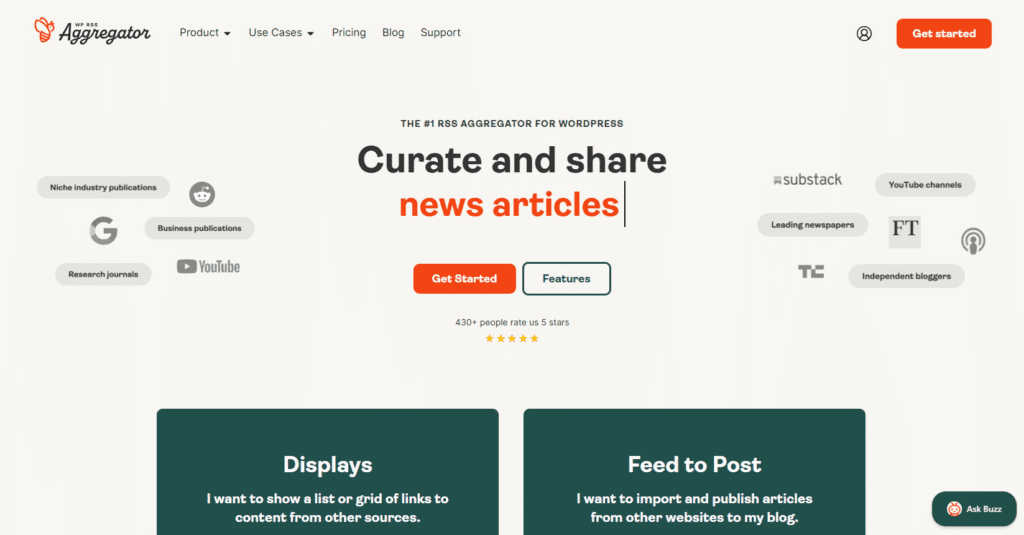
Perfect for non-developers, this tool lets you embed stylish, responsive RSS feeds on your website in just a few clicks. With drag-and-drop design, flexible layouts, and zero coding required, it’s ideal for showcasing blog posts, news, or updates from any source.
Top features:
6 layout options including grid, list, carousel, and masonry
customizable post cards with control over elements like author, date, and share button
popup view to increase engagement without leaving your site
color scheme generator and full manual style editing
auto-updating content from any RSS source
mobile responsive and performance-optimized
works with all major platforms like Squarespace, Wix, Shopify, and Webflow
live preview editor with free installation service
Pricing:
Elfsight offers a forever free plan with 1 widget and 200 monthly views. Paid plans start at $5/month, including more views, widgets, and full ad-free customization. All plans support unlimited websites, and a free trial is available.
5. Tagembed

Built for marketers, bloggers, and brands, this tool helps you collect and display RSS feeds from multiple sources in one unified, customizable widget. It’s designed to boost engagement, improve SEO, and keep your website content fresh.
Top features:
collect and curate RSS feeds from any site
drag-and-drop widget design with themes and layouts
real-time updates and auto-refreshing content
profanity filters and advanced content moderation
responsive widgets that don’t slow down your site
analytics dashboard with engagement metrics
seamless integration with WordPress, Shopify, Wix, and more
support for 15+ platforms including social and review feeds
Pricing:
Tagembed offers a forever free plan with 1 feed, 500 views/month, and basic customization. Paid plans start at $19/month, with higher tiers offering more feeds, faster updates, advanced moderation, and shoppable features. A 14-day free trial is available — no credit card required.
6. CommonNinja
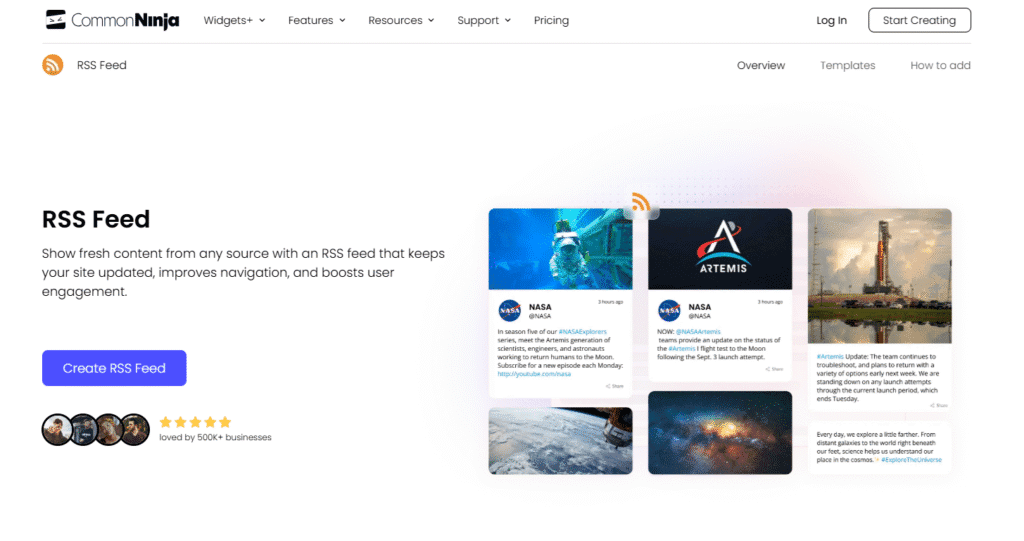
Common Ninja is a no-code widget platform that lets you easily embed RSS feeds on your website. With clean design options, flexible integrations, and smart content filtering, it's perfect for keeping your pages fresh, engaging, and automated—no developer required.
Top features:
drag-and-drop RSS widget builder
auto-refresh and real-time content updates
supports multiple RSS sources in one feed
scrolling animations and layout customization
advanced filtering and editorial controls
fully responsive and works on any platform
HTML embed for any website builder
integrates with 200+ other widgets from Common Ninja
Pricing:
Common Ninja offers a free plan with 1 widget, 200 monthly views, and basic features. Paid plans start at $7/month when billed annually, unlocking more feeds, higher limits, branding removal, API access, and advanced styling. A 7-day money-back guarantee is included.
7. WP RSS Aggregator
WP RSS Aggregator is the most powerful and widely used RSS plugin for WordPress. It lets you import, curate, and display content from unlimited RSS feeds, making it ideal for bloggers, publishers, content marketers, and anyone who wants to automate content delivery on a WordPress site.
Top features:
import and publish posts from unlimited RSS feeds
display feeds in lists, grids, or custom templates
full text and media import from truncated feeds
automated filtering by keyword, tag, or category
supports custom post types and custom fields
scheduling and feed automation options
3rd-party AI integrations (WordAi, SpinnerChief)
fully compatible with modern WordPress themes and builders
Pricing:
WP RSS Aggregator offers a Basic plan at $99/year with display features and unlimited feeds. The Pro plan ($199/year) adds full post importing and filtering. Elite ($269/year) unlocks AI-powered content rewriting. All plans include updates, support, and a 30-day money-back guarantee.
Frequently asked questions
Is Curator’s RSS widget free?
Yes! Curator offers a free plan that includes up to 3 sources, and RSS is included as one of those source types. You can connect an RSS feed, style it, and embed it on your site. If you need more sources, faster updates, or advanced features, you can upgrade at any time.
What kind of content can I display using an RSS feed?
You can display almost any content that’s published through an RSS feed. This includes blog posts, news articles, podcast episodes, YouTube videos, job listings, and more. As long as the source provides an RSS feed, you can pull it into your website automatically.
Where do I find my RSS feed URL?
In many cases, your RSS feed URL follows a standard format based on your website platform. For example, WordPress sites usually use yourdomain.com/feed, while Squarespace blogs typically use yourdomain.com/blog?format=rss. Blogger sites often use yourdomain.com/feeds/posts/default. If you’re using a podcast host or another third‑party platform, check their documentation or settings area to find the correct RSS feed URL. Once you have the link, you can paste it directly into Curator to start pulling in content automatically.
How often does the RSS feed update on my site?
Curator’s update frequency depends on your plan. On the free plan, RSS feeds check for new content every few hours. Paid plans offer faster update times, as frequent as every 15 minutes. Most users find the default update speed is fast enough for typical blog or news use.
Can I approve or filter RSS feed posts before they go live?
Yes, Curator lets you choose between auto-approval and manual approval. For trusted sources (like your own blog), auto-approval keeps things hands-free. For curated content, manual approval gives you more control, allowing you to filter out posts that aren’t relevant or on-brand.
Will adding an RSS feed slow down my site?
Not with a tool like Curator. All feeds are rendered through lightweight, SEO-friendly embed code. This keeps your site fast and responsive while still displaying dynamic, auto-updating content. Plus, Curator’s widget is mobile-optimized and loads asynchronously to prevent delays.
Can I customize how the feed looks on my website?
Absolutely. Curator offers multiple feed templates (like grids, carousels, and lists), along with full customization options for colors, fonts, spacing, and layout. You can also use custom CSS if you want more control over the design.
Why should I use an RSS feed instead of copying and pasting content?
RSS feeds save time and ensure your site stays up to date automatically. Instead of manually adding new blog posts or links, an RSS feed brings them in for you. It’s perfect for curated news sections, partner updates, or blog syndication — and helps improve engagement with minimal effort.
Can I embed an RSS feed on platforms like Wix, Squarespace, or Shopify?
Yes! Curator works with virtually all major website builders. Just copy your embed code and paste it into an HTML block or custom code section on your site. We’ve included embed tips for popular platforms earlier in this post.
Previous post: