Behance is a popular online platform where designers, illustrators, photographers, and other creatives showcase their work. Owned by Adobe, it has become one of the most widely used portfolio networks for discovering creative talent and exploring professional projects across industries. Because of its strong visual focus and active community, many creators use Behance to present their best work, build credibility, and connect with potential clients or collaborators.
Embedding Behance on your website lets you display these projects directly on your pages without manually uploading images or rebuilding your portfolio. This keeps your site visually engaging while ensuring your work stays updated as you publish new projects on Behance.
For businesses, agencies, and freelancers, a Behance embed can instantly add professional design work to a website, strengthen brand credibility, and give visitors a seamless way to explore your portfolio without leaving your site.
How to add a Behance feed to your website in 6 simple steps
While there are several ways to embed Behance on your website, the easiest method is with a social media aggregator. These tools automatically collect and display content from platforms like Behance and organize it into a customizable feed you can add to your site.
Here’s how to do it in six simple steps with an aggregator like Curator:
Step 1. Create a new feed
Once you’re logged into your Curator dashboard, the first step is to set up a new feed for your Behance content.
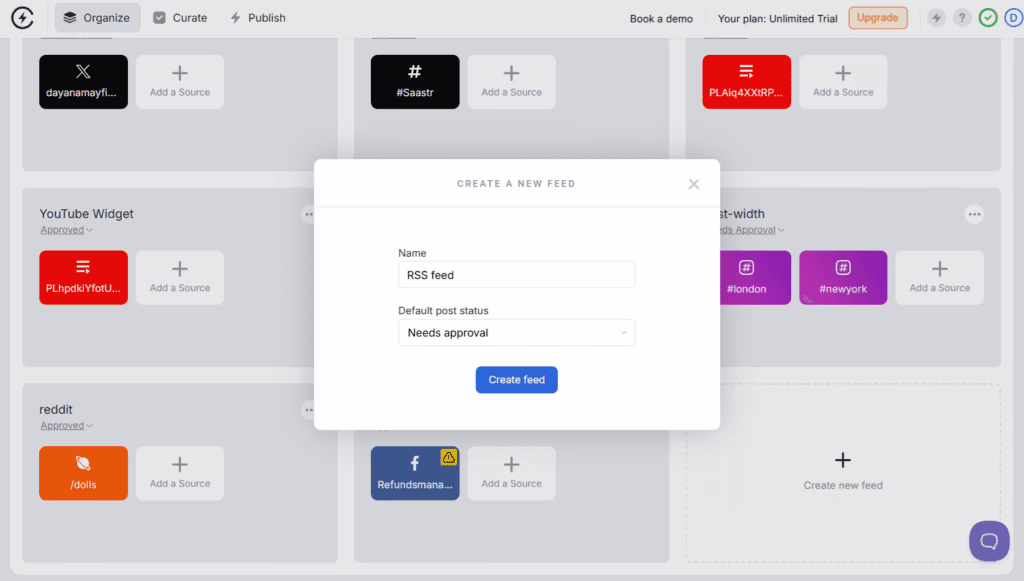
Click the "Create New Feed" button and give your feed a name. You could use something like “Portfolio Showcase” or “Design Projects Feed”. Click Create and your new feed is ready and connected to Behance to start pulling in your projects.
Step 2. Choose your approval method
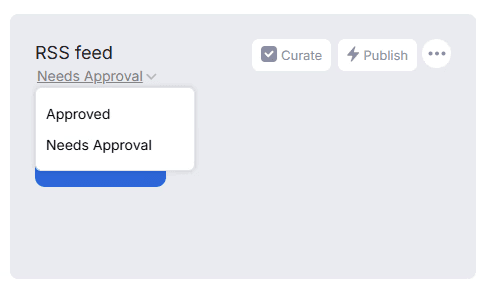
Next, you’ll choose how Behance projects appear in your feed. You can choose between Auto-approve and Manual approval. If you want your feed to update automatically whenever you publish a new Behance project, auto-approve is the easiest choice. This way, your portfolio stays current without any extra steps. But if you want to filter content and only show certain posts, choose manual approval.
Best practices for Behance feed approval:
Use auto-approval for your own Behance projects to ensure your portfolio updates automatically.
Use manual approval if you’re adding projects from other designers or curated industry content.
Keep your feed tidy by removing duplicates or projects that don’t fit your site’s focus.
If not using auto-approval, set aside time regularly to review and approve new Behance projects.
Once you’ve chosen your approval setting, click Next to continue.
Step 3. Add the Behance feed to your website
Now it’s time to connect your Behance projects.
Click Add Source and select Behance from the list of source types.
Paste your Behance URL.

Paste your profile URL (behance.net/username). Curator auto-fetches latest projects, portfolios, and work images with moderation controls.After entering the details, click Next, and Curator will pull in your latest Behance projects, ready to display on your website.
Step 4. Curate posts
Once your feed is connected, Curator will display the most recent items. If you chose manual approval, this is where you can go through and decide which posts should appear on your site.
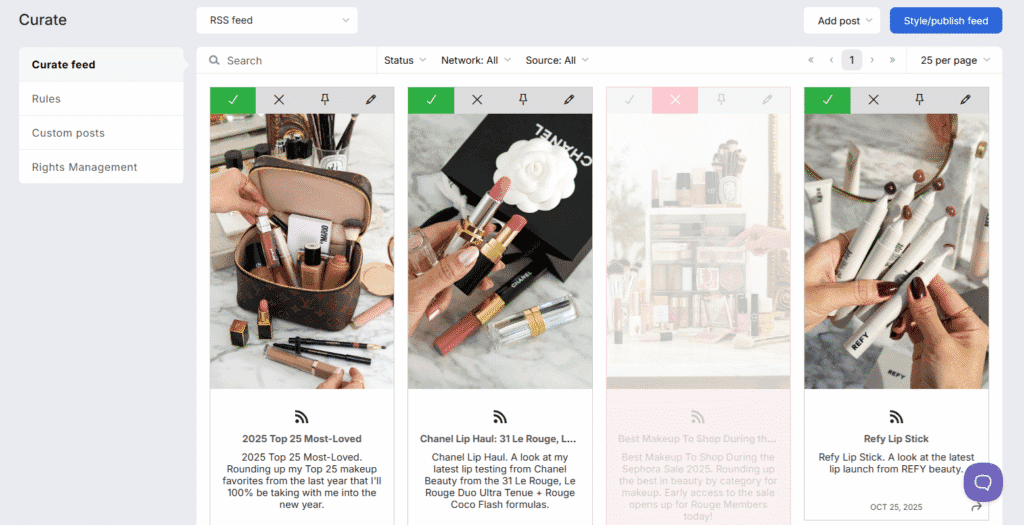
You’ll see a simple interface where you can approve or deny each item with a click. Once you’re happy with the selection, click Style / Publish Feed to go to the design step.
Step 5. Stylize your feed
Next comes customizing your Behance feed so it matches your website or elevates it.
Choose a Template: Curator offers layouts like grid, carousel, or list, depending on your site’s style and where you plan to embed the feed.
Customize Your Feed:
Colors: Match your brand palette or website theme.
Fonts: Pick typography that complements your site.
Borders & Spacing: Adjust padding, margins, and borders for a clean look.
Text Description: Set how many lines of project details appear per post.
Post Layout: Decide how many projects per row and how many rows to display at once.
For extra control, you can add custom CSS to make the feed blend perfectly with your site.
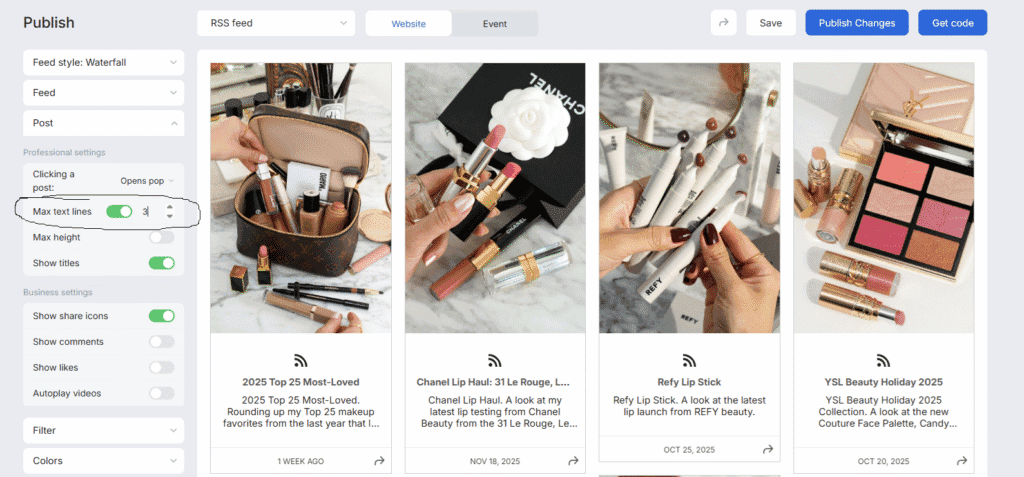
Take a moment to preview your feed and tweak until it’s perfect.
Step 6. Embed it in your website
Once your feed looks the way you want, it’s time to embed Behance on your website. Click Publish then Get Code to get the code.
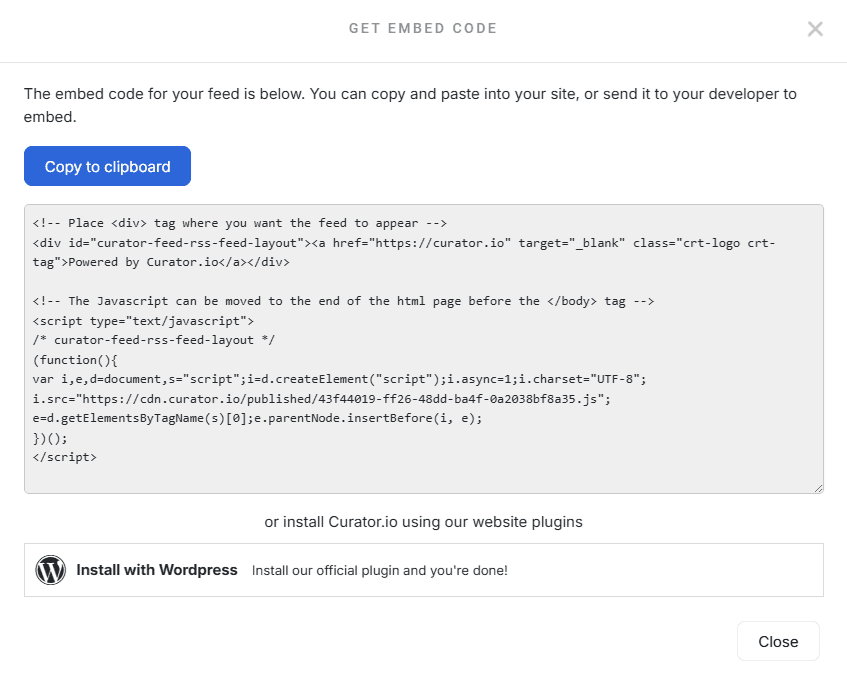
Curator gives you an HTML embed code, just like a YouTube video or a social media widget. Copy the code then paste it into your site where you want the feed to appear.
Where you place it depends on your website builder:
In WordPress, you can paste it into a Custom HTML block or widget area.
In Wix, use the Embed HTML element.
In Squarespace, add a Code Block.
In Webflow, drop it into an Embed element in the Designer.
In Shopify, paste it into a theme file or use a custom section.
After you paste the code and publish the page, your feed will appear live—and it will update automatically whenever new items are added to your Behance account.
7 tools for embedding Behance on your site
If you want to embed your Behance content on your website the easy way, you need a social media aggregator. Here are some of the best tools available. Many of these offer free plans.
1. Elfsight Behance Feed

The Elfsight Behance Feed widget lets you display your portfolio directly on your website with no coding required. It offers customizable layouts, color schemes, and responsive design, boosting engagement, brand credibility, and directing visitors to your Behance profile seamlessly.
Top features:
Customizable layouts
Responsive design
Color & style control
Pop-up mode with CTAs
No-coding integration
Pricing:
Elfsight offers a free plan with 1 widget and 200 views, while paid plans range from $6/month (Basic) to $24/month (Premium), increasing views, widgets, projects, and support for growing websites.
2. Curator

Curator is a great choice for embedding Behance because it automates project updates, offers customizable layouts, and supports brand-matching colors and fonts. Its user-friendly interface makes displaying a dynamic, visually appealing portfolio on your website simple and seamless.
Top features:
API access
Moderation rules
Full CSS control
20+ stunning templates
Multiple layouts and accessible feeds
24 hours support
Pricing:
Curator’s free plan includes 3 sources, 2,000 monthly views, and unlimited admins, while paid plans start at $25/month with faster updates, more sources, API access, and advanced post-editing features.
3. Iframely

Iframely simplifies embedding Behance by auto-generating responsive, rich previews from URLs with no coding. It ensures mobile-friendly layouts, fast loading, automatic updates, and interactive features like preview cards and lazy-loading, making Behance embeds seamless, visually appealing, and optimized for any website or device.
Top features:
Responsive previews
Automatic updates
Mobile-friendly layouts
Lazy-loading embeds
Interactive URL cards
Simple API integration
Fast loading
Pricing:
Behance’s free Starter plan includes 2,000 monthly hits, while its paid plans, starting at $49/month, offer higher hit limits, multi-domain support, richer media options, priority support, and advanced features for growing or enterprise websites.
4. GS Behance Portfolio
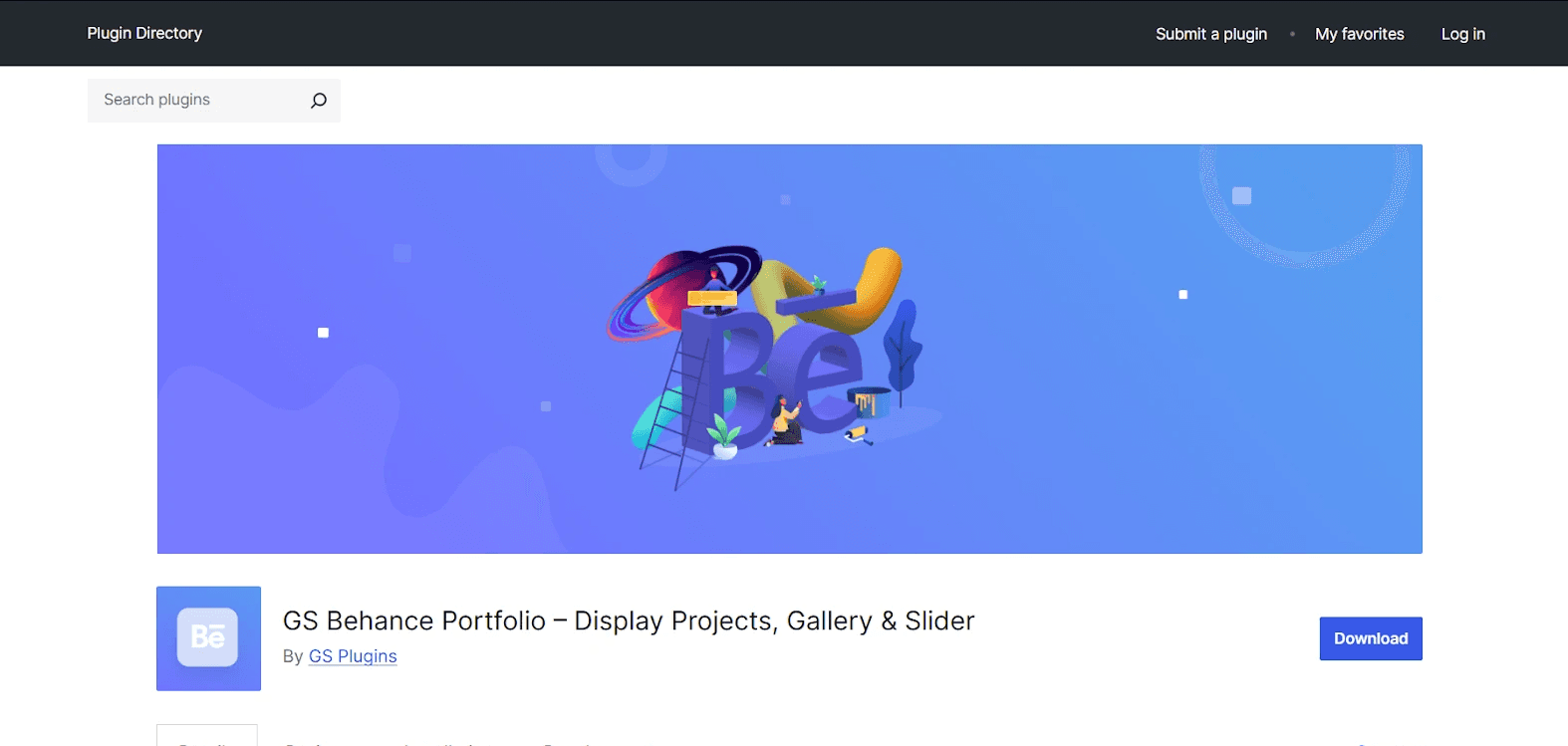
If you have a WordPress website, using the GS Behance Portfolio plugin is often better than other embedding solutions. That’s because it’s specifically built for WordPress, fully responsive, and requires no API key. It offers versatile display options with shortcodes and widgets, multiple themes, project stats, custom CSS support, and effortless setup, giving creators full control and professional presentation.
Top features:
Responsive design
Multiple column options
Shortcodes & widgets for flexible placement
Project titles, appreciations, views, and comment counts
Custom CSS support
Auto-update notifications and dashboard updates
Compatibility with any standard WordPress theme
Browser support across modern browsers
Pricing:
The GS Behance Portfolio plugin offers a free version with essential features, while the Pro version unlocks seven themes, advanced customization, priority support, and installation help, providing more flexibility and professional display options.
FAQs
How do I embed my Behance portfolio on a website?
To embed your Behance portfolio on a website, use an embed tool or plugin like Curator. Simply connect your Behance profile to your Curator account, customize the layout and style, then copy and paste the provided embed code into your site.
Do I need an API key to use Behance embeds?
No, you don’t need an API key to embed Behance projects. Tools like GS Behance Portfolio, Curator, and Elfsight handle the connection for you, allowing you to display your portfolio seamlessly with embed codes instead of manual API setups.
Can I customize the layout, colors, and fonts of my Behance feed?
Yes, modern Behance embed tools, like Curator, allow full customization. You can adjust layouts (grid, slider, carousel), change colors and fonts to match your site, and even add custom CSS, ensuring your feed blends seamlessly with your website’s design and branding.
Will my embedded Behance projects update automatically when I add new work?
Yes. When you embed your portfolio using Curator, your Behance feed can update automatically. Whenever you publish a new project on Behance, it can appear on your website without you updating the embed code. This helps keep your portfolio current and your website content fresh.
Which platforms or website builders support Behance embeds?
Most website builders make it easy to embed your portfolio from Behance. Platforms like WordPress, Wix, Squarespace, Webflow, and Shopify usually support embeds through HTML blocks, plugins, or widgets. That means you can add your Behance projects to almost any modern website without complicated setup.
Curator makes it easy to embed your Behance content on your website. Just connect your account, choose your favorite template, customize the style, and copy the embed code where you want the feed to appear. With our manual and automated moderation tools, you can approve items individually or allow all of the content to be shown on your website.
Curator offers free and affordable plans. Learn more and sign up.
Previous post: