Have you ever gone to a website looking for a specific thing, and the first thing you do is scroll to the bottom?
I know I have.
Just because it’s at the bottom doesn’t mean it’s not important.
Your WordPress footer plays a key role in your site’s design and functionality.
A well-structured footer enhances user experience by providing visitors with quick access to important information like contact details, social media links, and legal pages. And, this is regardless of the page they actually land on.
This post will guide you through what to include, how to edit, and the best tools to help customize your WordPress footer to fit your brand.
What is a WordPress website footer?
A WordPress website footer is the bottom section of your site that appears on every page. It might seem like a small detail, but it plays a big role in your site's overall design and functionality.
The footer is usually the last thing visitors see as they scroll down the page. On top of that, it is the place many people go to when they are looking for specific business or information—like an address, phone number, or a site map. This makes it the perfect (and expected) spot to add important information.
Footers can include contact details, social media links, copyright information, or even links to your privacy policy. Some businesses use their footer to showcase a newsletter signup form or customer testimonials. Others add quick links to popular pages or a search bar to make navigation easier.
In short, the footer is a valuable part of your site. It helps improve user experience while keeping key information within easy reach.
5 ways to edit your WordPress footer
There are several ways to customize your WordPress footer depending on your needs and experience level. Whether you want a quick edit or a fully customized design, these methods will help you make the changes you need.
1. Edit footer via the WordPress Customizer
To edit WordPress footer using the WordPress Customizer, go to your dashboard and select Appearance then Customize.
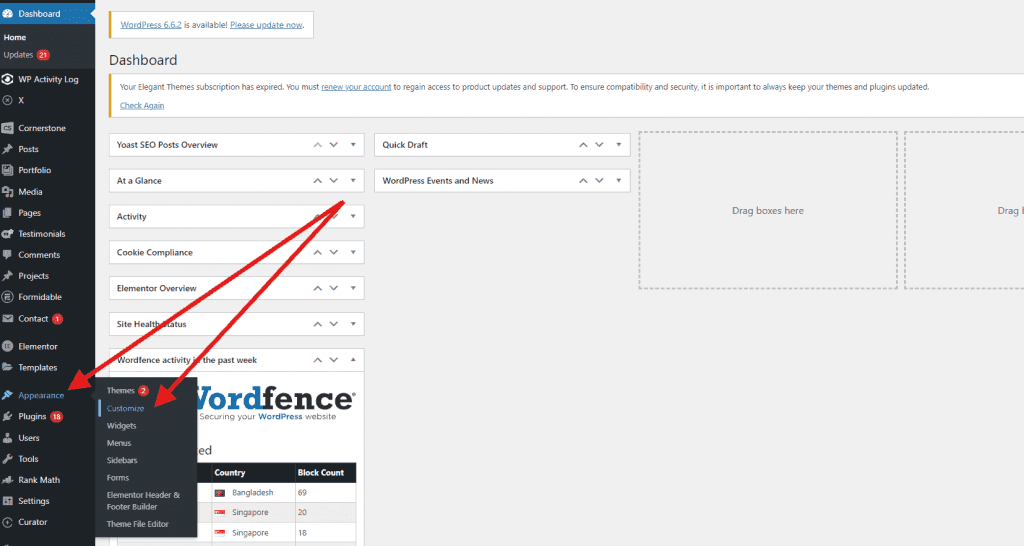
From there, look for the Footer section or a similar option depending on your theme.
Note that the WordPress theme you choose will have it’s own unique structure, so if you are having trouble identifying the footer option, we recommend going to the theme’s documentation.
This is also a good time to recommend using popular and trusted themes as they will have the documentation and support to get you through any hurdles.
Update the footer content by adding widgets or new sections, changing the design, or adjusting the layout. After making your changes, click Publish to save them. This method is beginner-friendly and requires no coding.
The WordPress Customizer also provides a live preview of any changes you make, allowing you to experiment with different layouts and styling before publishing them to your live site. This is particularly helpful if you want to test color schemes, spacing, or typography adjustments without affecting visitors.
Many modern themes also include additional footer customization options in the Customizer, such as column layouts, background images, or social media icons. If your theme supports it, you may also be able to adjust mobile display settings to ensure your footer looks good on smaller screens. Taking a few minutes to explore these options can help you create a footer that better matches your website’s overall design.
2. Modify the footer using a theme builder
If you use a theme builder like Elementor or Divi, you can edit website footer easily. Open your Theme Builder.
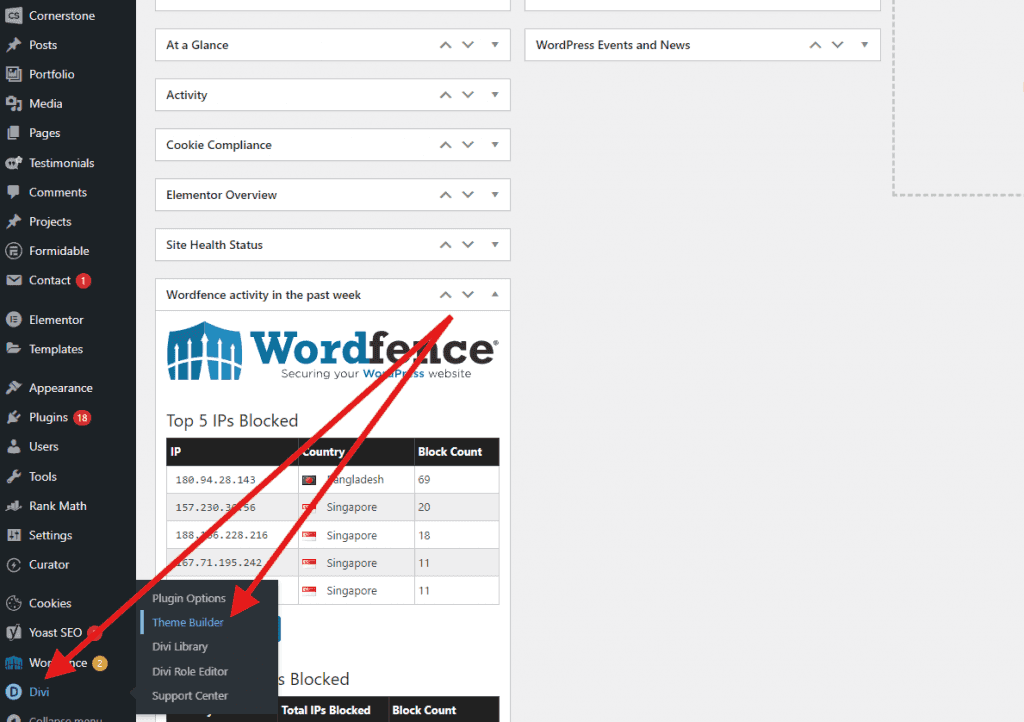
Navigate to the footer section. For Divi you are given the option to Build Global Footer or Add From Library.
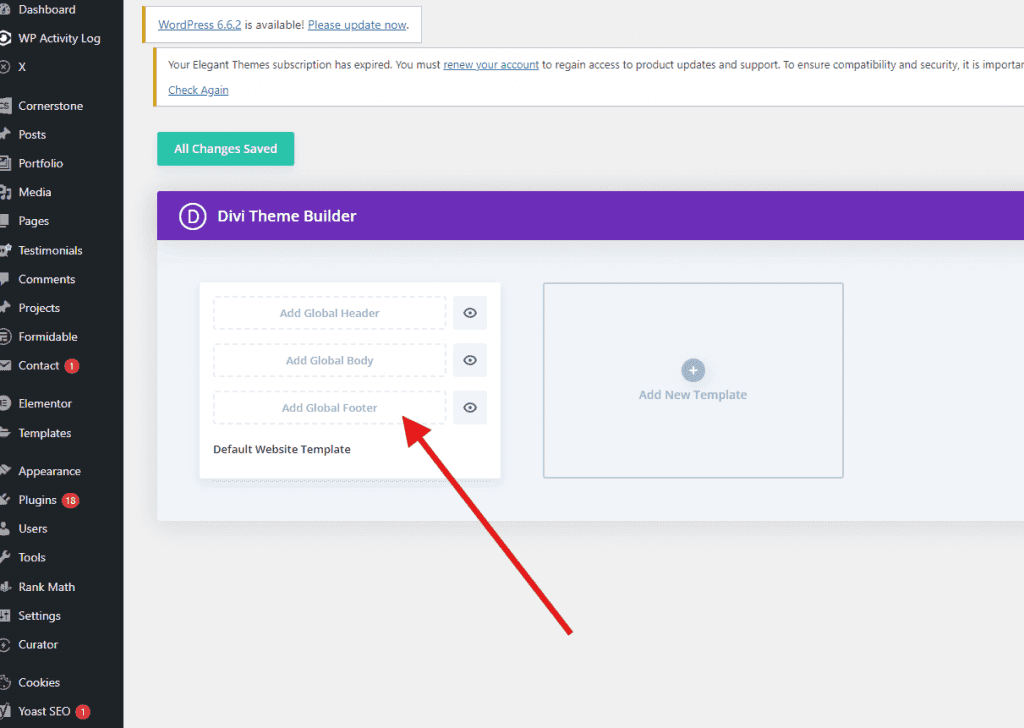
Choose the direction you want to go. You can fully customize the layout, add elements like text or images, and adjust styling to match your brand. Once you’re done, save the changes and they will apply across your site.
This option gives you more flexibility and design control than the standard WordPress Customizer.
Theme builders also allow you to create more advanced footer layouts that would normally require custom code. You can add elements such as newsletter signup forms, social media feeds, call-to-action buttons, or multi-column navigation menus. Many builders also include responsive editing tools, which let you adjust how the footer appears on desktop, tablet, and mobile devices individually.
This makes it easier to ensure your footer remains readable and visually balanced across different screen sizes. Another advantage is the ability to save your footer as a reusable template, so you can quickly apply the same design across multiple pages or even multiple websites if you manage several WordPress projects.
3. Edit WordPRess footer widgets from the dashboard
To manage footer widgets, go to Appearance and click Widgets in your WordPress dashboard.
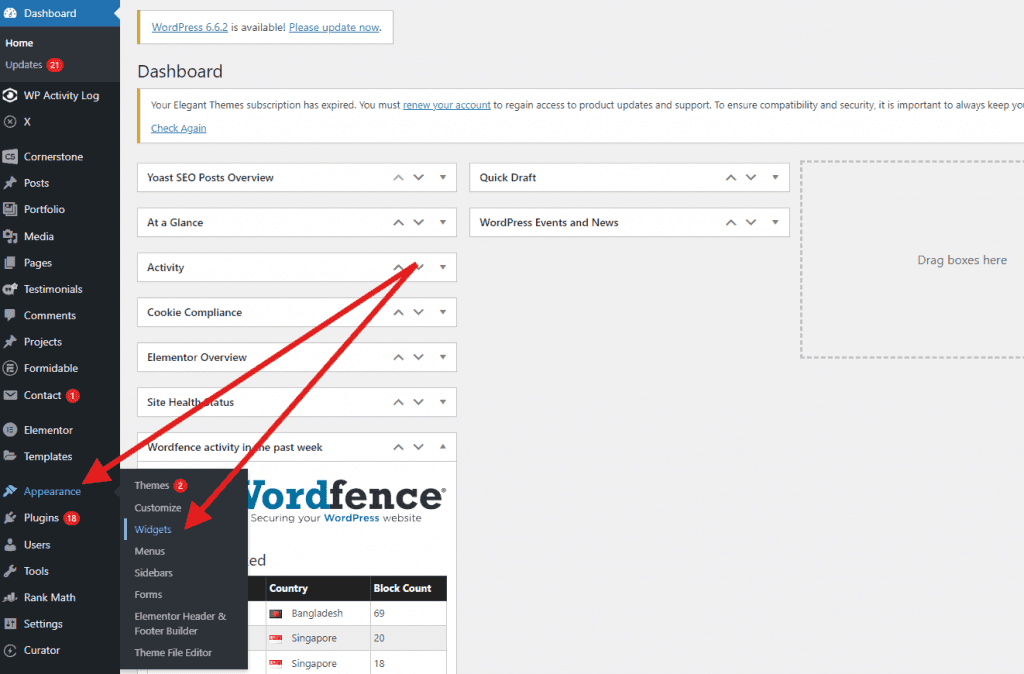
You’ll see different widget areas for the footer. From here, you can drag new widgets into the footer or remove the ones you don’t need.
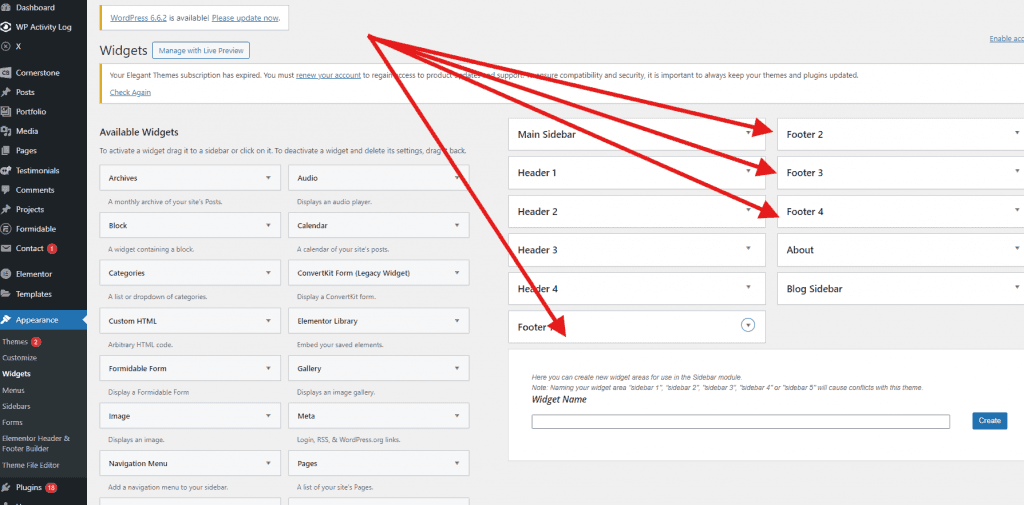
Depending on your theme, you can add things like text, images, or custom menus. Once you’re happy with the changes, click Save.
This approach lets you quickly update content without altering the design. Using widgets is one of the fastest ways to add useful information to your footer. Many websites use footer widgets to display contact information, navigation links, recent blog posts, or social media icons. Some themes also allow multiple footer widget columns, giving you more space to organize content in a structured way.
You can experiment with different widget combinations to see what provides the most value to visitors. For instance, adding a simple menu can help users quickly find important pages like privacy policies or support resources. Because widgets are modular, you can easily remove or rearrange them at any time without affecting the rest of your website layout.
4. Add custom code to footer.php file
For advanced customization, you can directly edit the footer.php file. Go to Appearance and click Theme File Editor in your WordPress dashboard.
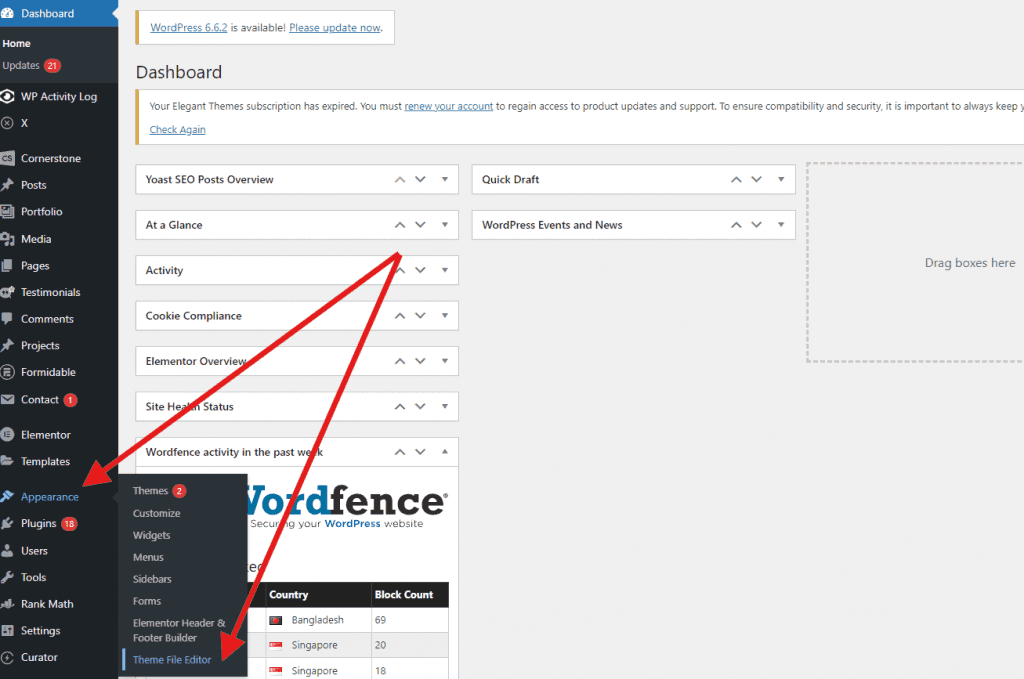
Find footer.php from the list of theme files. Here, you can add custom HTML, CSS, or JavaScript to modify the footer. Be cautious with this method—mistakes can break your site, so it's best to back up your theme or use a child theme before making changes. Save your edits when done.
Editing the footer.php file gives you complete control over how your footer is structured and what functionality it includes. This method is often used by developers who want to insert custom scripts, modify layout markup, or add features that are not available through the Customizer or widgets.
For example, you might add tracking scripts, structured data, or custom navigation elements directly into the footer code. However, editing theme files should always be done carefully. It’s recommended to create a child theme before making any changes so your edits are not lost when the theme updates. Using a staging site for testing can also help prevent accidental issues on your live website.
5. Use a WordPress plugin to customize the footer
If you prefer not to work with code, using a plugin is an easy way to customize your footer. To install a plugin, go to your WordPress dashboard, select Plugins, and click Add New.
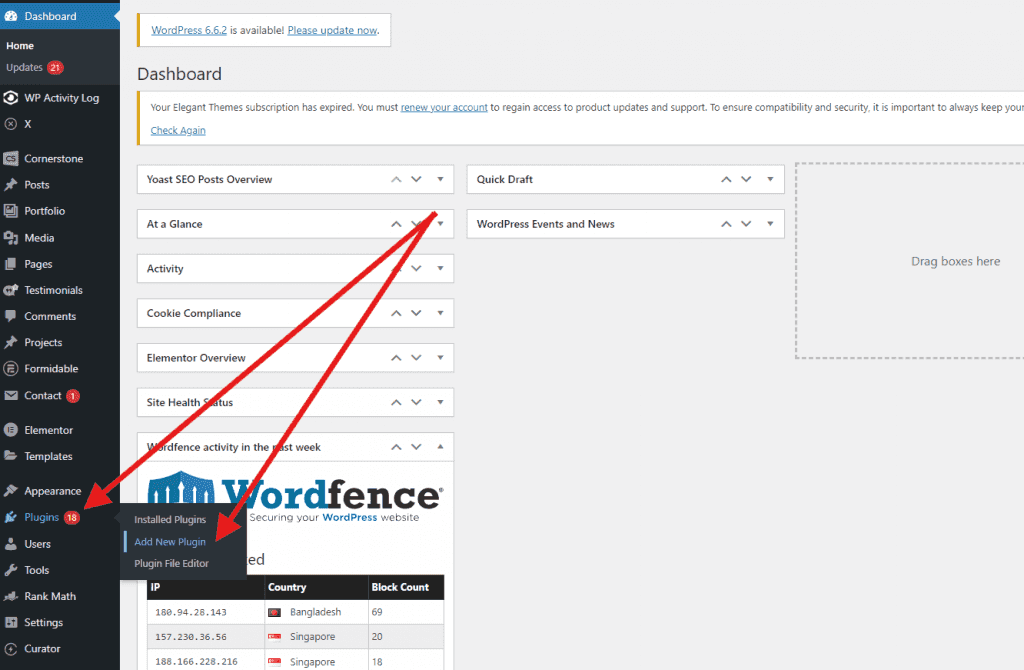
Search for a plugin with keywords like footer builder, and select the right plugin for you. Remember to choose a plugin with a lot of installations, good ratings, and regular updates.
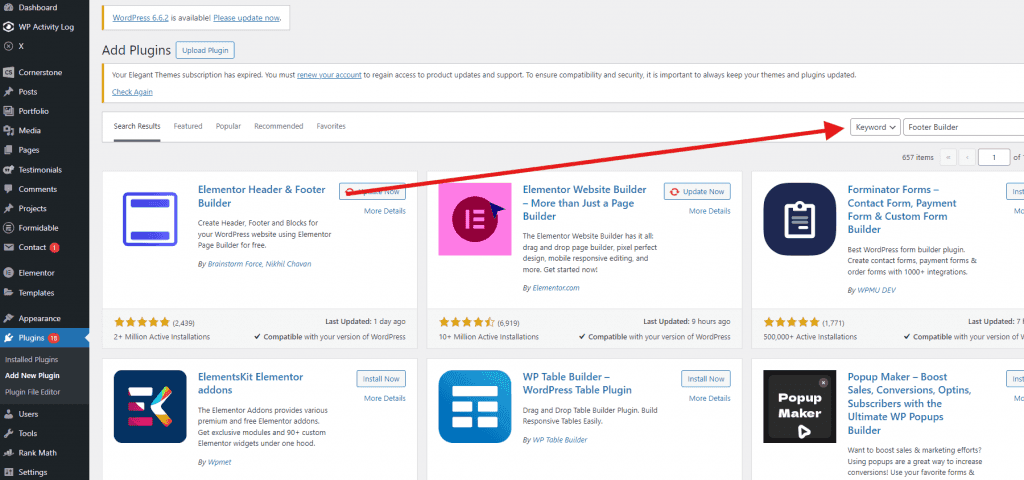
Once you find the right one, click Install Now then Activate. After activation, follow the plugin’s instructions to customize your footer. This method gives you flexibility to add scripts, design elements, or extra content without coding.
Footer plugins often include visual editors that make it easy to design and manage footer content from a single interface. Depending on the plugin you choose, you may gain access to pre-built footer templates, drag-and-drop layout tools, or modules for things like contact forms and social media icons.
Some plugins also allow you to insert custom scripts, analytics tags, or promotional banners into the footer without editing theme files. This can be especially helpful if you need to add marketing tools or third-party integrations. Because plugins can vary widely in features and quality, it’s a good idea to read reviews and test a plugin on a staging site before using it on your main website.
What to include in your WordPress footer
Since the footer shows up on every page of your site, it’s a key place to put information you want visitors to see no matter where they are. Whether someone is scrolling through your blog or checking out your products, your footer will always be there to provide quick access to important details. Here’s a list of common content that is worthy of a space on your footer.
1. Contact information
Including your contact details in the footer ensures visitors can easily reach you no matter where they are on your site. This typically includes an email address, phone number, or a contact form link to make communication simple and accessible.
2. Social media icons
Adding social media icons to your footer gives visitors an easy way to connect with your brand on platforms like Facebook, Instagram, or LinkedIn. This helps build your online presence and encourages engagement across different channels without taking up space in the main content area.
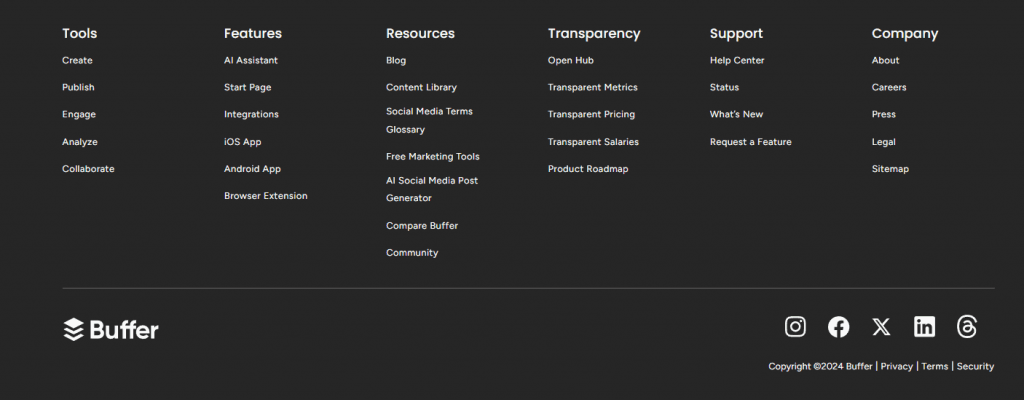
Buffer’s website footer highlights the use of social icons that are both clearly identifiable and on brand.
3. Copyright notice
A copyright notice in your footer protects your content by letting visitors know that your website’s material is legally owned. It typically includes the current year and your business name, ensuring your intellectual property rights are clear and up-to-date across all pages.
4. Privacy policy and terms of service links
These links are essential for legal compliance, especially if you collect user data. They provide easy access to your privacy policy and terms of service, ensuring visitors know how their information is handled and the rules for using your website.
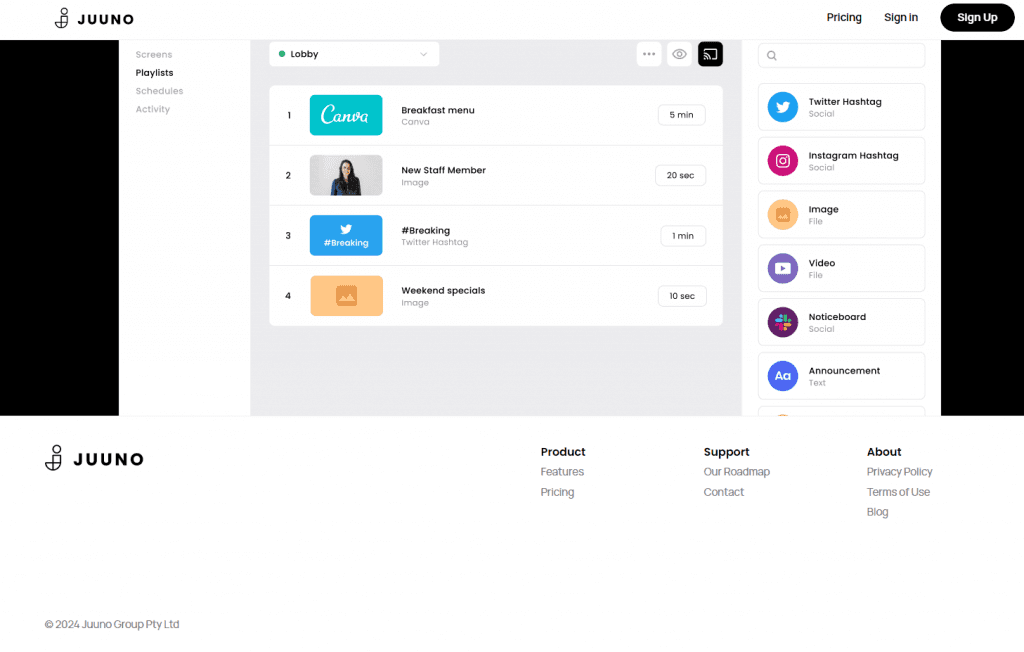
The digital signage software Juuno provides a great example of a clean and simple footer that includes these important links. As you can see they also incorporate the copyright notice as well.
5. Newsletter signup or rewards program
Including a newsletter signup or rewards program link in your footer is a great way to engage visitors. It encourages them to stay updated on your latest news or join a loyalty program. This offers added value and keeps them connected to your brand long after they’ve left your site.
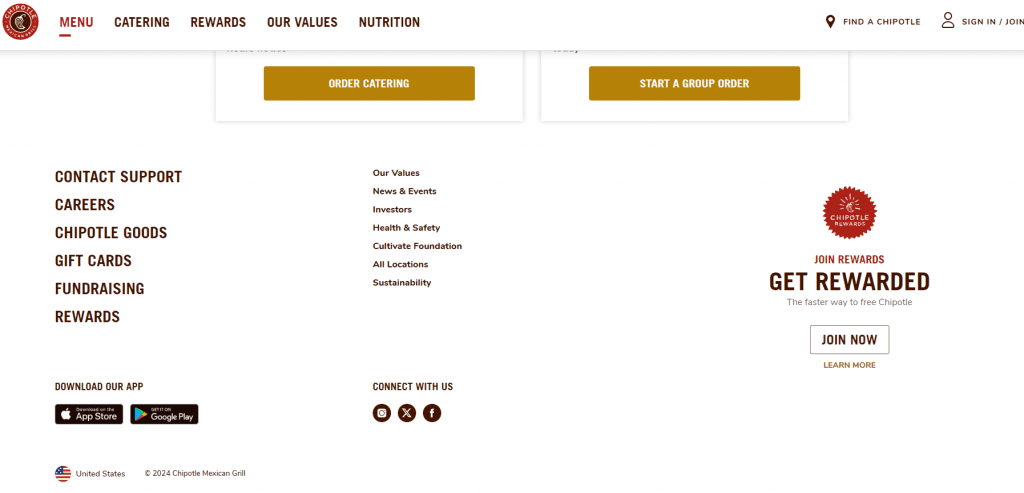
A great example of this is Chipotle’s website shown above. They have placed a prominent CTA to join their rewards program that clearly captures your attention.
6. App download link
Another component utilized by Chipotle is the app download links. If your business has a mobile app, your footer is a prime location for an app download link.
By placing it here, you encourage users to explore your app without interrupting their browsing experience. It’s a simple way to promote downloads while keeping the main content focused.
7. Social media posts
Showcasing your latest social media posts in the footer keeps your website fresh with real-time updates. Embedding social content here allows visitors to see your activity and engage with your brand, even if they don’t follow you directly.

This example of the cat sitting service, Comforted Kitty, highlights embedded Instagram in the footer. This way potential clients can see real time posts of the happy cats that are under their care.
8. Quick links to important pages
Footers are perfect for including quick links to key pages like About Us, FAQs, or Services. This makes it easy for visitors to find essential information without scrolling back to the top. It also helps improve overall site navigation, giving users more control over their browsing experience.
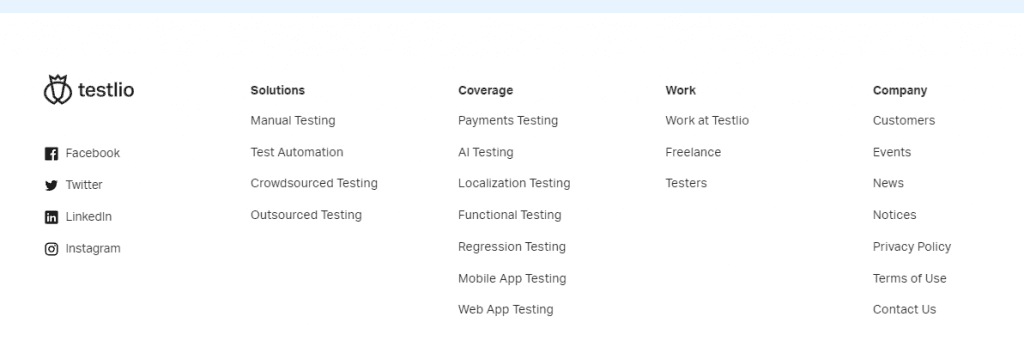
In the above example, Testlio takes advantage of quick links in their footer. Making it easy to find the important pages regardless of where you are on their site.
9. Testimonials or reviews
Adding testimonials or reviews to your footer builds trust by showcasing positive feedback from customers. This provides social proof and reassures new visitors about the quality of your products or services. It’s a subtle yet powerful way to enhance credibility without taking up prominent space on your site.
10. Business hours and location
Displaying your business hours and location in the footer ensures that visitors can easily find this essential information no matter where they are on your site. This is especially useful for local businesses.
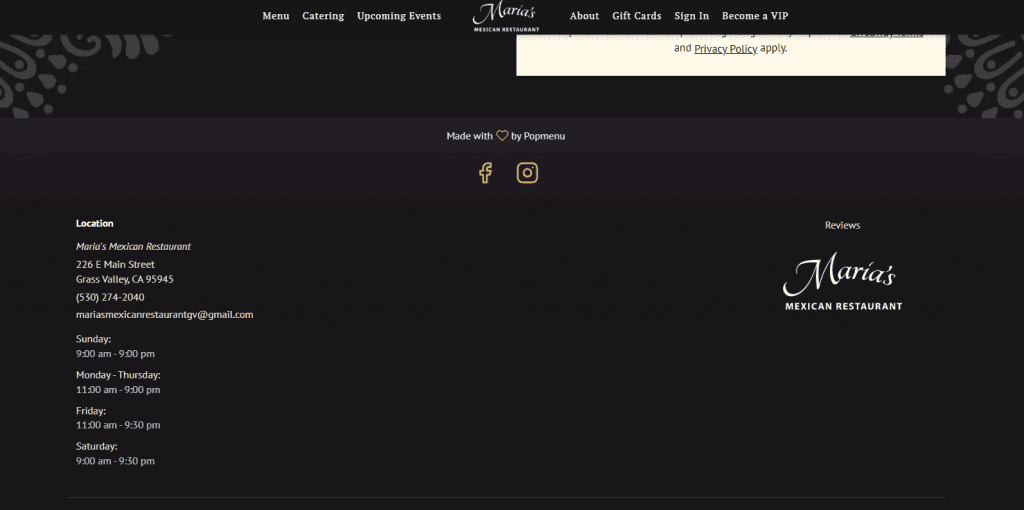
Maria’s Mexican Restaurant has done just that with their footer. They provide their location, business hours, and contact information.
11. Map widget
Including a map widget in your footer helps visitors find your physical location quickly. This is really helpful for businesses with brick-and-mortar stores, restaurants, or offices. A map widget makes it easy for users to get directions without leaving your site, improving convenience and user experience.
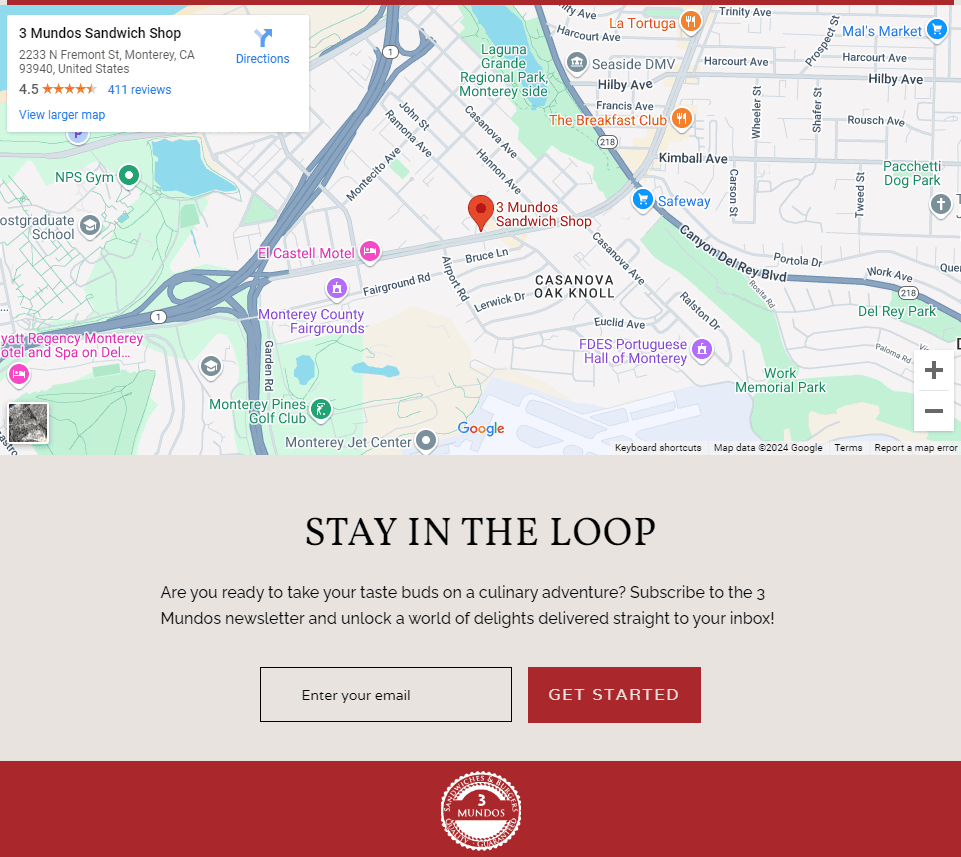
The 3 Mundos Sandwich Shop takes advantage of the map widget to prominently display their location in the footer of their website. This way it is easy to locate for anyone wanting one of their delicious sandwiches.
Top tools to help your WordPress footer edits
Ready to make changes? Here are some of the top platform options for easily editing a WordPress footer.
1. Divi

Divi is a powerful page builder that allows you to fully customize your WordPress site, including your footer for websites. Its drag-and-drop interface makes it easy to design a footer with dynamic content, images, and custom layouts without any coding required.
Using Divi’s Theme Builder, you can create a global footer that automatically appears across your entire site, add modules like social icons, contact forms, and menus, and adjust spacing, colors, and responsiveness to match your overall website design.
2. Elementor
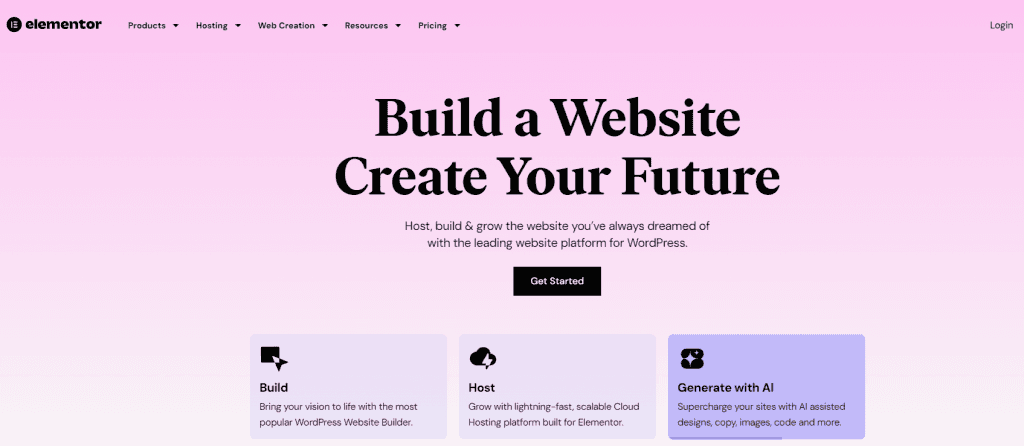
With Elementor, you can easily build and customize your WordPress footer. This drag-and-drop builder offers a range of widgets and design options, allowing you to create a fully personalized footer. No coding skills are needed, making it perfect for any user level.
Elementor’s Theme Builder also lets you design a global footer template that appears across your entire site, add elements like navigation menus, social icons, forms, and dynamic content, and adjust responsive settings so your footer looks polished on every device.
3. Curator
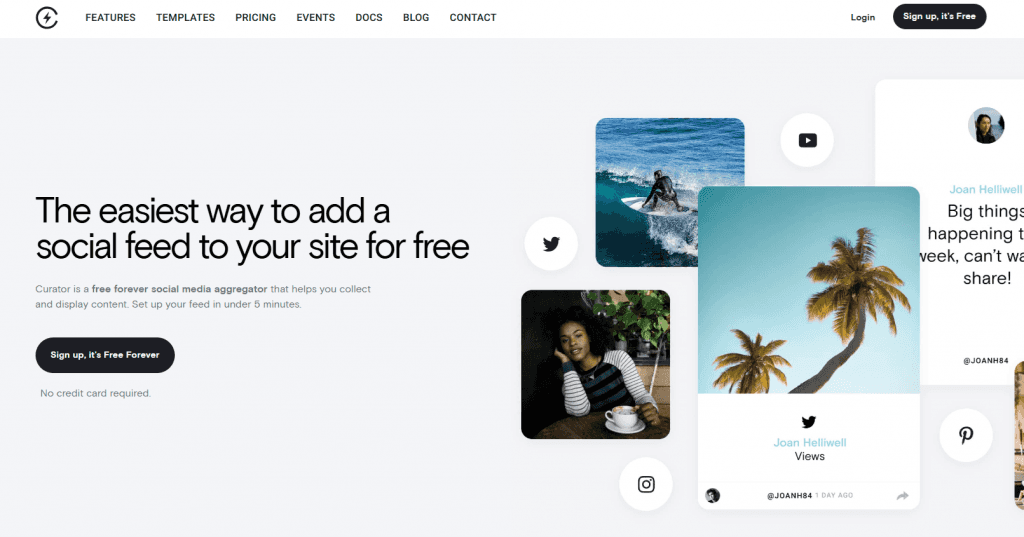
Your WordPress website footer is a great place to add some social media content and reviews. Curator’s got you covered with that! Their super simple and highly customizable aggregator allows you to easily integrate posts and reviews from your favorite social sites. All while maintaining full moderation control to ensure what is posted is both true and accurate. This makes it easy to turn your footer into a trust-building section where visitors can see real feedback and social proof without leaving your site.
4. Beaver Builder
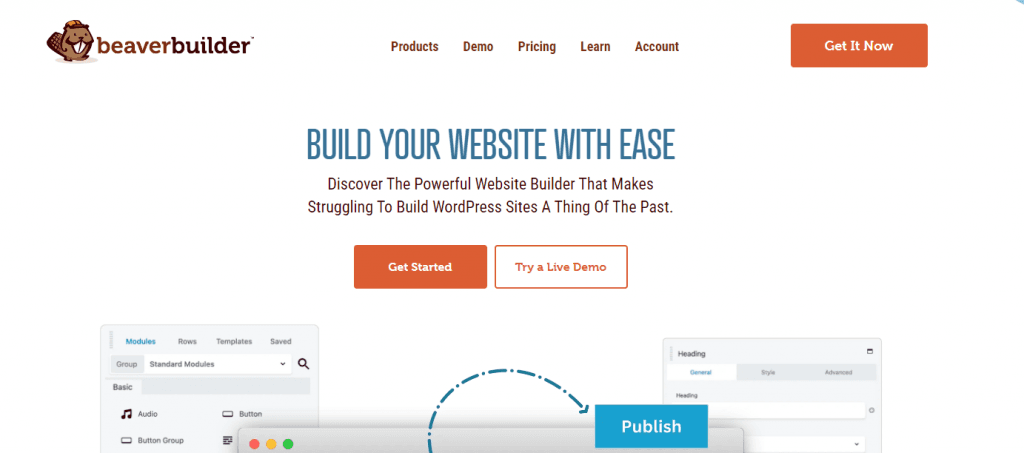
Using Beaver Builder, you can design a custom footer with ease. This user-friendly page builder offers drag-and-drop functionality, allowing you to add and arrange elements like text, images, and widgets. It's a flexible tool for creating professional footers without any coding knowledge.
Beaver Builder also includes pre-built row layouts and styling controls that let you quickly structure multiple footer columns, adjust padding and spacing, and apply consistent colors and typography so the footer blends seamlessly with the rest of your website design.
5. aThemes Botiga Header Footer Builder
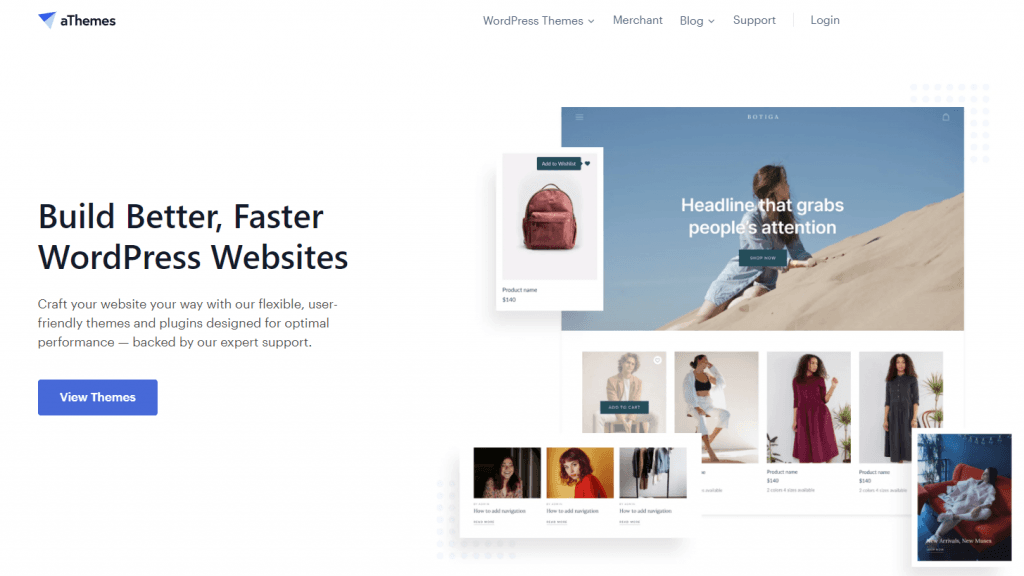
With aThemes Botiga Header Footer Builder, you can design and customize your WordPress footer using a drag-and-drop interface. It allows you to add widgets, links, and other content to create a footer that complements your site’s overall design.
You can also arrange footer elements into multiple columns, control spacing and alignment, and easily add features like social icons, copyright text, and navigation menus to keep important information accessible at the bottom of your pages.
6. WPBrigade Headers and Footers
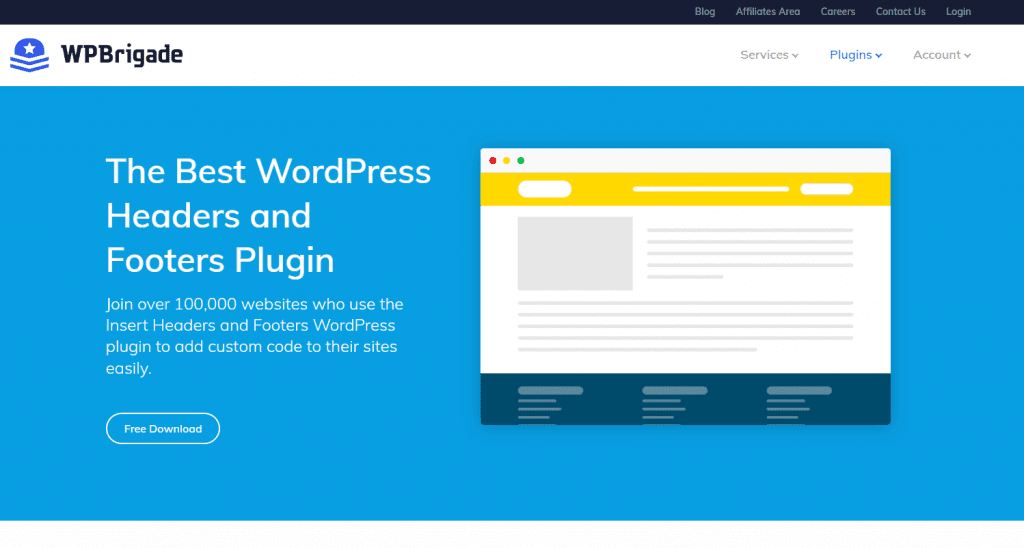
WPBrigade Headers and Footers helps you manage custom scripts in your WordPress footer. It allows you to insert code like Google Analytics, tracking pixels, or custom CSS without needing to modify your theme files, making it user-friendly for adding extra functionality.
Beyond footers, WPBrigade also lets you insert scripts in your header or body sections, place code site-wide or on specific pages, manage multiple snippets with flexible placement, and keep all customizations safe from theme updates. Its lightweight, beginner-friendly interface makes it easy to add marketing tags, chat widgets, or analytics without slowing your site.
7. Header Footer Code Manager
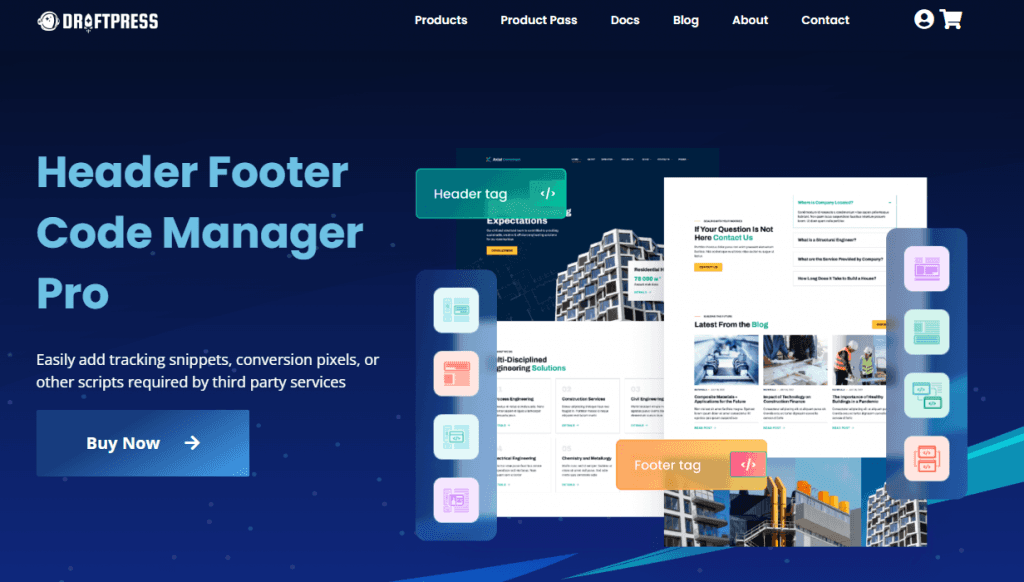
Header Footer Code Manager simplifies adding custom code to your WordPress footer. It lets you manage scripts like tracking codes, ads, or custom CSS from a single dashboard without editing theme files. This plugin is perfect for adding code snippets across your site.
Its lightweight design ensures your site remains fast, while providing full control over where and when each code snippet runs. However, some advanced features, such as the ability to specify private posts and pages, require upgrading to the paid plan to unlock full functionality.
8. WP Go Maps
With WP Go Maps, you can easily embed interactive maps directly into your WordPress footer. This plugin is ideal for businesses with physical locations, allowing you to display custom maps with features like directions and markers, providing visitors with a clear view of how to find you.
WP Go Maps also supports rich media markers, letting you add images, videos, and galleries to your infowindows for each location. You can use user geolocation, radius filtering, and route planning to help visitors reach your locations efficiently. Plus, it integrates seamlessly with Elementor, Divi, and Gutenberg for easy map placement anywhere on your site.
9. Font Awesome
Font Awesome provides a vast library of icons, including social media icons, that you can add to your WordPress footer. It offers customizable icons that can be easily integrated into your site, helping to enhance the look of your footer while improving navigation and user interaction.
With Font Awesome, you also benefit from faster load times thanks to optimized SVG/JS and compressed CSS, and a wide range of developer and designer tools. You can upload custom icons or access thousands of popular brand icons to make your footer visually engaging.
10. Social Icons Widget by WPZOOM
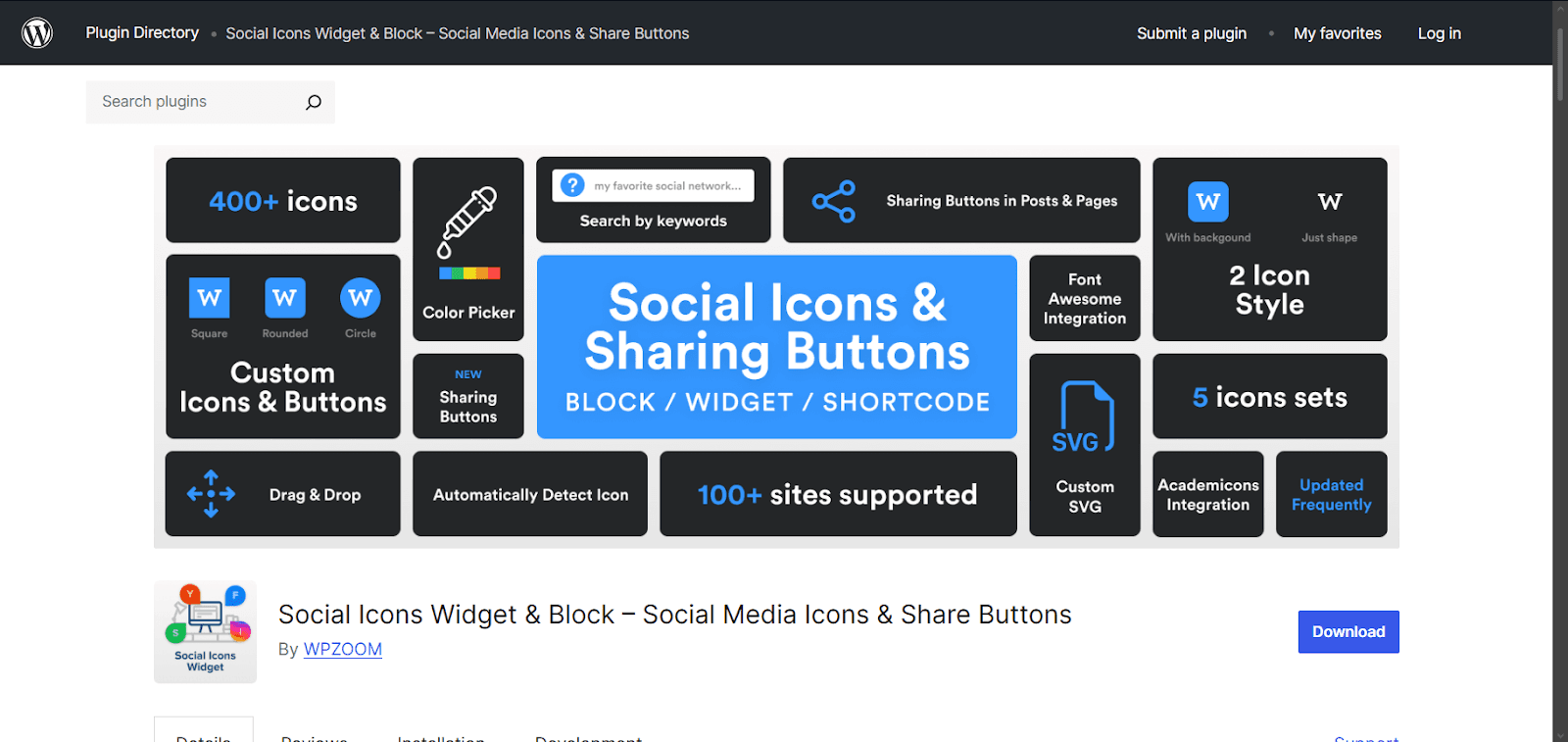
You can use the Social Icons Widget to easily edit your WordPress footer and embed X feed links alongside other social profiles. This widget lets you drag-and-drop icons, customize colors, sizes, and styles, and quickly embed social media feed updates directly in your footer for real-time social engagement.
And don’t forget, a social media aggregator can have you sharing posts and increasing engagement throughout your site, not just the footer. Try our free forever plugin.
Frequently asked questions
How do I embed Twitter feeds in website footers?
To embed a Twitter or X feed in your WordPress footer, use Twitter’s official embed code or a WordPress plugin. Go to your Twitter profile, select “Embed Timeline,” copy the generated code, and paste it into a Footer widget or Custom HTML block. Adjust width, height, and styling for responsiveness.
What’s the easiest way to edit a footer in WordPress?
The easiest way to edit a WordPress footer is through the Customizer (Appearance > Customize > Footer). You can add widgets, adjust layouts, and update text without coding. For dynamic content like social feeds or reviews, a plugin like Curator makes embedding and managing footer content simple and visually appealing.
Can I add custom scripts or tracking codes to my WordPress footer?
Yes, you can add custom scripts, tracking codes, or analytics snippets to your footer using plugins like WPBrigade Headers or Header Footer Code Manager, which allow safe insertion without editing theme files. However, always back up your site before adding code to ensure easy restoration in case of errors or conflicts.
How do I make my WordPress footer mobile-friendly?
To make your footer mobile-friendly, use responsive themes or page builders like Elementor, Divi, or Beaver Builder. Adjust column layouts, spacing, and font sizes in the Customizer or builder settings, and preview changes on tablet and mobile views before publishing.
And don’t forget, a social media aggregator can have you sharing posts and increasing engagement throughout your site, not just the footer. Try our free forever plugin.
Previous post: