You’ve likely noticed social media icons at the bottom of websites you visit. We assure you they aren’t there simply for aesthetics. These icons serve as powerful connection points that bridge your website and your social platforms to boost engagement, trust, and visibility.
Whether you’re running a small business, blog, or eCommerce site, adding social media icons to your footer makes it easier for visitors to explore your brand beyond your website. In this guide, we’ll cover how to design them effectively, where to get them, and even how to enhance your footer with dynamic social feeds.
What are social media icons for website footers?
Social media icons for website footers are small, clickable graphics that link directly to your brand’s social media profiles. They usually appear at the bottom of a webpage and feature recognizable platform logos like Facebook, Instagram, X (formerly Twitter), or LinkedIn.
These icons help visitors quickly connect with your brand on social media without cluttering your site’s main design. Beyond convenience, they also build trust, as they let visitors verify your brand’s existence and status through its social media interactions. According to Sprout Social, 78% of consumers say that a brand’s social media presence influences whether or not they trust that brand.
Placing the icons in the footer keeps them visible yet unobtrusive, encouraging engagement while maintaining a clean layout. In short, social media footer icons act as digital signposts that guide users from your website to your wider online community.
7 reasons to embed social media icons in your website footer?
Adding social media icons to your website footer might seem like a small detail, but it can have a big impact on how visitors interact with your brand. Here are some key reasons to include them:
Boosts brand visibility: Footer icons ensure your social profiles are easy to find on every page. They help visitors discover your content beyond your website and stay engaged with your brand. Over time, this consistent visibility builds recognition across platforms.
Builds trust and credibility: Displaying social icons signals transparency and authenticity. Visitors can instantly verify that your brand is active and legitimate by checking your social activity. It’s a simple yet effective way to strengthen trust.
Encourages cross-platform engagement: Social icons turn one-time website visitors into long-term followers. By linking directly to your social pages, you make it easy for users to continue interacting with your content. This creates more touchpoints for connection and loyalty.
Enhances user experience: Placing icons in the footer keeps your design clean and organized while maintaining accessibility. Visitors don’t need to search for your links because they’re right where they expect them. It’s convenient, intuitive, and user-friendly.
Supports SEO and traffic flow: While icons themselves don’t directly improve SEO, they help drive engagement and traffic between your website and social channels. More interaction signals brand authority and boosts overall visibility. This synergy benefits your online presence as a whole.
Strengthens brand consistency: When your social media icons match your website’s colors and style, everything feels more connected. It’s a small detail that strengthens your social media branding and makes your brand look polished and professional. That kind of consistency helps people recognize and trust your brand no matter where they see it online.
How to install social media icons in your website footer
Several options are available for embedding social media icons in your website footers. However, not all are convenient and quick. For instance, manually adding icons via HTML or SVG and styling them via CSS requires coding knowledge. Simpler methods that are quick and require no coding skill include:
Using your theme’s footer menu or custom links
If your website theme allows it, you can easily add social media icons to your footer without any coding. Here are the steps:
Log in to your CMS (WordPress, Shopify, etc.).
Locate the section where your footer menu is managed.
For each social platform, create a new menu item using the profile URL.
Many themes let you select or upload a small social icon next to each link.
Check your footer to ensure icons display correctly and link to the right profiles.
Using a third-party icon-generator or embed widget
If your theme doesn’t offer built-in social icon options, you can use a free third-party tool like Elfsight Social Media Icons widget. Here are the steps:
Visit Elfsight’s website, select the Social Media Icons widget, and choose the free plan.
Pick the social platforms you want, set the icon style, color, size, layout (inline or floating).
Generate your embed code and the widget will give you a small snippet of HTML/JS.
Go to your website’s footer section (via your theme or builder) and paste the embed code into a custom HTML block or code section.
Save and publish your site, then preview the footer to ensure icons display correctly and link to your social profiles.
Top 10 tools for embedding social media icons in website footers
The top tools for adding social media icons to your website footer.
1. Elfsight
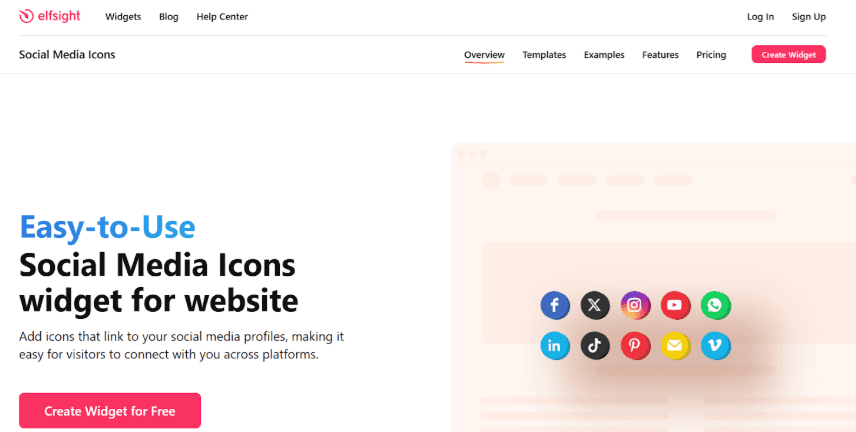
Elfsight’s Social Media Icons widget is a coding-free, easy-to-use solution that quickly adds clickable social icons to your website footer. Trusted by millions, it offers flexible layouts, customizable styles, and unlimited icons, helping you boost social media reach, attract followers, and improve customer engagement.
2. Powr.io
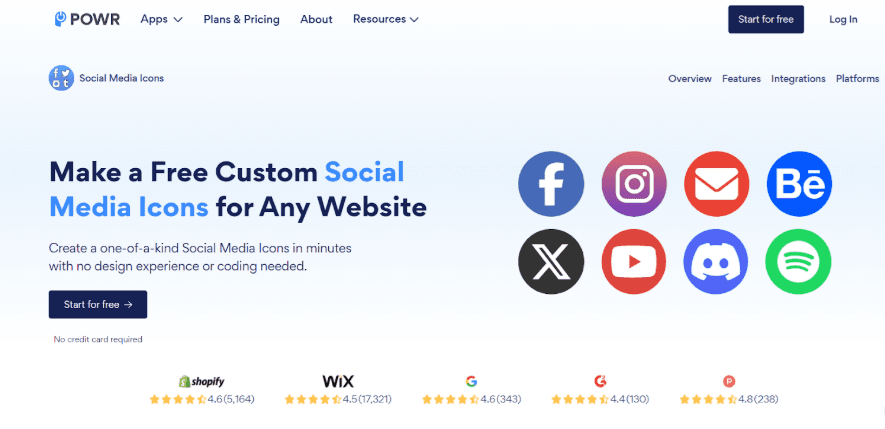
POWR Social Media Icons work with a wide range of CMS and website builders, including Shopify, WordPress, Wix, Squarespace, and Weebly. This makes it easy to add clickable icons that link directly to your social profiles, regardless of your platform.
The widget is coding-free, mobile-optimized, and fully customizable, letting you adjust layouts, styles, and animations to match your brand. You can set up, edit, and update your footer icons in minutes, making social media integration seamless for any website.
3. Claspo

With a 5-star rating on G2, Claspo’s Social Media Icons widget makes it easy to add clickable icons to your website footer and other strategic spots. Fully customizable, Claspo lets you choose templates, upload icons, and place the widget anywhere on your site, including sticky or embedded positions. With options to configure display rules and integrate analytics, it ensures your social icons not only look great but also deliver measurable engagement results.
4. WPZoom
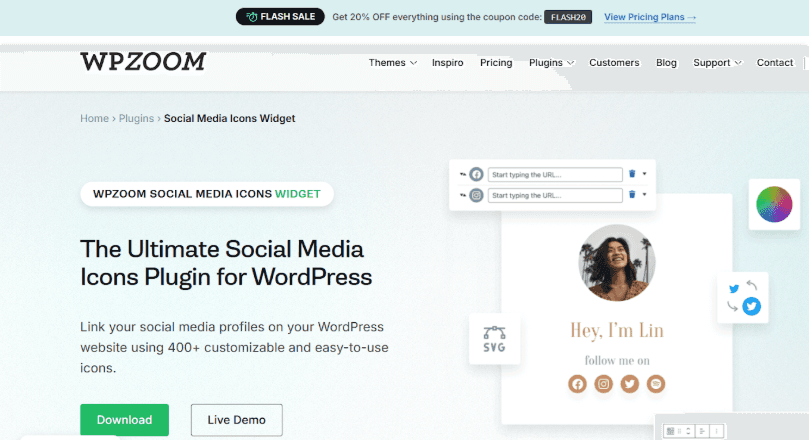
If you have a WordPress website, WPZOOM’s Social Media Icons Widget is a lightweight, highly customizable plugin trusted on over 100,000 sites. It lets you easily add, style, and arrange icons using drag-and-drop or the block editor. With support for 100+ networks, 400+ icons, and custom SVG uploads, it enhances engagement without slowing your site.
5. Icons8
With Icons8, you can quickly add polished social media icons to your website footer. Search and download matching icons in SVG or PNG, customize their size and color, upload them to your footer, and link each to your social profiles. Icons8 ensures a consistent, professional, and visually appealing look.
6. Flaticon
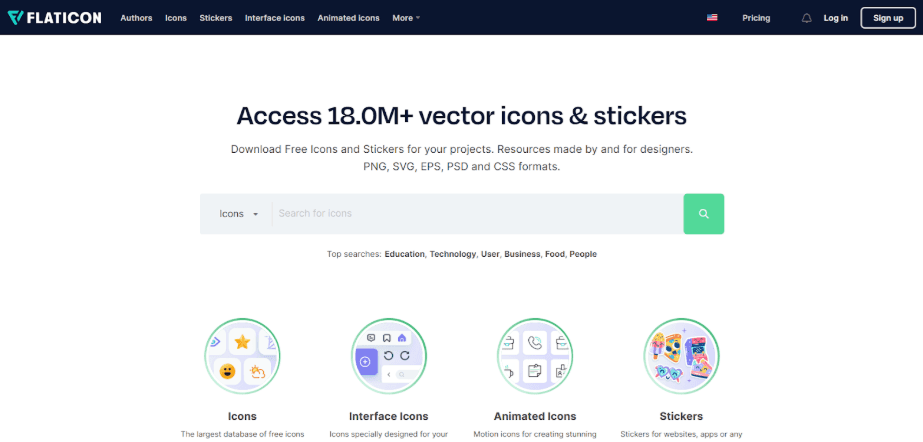
Flaticon provides professional social media icons that you can easily add to your website footer. Browse over 18 million vector icons, customize size and color using the online editor, download in SVG or PNG, upload them to your footer, and link each to your social profiles for a consistent, polished, and responsive look.
7. FontAwesome
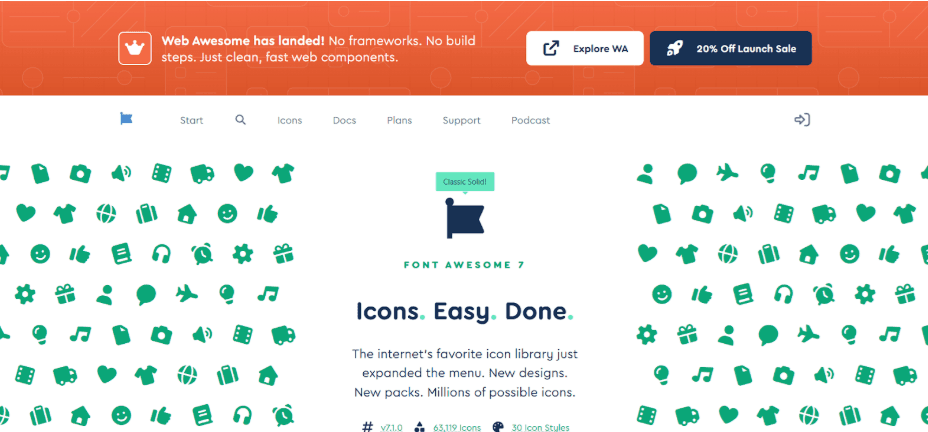
Font Awesome is perfect for adding social media icons to website footers. It provides over 2,000 free icons and millions more in Pro plans, all easily added with a single line of code via their CDN. Highly customizable, scalable, and consistently designed, Font Awesome ensures your footer icons look polished, professional, and responsive across devices, saving time and simplifying updates.
8. Noun Project
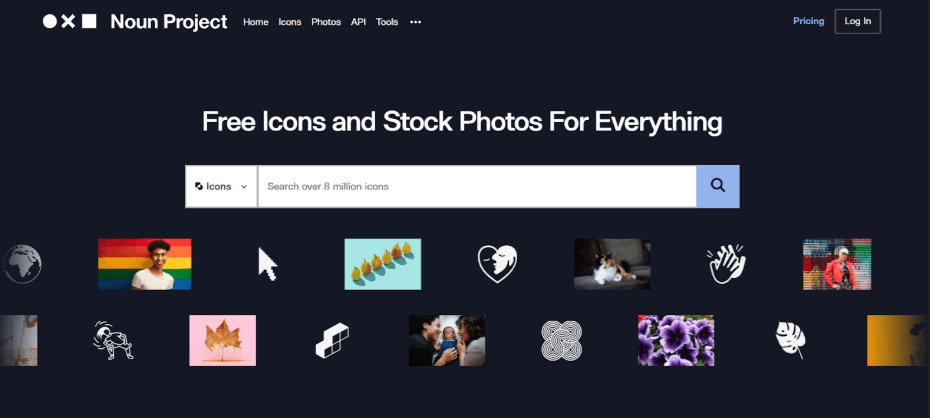
Noun Project is ideal for adding social media icons to website footers because it offers a vast library of over 8 million professionally crafted vector icons. This wide selection means you can get your desired icons in a design that matches your site's aesthetics. You can even customize icons further if you want.
9. SVG Repo
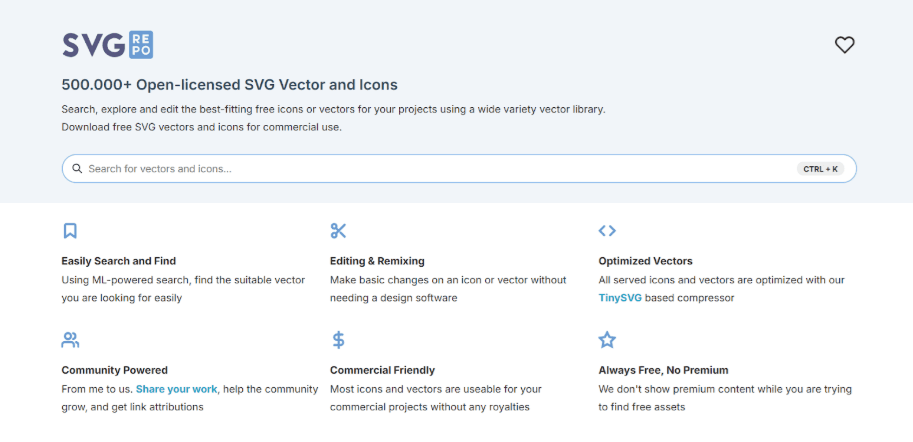
SVG Repo is a great choice for adding social media icons to website footers because it provides a huge library of free, high-quality SVG icons that are fully scalable and customizable. SVGs ensure crisp visuals on any screen size, load quickly, and allow easy editing of colors, shapes, and sizes, making them perfect for consistent, professional footers.
10. ElementsKit
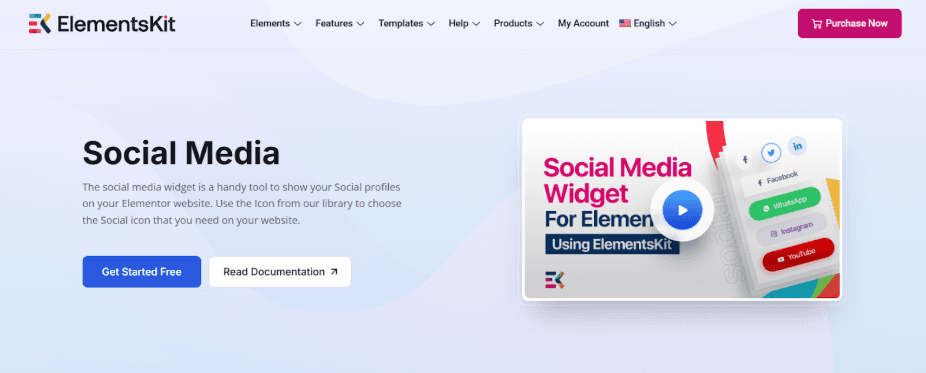
Looking for a simple way to add stylish social media icons to your Elementor website? ElementsKit makes it easy with a versatile widget that lets you choose from multiple icon styles, customize colors, borders, sizes, and alignment, and even add text labels. Its intuitive dashboard ensures your footer looks polished and professional in minutes.
Design tips for footer social media icons
Here are key design tips to make footer social media icons stand out and work seamlessly:
Keep it consistent: Match icon style (color, shape, and size) with your brand theme to create a cohesive look. Consistency helps visitors instantly recognize your social presence and reinforces your branding across platforms.
Mind spacing: Avoid clutter by limiting icons to four to six. Adequate spacing ensures each icon is easily clickable, improves readability, and keeps your footer clean and professional.
Use SVGs: SVG icons stay crisp on all screen sizes and load faster than images. They’re also easy to customize in color or size without losing quality, giving your footer a polished look.
Contrast smartly: Icons should stand out against your footer background but not overpower it. Proper contrast improves visibility, ensures accessibility, and draws attention naturally to your social links.
Add hover effects: Subtle color changes or motion cues on hover make icons interactive, enhancing user experience. These effects guide users to click while adding a touch of personality to your footer.
Best practices for website footer social media icons
These five best practices can help you get the most out of embedding social media icons in your website’s footer:
Put your feed in the footer: Give visitors a taste of what your social media has to offer by embedding a live feed alongside your icons. With a tool like Curator, you can easily display posts from Instagram, X (Twitter), or other platforms, keeping your footer dynamic and engaging.
Keep icons visible but unobtrusive: Place them where they’re easy to find without overwhelming other footer content.
Use consistent branding: Match icon colors, shapes, and styles with your website’s overall design to reinforce brand identity.
Link directly to active profiles: Ensure each icon goes to the correct social page to make following or engaging seamless.
Optimize for mobile: Make icons responsive and touch-friendly so mobile users can interact easily.
Examples of social media icons in website footers done right
Here are three examples of websites using social media icons in the footer:
Grantcardone.com
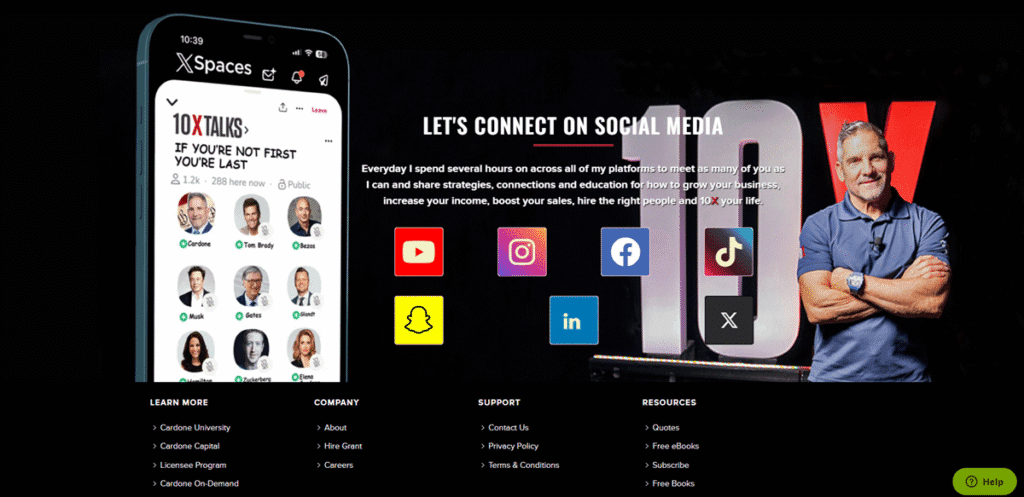
In Grant Cardone's website footer, the icons are grouped under a clear “Let’s Connect” heading, styled to match the strong brand aesthetic. They are sized and spaced for easy tapping, placed where users expect, and invite ongoing engagement beyond the site.
Myrongolden.com

Check out Myron Golden's website footer, where the icons are clear and bold with an intro that lets you know exactly why they are there and why you should click them.
Gordonramsay.com

The footer on Gordon Ramsay's website features clean, minimalist social media icons for Twitter, Facebook, Instagram, and YouTube. Their uniform size, simple black design, and spacing ensure clarity, easy recognition, and seamless integration with the overall layout.
FAQs
How do I add social media icons to my footer manually?
You can manually add icons using HTML and embedding icon images or SVGs. However, it’s easier to use a footer builder, widget, or plugin that automatically adds and styles social icons without coding.
Can I make social media icons in my website footer mobile-friendly?
Yes. Ensure icons are large enough for touch (40–48 px), well-spaced, and responsive via CSS media queries. Alternatively, use footer plugins or tools like Elfsight, which automatically optimize icons for mobile-friendly interaction.
Should social icons open in a new tab?
Yes. Opening in a new tab keeps visitors on your site while letting them explore your social profiles. This improves user experience and prevents losing potential leads or readers when they click an icon.
What file format is best for icons?
SVG is the best format. It’s lightweight, scalable without losing quality, and easy to style with CSS. PNG works too but may require multiple sizes for responsiveness. Avoid heavy or low-resolution formats for crisp, fast-loading icons.
How can I track clicks on social icons?
You can track clicks using Google Analytics or similar tools by adding event tracking to the tags. This logs each click, allowing insights into engagement and which platforms drive traffic from your footer links.
Previous post: