If you are already sharing your artwork on DeviantArt, your website should reflect that creativity too. Many artists choose to embed DeviantArt on their website so they can showcase their latest work without constantly uploading files twice. Instead of manually updating a portfolio page every time you post something new, you can display your DeviantArt user gallery automatically.
Embedding your gallery helps you build a stronger portfolio, add social proof, and keep your website feeling active and current. It also allows you to display a mix of images and video, giving visitors a richer experience the moment they land on your site. Whether you are a digital illustrator, animator, photographer, or mixed media artist, your DeviantArt content can become a dynamic part of your online presence.
With Curator, you can connect your DeviantArt user gallery and generate a simple embed code that works with WordPress, Wix, Squarespace, Shopify, Webflow, and more.
Let’s walk through how to embed DeviantArt in your website in just a few steps.
Why embed DeviantArt on your website?
When you embed DeviantArt in your website, you turn your profile into a live portfolio that updates automatically. Every time you publish new artwork, it can appear directly on your site without any extra work.
This is especially helpful for artists who regularly share new images and video. Instead of exporting files, resizing them, and reuploading them to your website, your DeviantArt user gallery becomes your content source. Your portfolio stays current, your design stays fresh, and your visitors always see your latest work.
An embedded gallery can also increase time on site. Visitors can browse multiple pieces of artwork, animations, or videos in one place, which encourages deeper engagement. It creates a seamless experience that connects your creative platform with your personal website, all while reducing manual updates.
What you need before you get started
Before you embed DeviantArt on your website, make sure you have a few basics in place.
First, you need a DeviantArt account with a public user gallery. Your gallery must be visible so it can be pulled into your feed.
Second, you need a Curator account. The free plan works perfectly if you are embedding a single source.
Third, you need access to your website editor so you can paste the embed code where you want the gallery to appear.
It is important to note that DeviantArt integration works through a User Gallery source only. You will connect your public profile gallery, not individual posts or collections.
How to embed DeviantArt on your website in 6 simple steps
If you want to embed DeviantArt on your website without touching complicated code, you can do it in just a few minutes with Curator. Below is a simple walkthrough that takes you from setup to live gallery.
Step 1. Create a new feed
Start by logging into your Curator dashboard. Once you are inside, click the Create New Feed button.
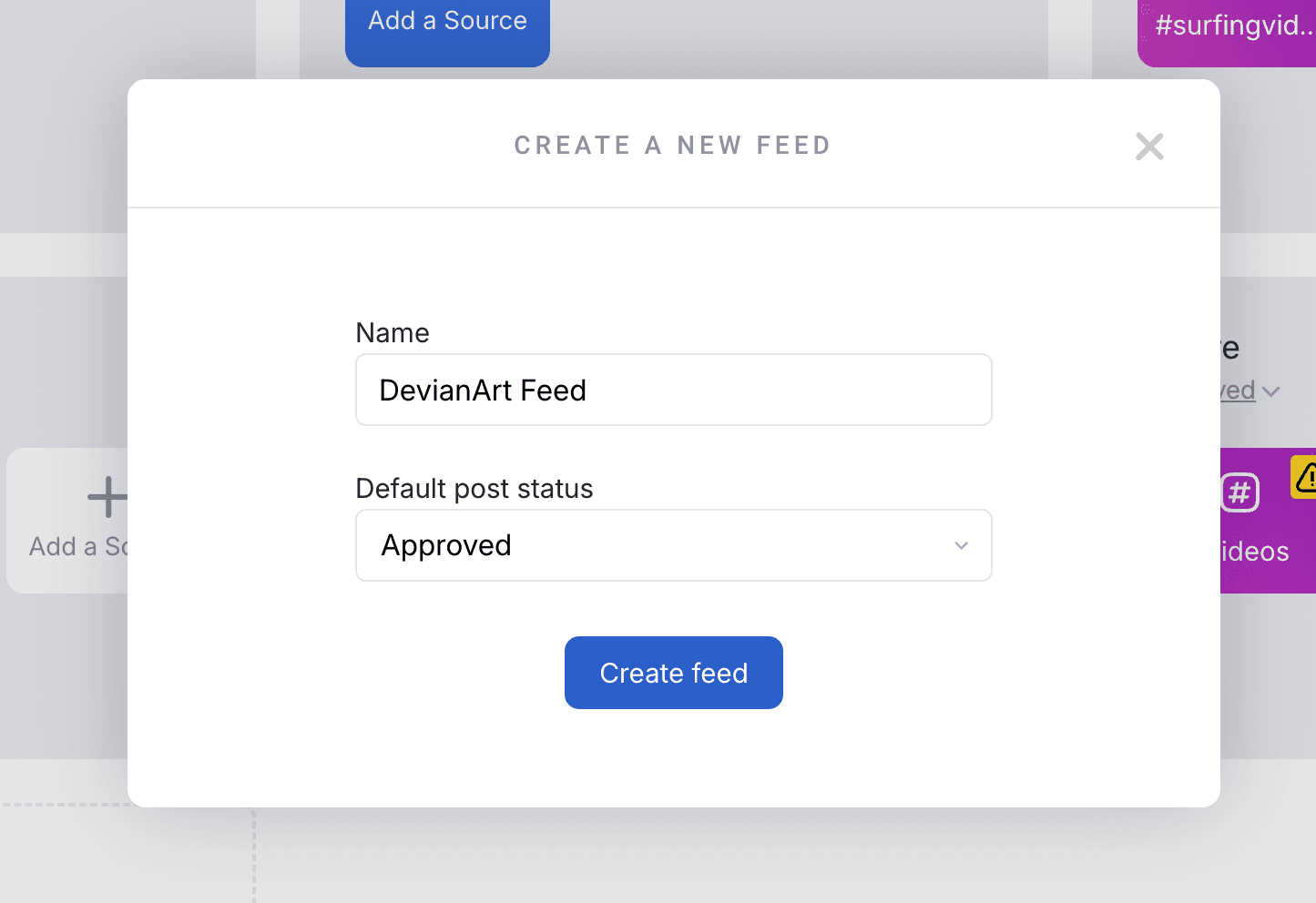
You will be prompted to name your feed. This name is for internal organization, so choose something clear like DeviantArt Portfolio or Art Gallery. If you manage multiple feeds, a descriptive name makes things easier later.
Click Create to move forward.
Step 2. Choose your approval method
Next, you will decide how content gets published to your gallery.
You have two options. Auto approve publishes new DeviantArt posts automatically. Manual moderation allows you to review and approve each piece before it appears on your website.
If you are connecting your own DeviantArt user gallery for a personal portfolio, auto-approve is usually the best choice. It keeps everything hands off and updates your site as soon as you post new work.
If you are curating multiple artists or managing a community gallery, manual approval gives you more control. You can filter content, remove pieces that do not fit your brand, and maintain consistent quality.
Choose your preferred option, then click Next.
Step 3. Add your DeviantArt user gallery
Now it is time to connect your source.
Click Add Source. From the list of available platforms, select DeviantArt. You will then choose User Gallery.
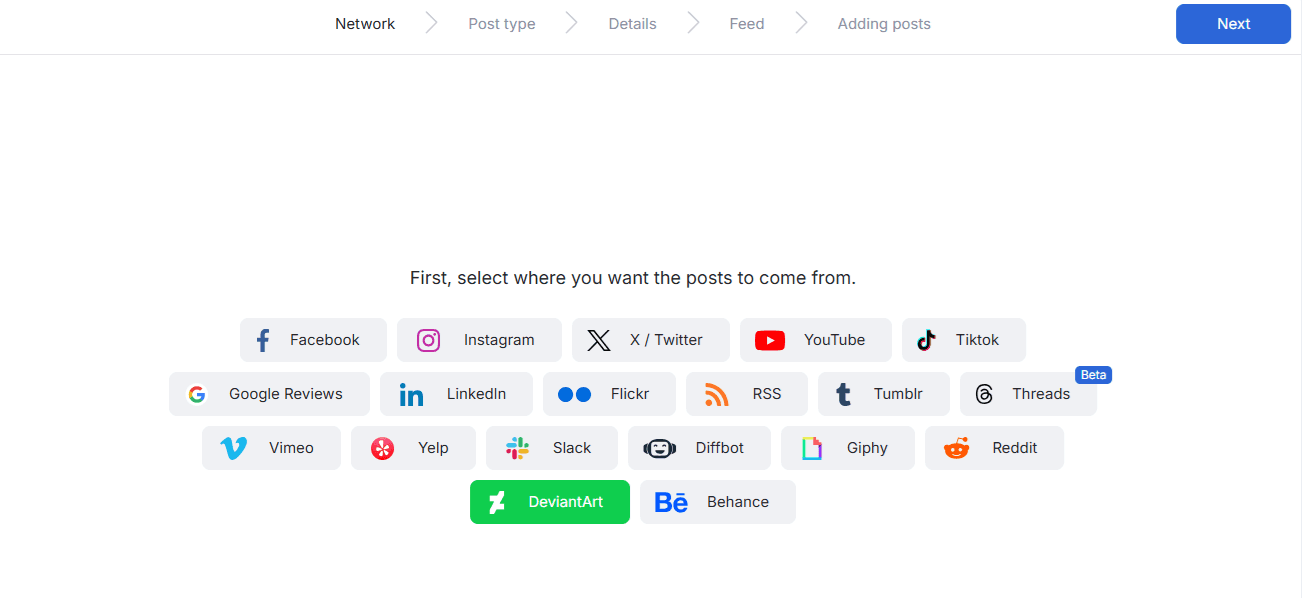
It is important to note that this is the only DeviantArt source option available. Curator pulls content directly from your public user gallery, not from individual posts or collections.
Enter your DeviantArt username in the field provided. Double check that your gallery is public so it can be accessed properly. Then click Next.
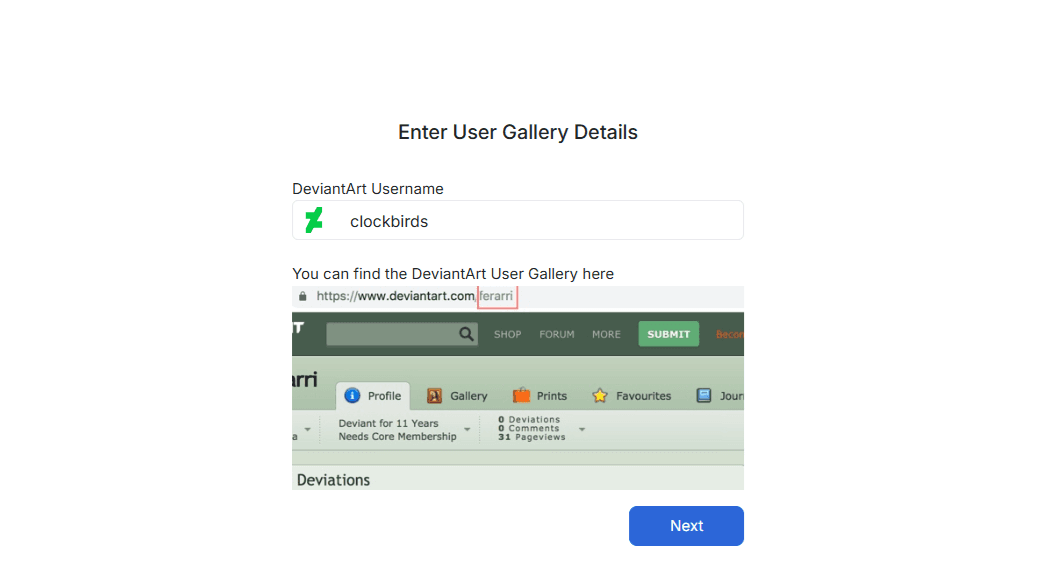
Curator will automatically pull in content from your gallery. This includes images, animated artwork, and video if your DeviantArt gallery contains video posts.
Within seconds, you will see your artwork populate inside your feed. At this point, you are officially set up to embed DeviantArt content on your website.
Step 4. Curate your artwork
Once your content is imported, you can review everything inside the moderation view.
If you selected manual approval, you will see options to approve or deny each post. Take a moment to scroll through your images and video to ensure everything aligns with how you want your portfolio to appear.
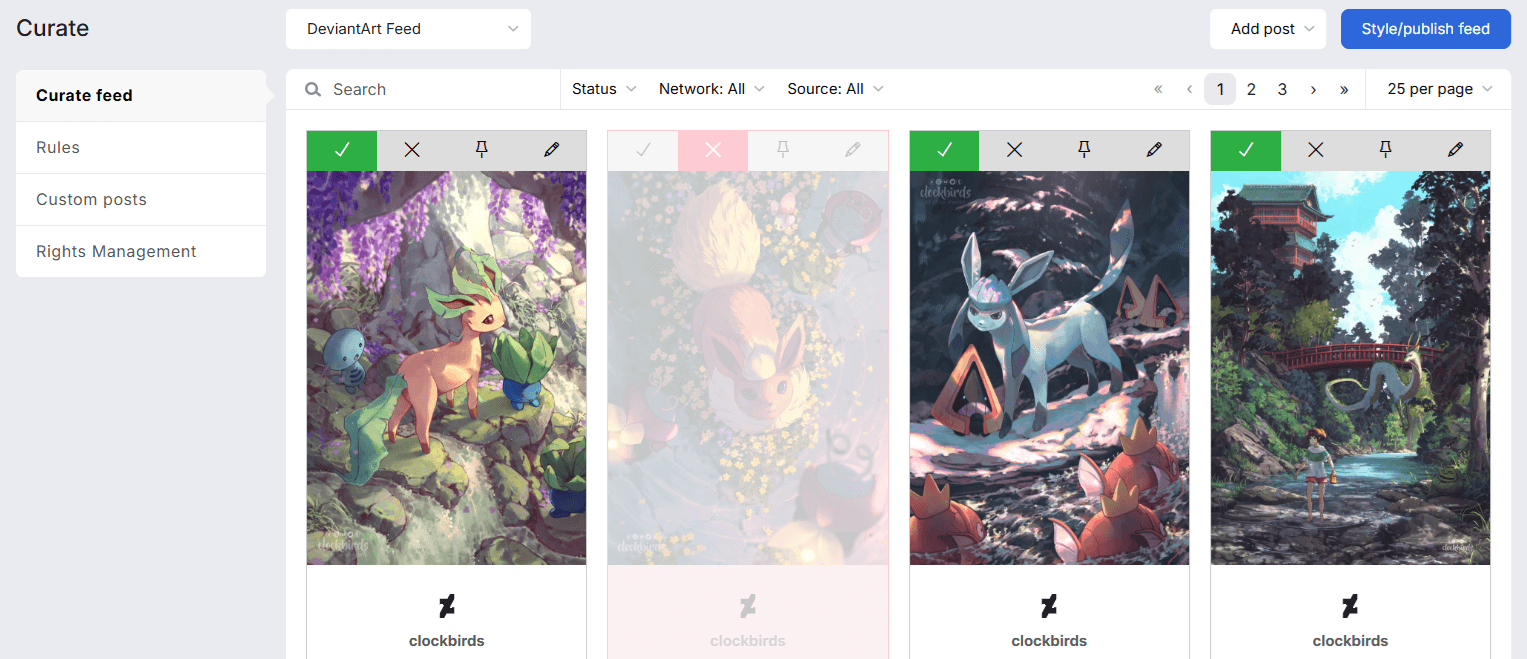
Even if you chose auto approve, you can still remove duplicates, hide older pieces, or tidy up the layout. Think of this as shaping the story your portfolio tells.
Pro tip: Highlight your strongest portfolio pieces at the top for new visitors.
Step 5. Customize the design
Now comes the fun part. You get to design how your DeviantArt feed looks on your site.
Start by choosing a layout. A grid layout is ideal for traditional portfolios because it keeps images clean and organized. A carousel works well on a homepage banner or featured section where you want movement. If your work is more landscape-oriented, the waterfall layout is a strong option. It does not force your content into a square like a grid. You can use the waterfall layout in Manila style for a simple, clean presentation with no wording or icons.
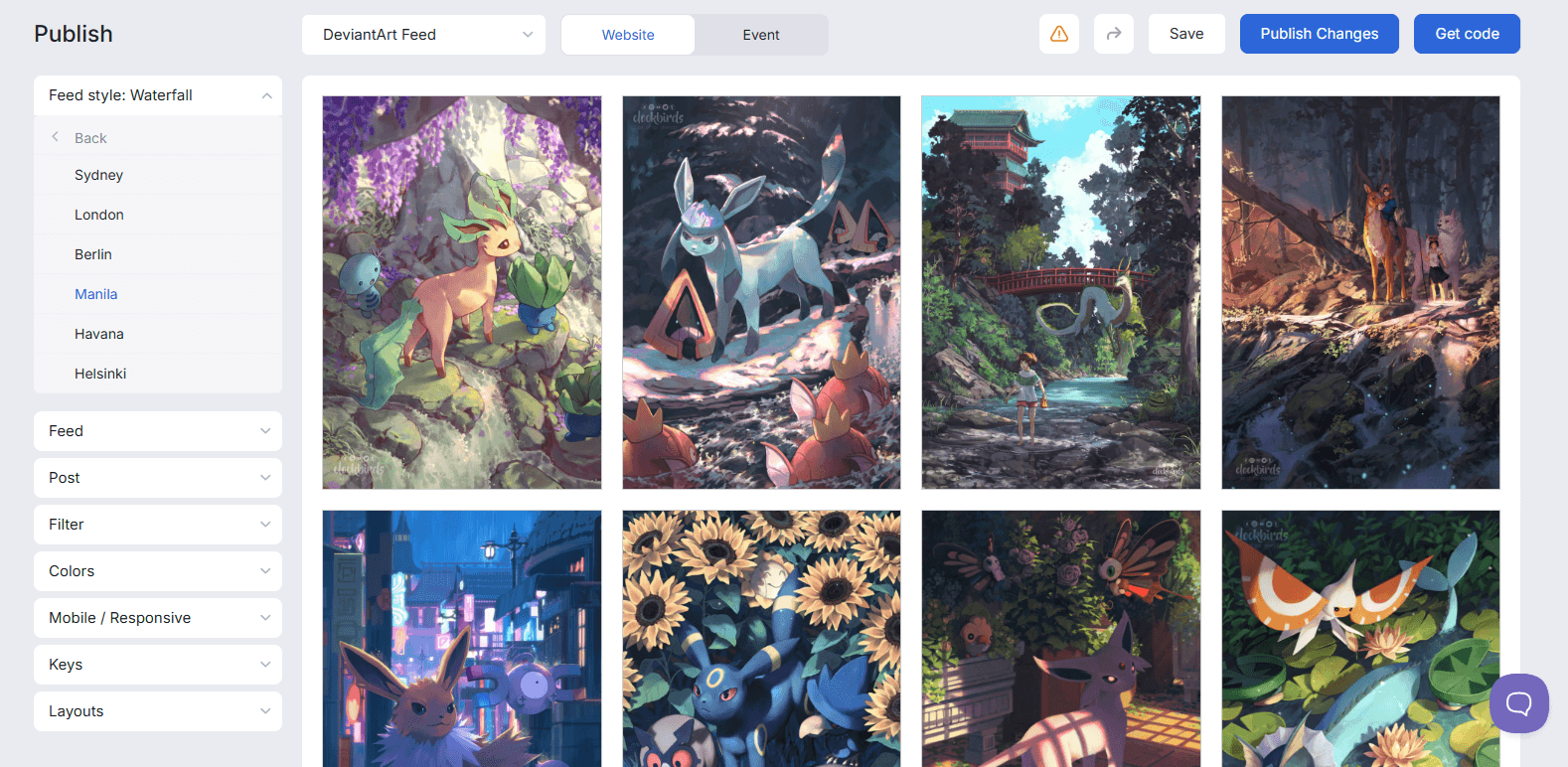
After selecting a layout, adjust your colors to match your branding. Modify spacing and borders so your images breathe properly. Control how many posts appear per row to create balance on desktop and mobile. If you want full control, you can also add custom CSS.
The goal is to make your DeviantArt gallery feel like a natural part of your website, not an external widget. When styled correctly, visitors will see it as an integrated portfolio section powered by your own embed code.
Step 6. Copy the embed code and add it to your website
Once you are satisfied with the design, click Publish. Then click Get Code.
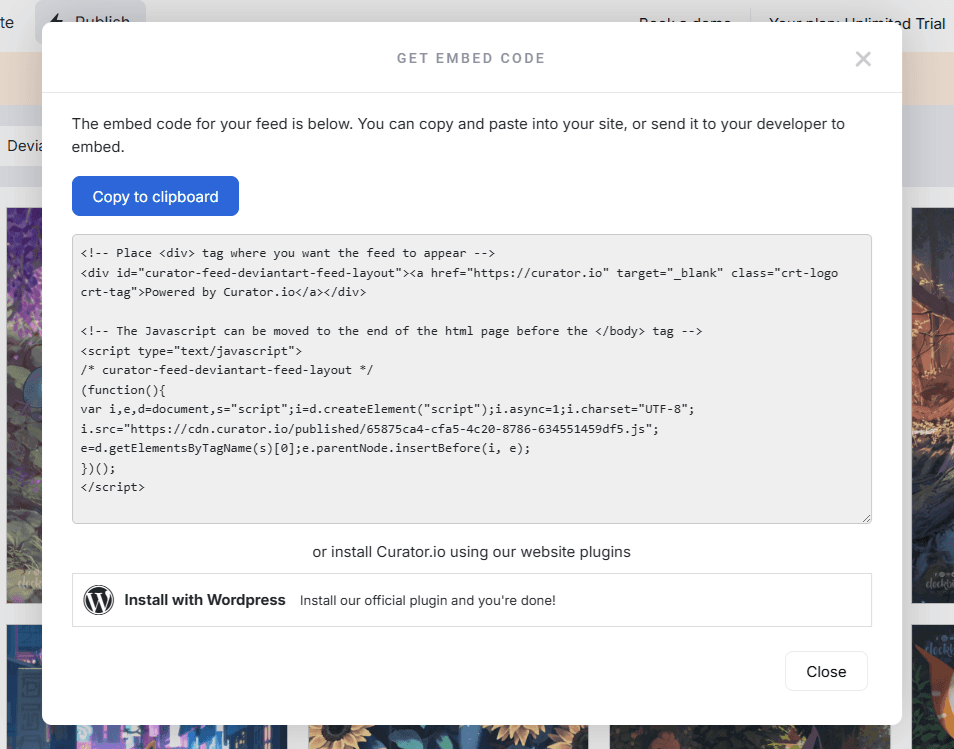
You will see your HTML embed code. Copy it.
Now head over to your website editor and paste the embed code where you want your DeviantArt gallery to appear.
Where to paste the embed code
Here are some tips for popular website builders:
If you use WordPress, add a Custom HTML block and paste the code inside.
In Wix, use the Embed HTML element.
In Squarespace, insert a Code block.
In Shopify, add it to a custom section or page template.
In Webflow, drop it into an Embed element within the Designer.
After you publish your page, your DeviantArt user gallery will appear live on your website. From this point forward, new images and video added to your DeviantArt profile will update automatically based on your approval settings.
That is it. You now have a live, dynamic portfolio powered directly by your DeviantArt content.
You can also use this method to embed your Instagram content on your website, offering another way to create a digital portfolio.
Frequently asked questions
Can I embed a DeviantArt gallery on my website for free?
Yes, you can embed a DeviantArt gallery on your website using Curator’s free plan. The free plan allows you to connect a DeviantArt user gallery as a source, design your feed, and generate an embed code without paying.
Can I embed individual DeviantArt images instead of a full gallery?
Curator connects to DeviantArt through a User Gallery source only. This means you cannot pull in individual images separately. Instead, you connect your public gallery, and then choose which posts to display through manual approval if needed.
Does the DeviantArt embed update automatically?
Yes, your DeviantArt embed updates automatically. When you add new images or video to your public user gallery, they are pulled into your feed based on your approval settings and your plan’s refresh rate.
Will embedding DeviantArt slow down my website?
Embedding DeviantArt with Curator will not slow down your website. The embed code is lightweight and loads asynchronously, which means it does not block the rest of your page from loading properly.
Can I customize how my DeviantArt gallery looks?
Yes, you can fully customize your DeviantArt gallery. Choose from templates like grid or carousel, adjust colors and spacing, and add custom CSS so your portfolio matches your website design.
Embedding your DeviantArt gallery on your website is one of the easiest ways to turn your artwork into a live, dynamic portfolio that updates automatically.
Try Curator for free and start showcasing your DeviantArt content in minutes.
Previous post: