YouTube currently has over 122 million daily users. Now imagine being able to get some of those users to stick around on your website instead of scrolling past your brand. Embedding your YouTube channel directly on your site helps you turn casual viewers into engaged visitors and keeps people on your pages longer. It also boosts credibility and gives your content more visibility without asking users to leave your platform.
Whether you run a blog, an ecommerce store, or a corporate site, adding your YouTube channel is a simple way to showcase videos, build trust, and drive more meaningful engagement from your audience. In this guide, we’ll show you how to embed a YouTube channel on your website using Curator. We’ll also cover alternative tools you can use to display YouTube content on your site.
How to add a YouTube Channel to your website in 7 simple steps
Want your latest YouTube videos to appear on your website without manually updating it every time you upload? With a tool like Curator, you can display your channel automatically in just a few steps.
Below, we’ll walk you through adding your YouTube channel to your website using Curator’s YouTube widget. These steps are quick and hassle-free.
Step 1. Create a Curator account
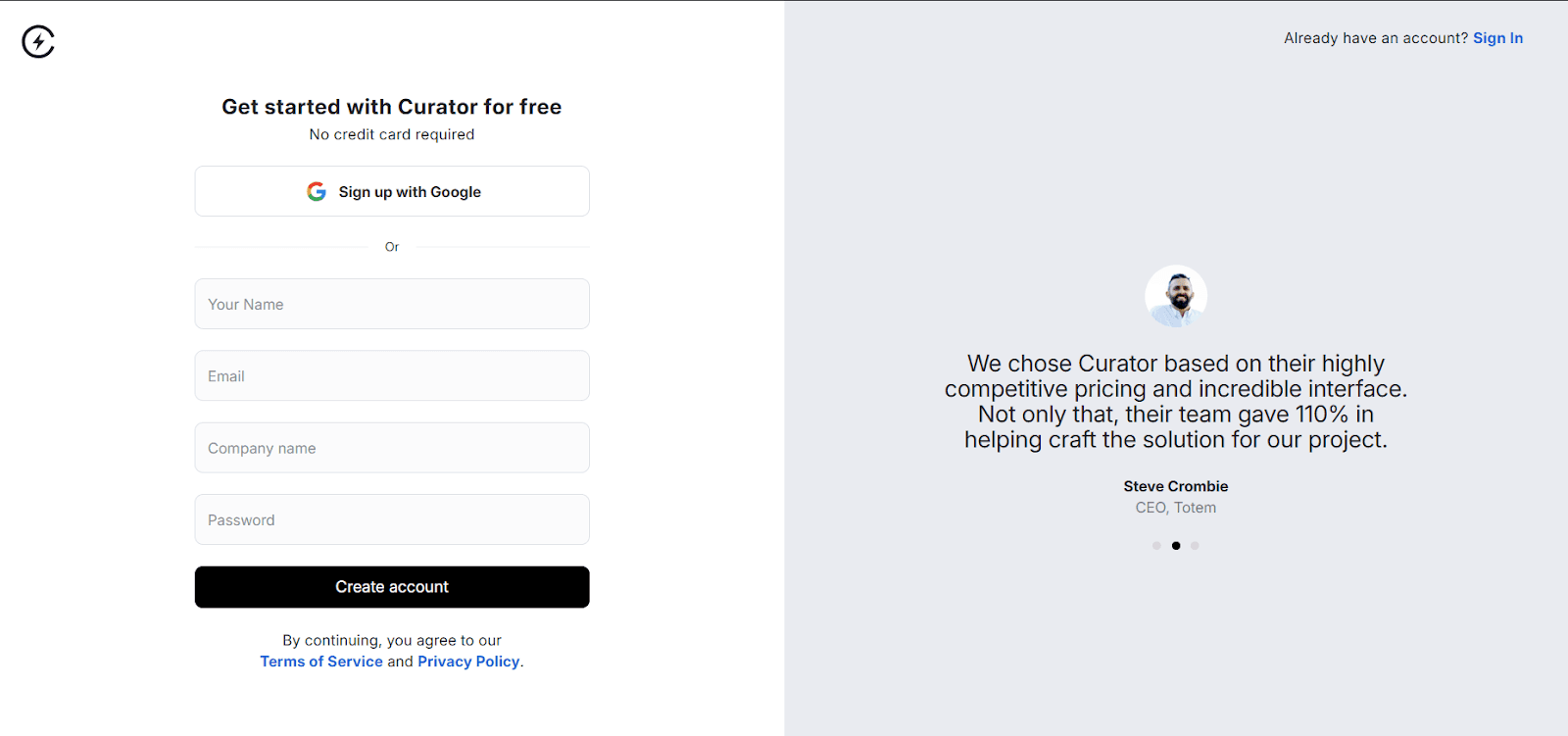
If you don’t already have a Curator account, getting started only takes a few clicks. Visit Curator’s website and sign up using your email address or Google account. Then complete the short registration form to set up your profile and access your dashboard. It only takes a couple of minutes, and if you choose the free plan, you won’t need to enter any credit card details.
Step 2. Create a new feed
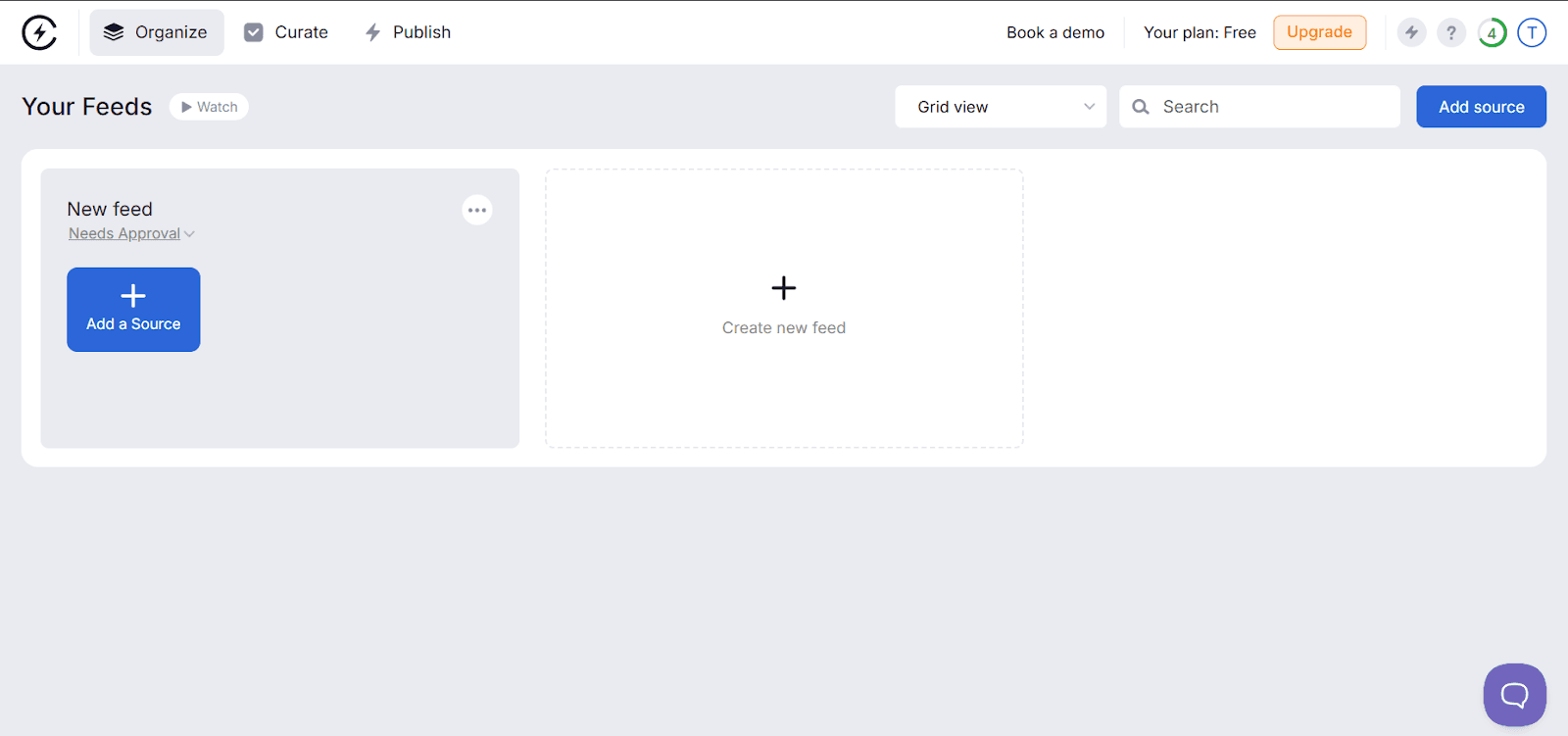
Once you’re logged into your Curator dashboard, your first step is to set up a new feed.
Click the “Create New Feed” button to get started.
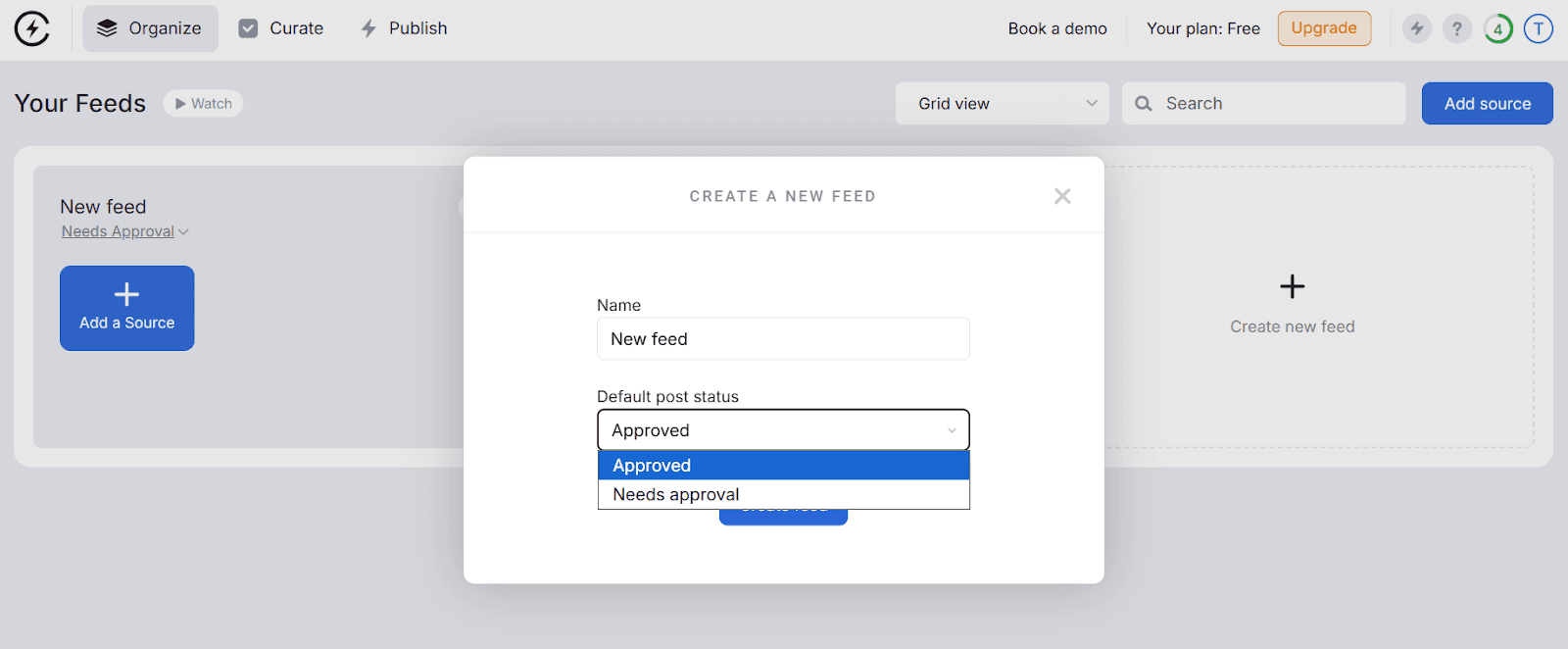
Then, choose a name for your feed. This is for internal use only, so you can call it something simple and descriptive like “YouTube Channel.”
Step 3. Choose your approval method
After entering your feed name, you’ll select if you want posts automatically or manually approved. Automatic approval means new videos will appear on your website as soon as they’re published, while manual approval lets you review and choose which videos get displayed.
Best practices for YouTube feed approval:
Use auto-approval for feeds you control, like your own YouTube channel.
Use manual approval if you’re adding videos from external channels or curated industry content.
Keep your feed organized by removing duplicates or videos that aren’t relevant.
If you choose manual approval, set aside time regularly to review and approve new uploads.
Once you’ve picked your approval method, click Next.
Step 4. Add the YouTube feed
Now it’s time to connect your YouTube channel to Curator.
Click Add Source, then select YouTube from the list of source types.
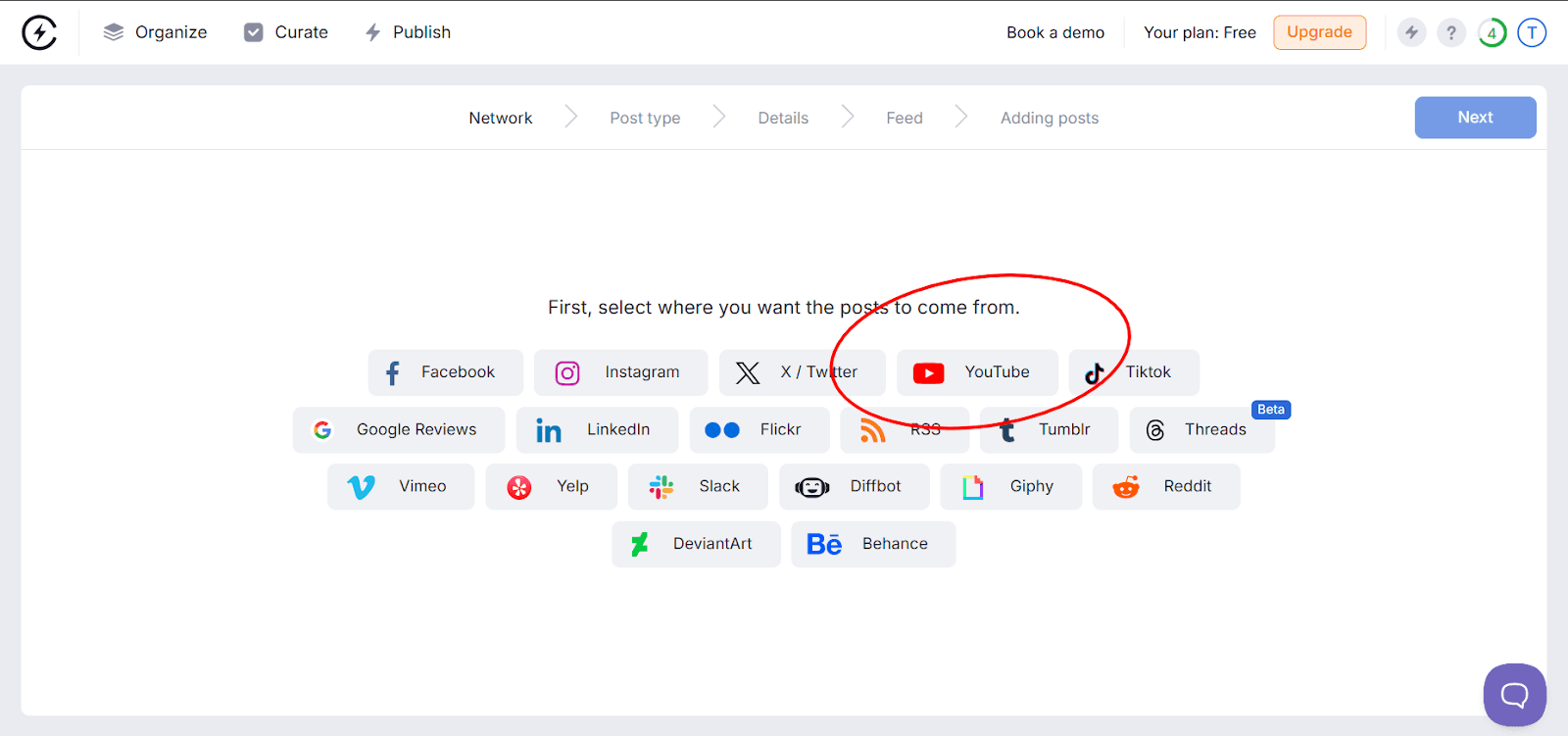
Next, select the type of posts you'd like to display in your feed. Your options are channel, hashtag, and playlist.
Channel pulls all videos from a specific YouTube channel.
Hashtag displays videos that include a particular hashtag, useful for trending topics or campaigns.
Playlist lets you showcase a curated collection of videos, perfect for themed content or step-by-step tutorials.
Whichever option you choose will take you to the next step where you can search for the YouTube channel, hashtag, or playlist you want.
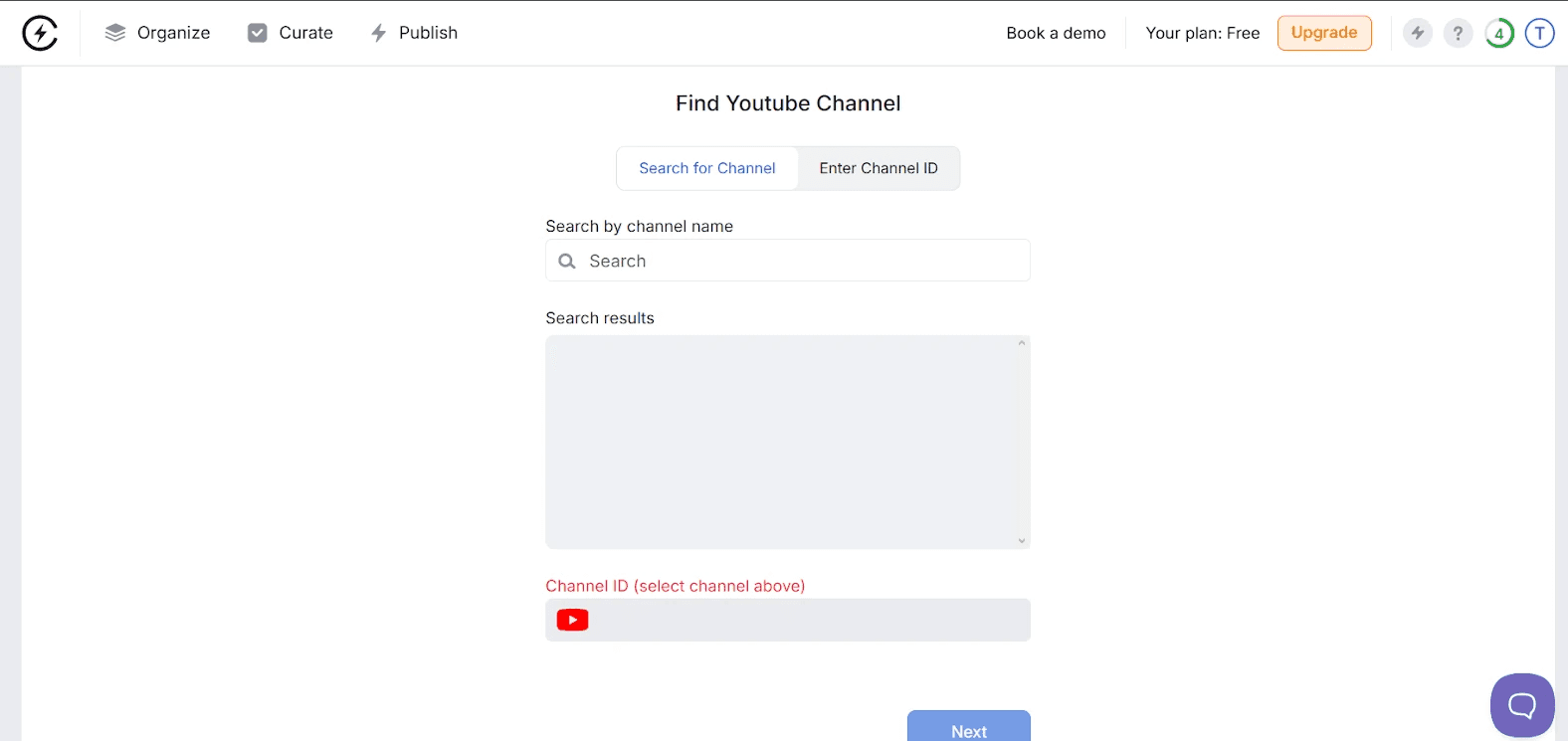
Next, you’ll select the feed you want the YouTube posts to appear in. Curator will pull the latest videos from that YouTube page and add them to your feed, where you can select the videos you want.
Step 5. Curate YouTube posts
Once your feed is connected, Curator will pull in your most recent videos.If you selected manual approval, this is where you can review each video and decide which ones should appear on your site. You can also preview videos on this page before using the user-friendly interface to approve or reject videos with a single click.
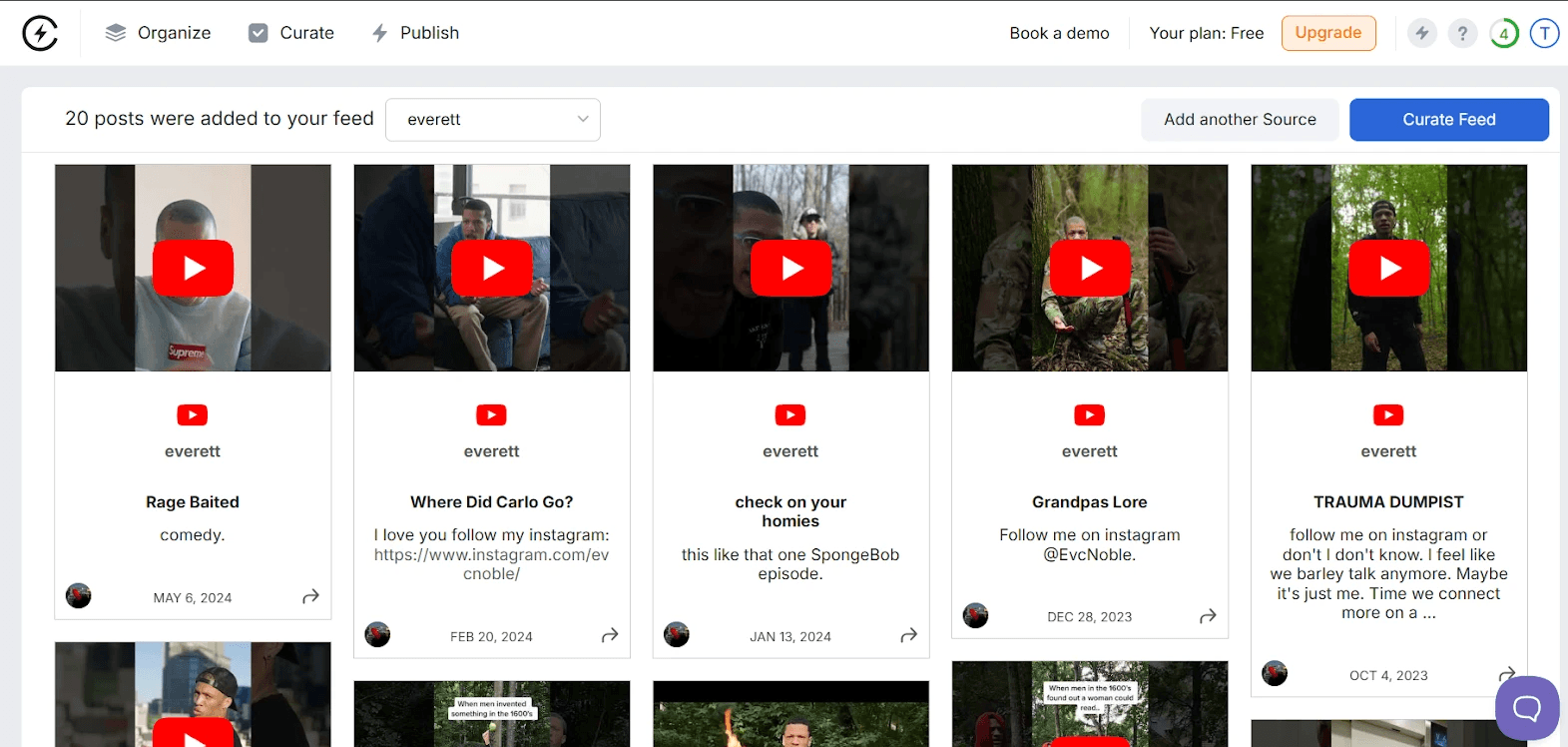
When you’re satisfied with your selections, click Style / Publish Feed to move on to the design step.
Step 6. Stylize your feed
Now you can style your YouTube feed to fit seamlessly on your website. Start by picking a layout. Curator offers options like grid, carousel, or list, letting you showcase your videos in a way that best suits your site.
Once you’ve chosen a layout, you can personalize it further:
Colors: Match your website’s color scheme or brand palette.
Fonts: Pick typography that complements your site’s style.
Spacing & Borders: Adjust margins, padding, and borders for a polished look.
Video Details: Control how much text appears for each video.
Feed Structure: Decide how many videos display per row and how many rows show at once.
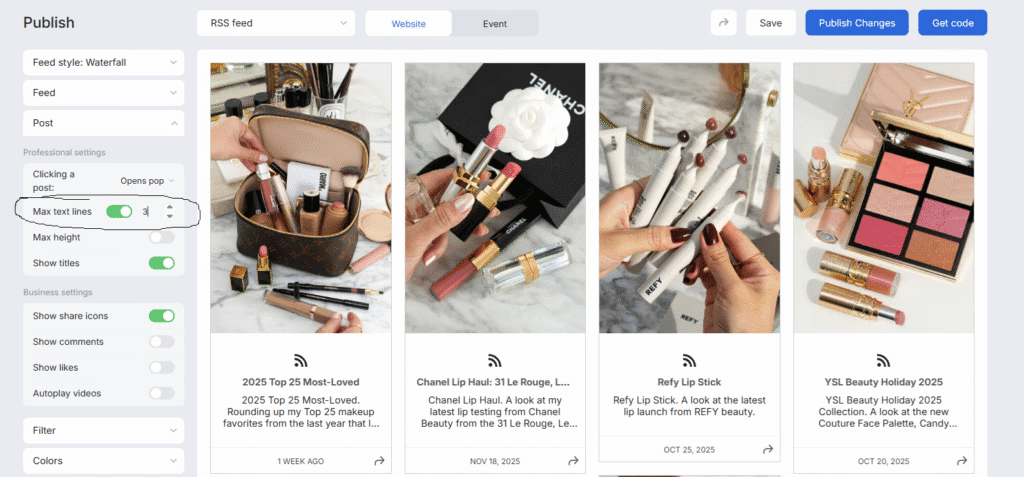
For greater flexibility, you can add custom CSS to make your YouTube feed blend perfectly with your website’s design. Be sure to preview your feed and tweak the settings until it looks exactly how you want.
Step 7. Embed it on your website
Once you’re happy with your feed’s look, you can proceed with embedding it on your website. But first, you need the embed code. Click Publish and Curator’s code generator will generate it.
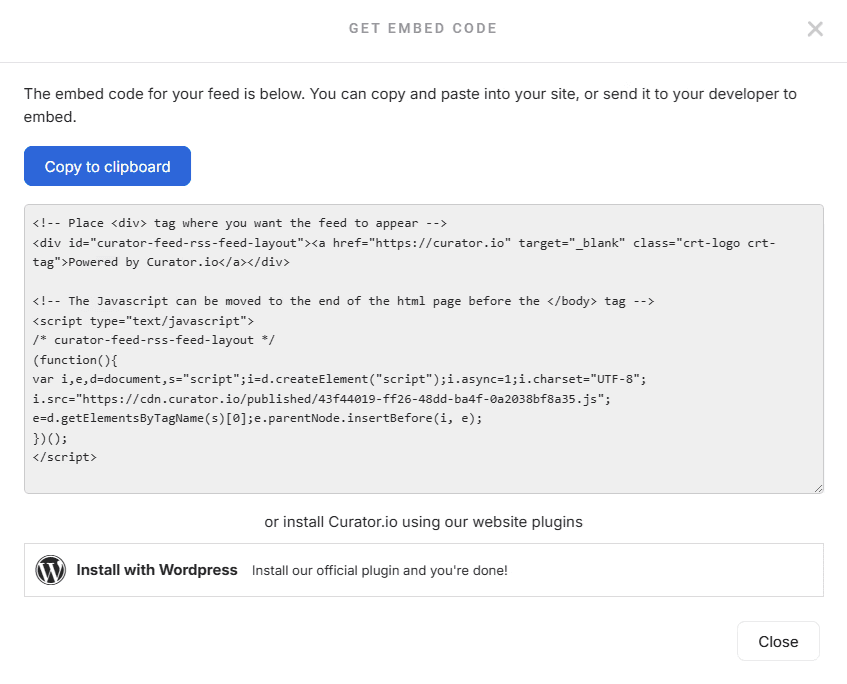
Copy the embed code and paste it into your site where you want the feed to appear.
How you do this depends on your website platform:
WordPress: Use a Custom HTML block or widget area.
Wix: Add it via the Embed HTML element.
Squarespace: Insert it using a Code Block.
Webflow: Drop it into an Embed element in the Designer.
Shopify: Paste it into a theme file or a custom section.
Once the code is in place and you publish the page, your YouTube feed will go live for visitors to see.
Alternatively, instead of embedding the code, you can install the Curator plugin, which is available for WordPress. This lets you add and manage your YouTube feed directly from your WordPress dashboard, making updates and styling even easier.
8 tools for adding a YouTube feed to your site
These are some of the most popular tools for embedding YouTube content.
1. Curator
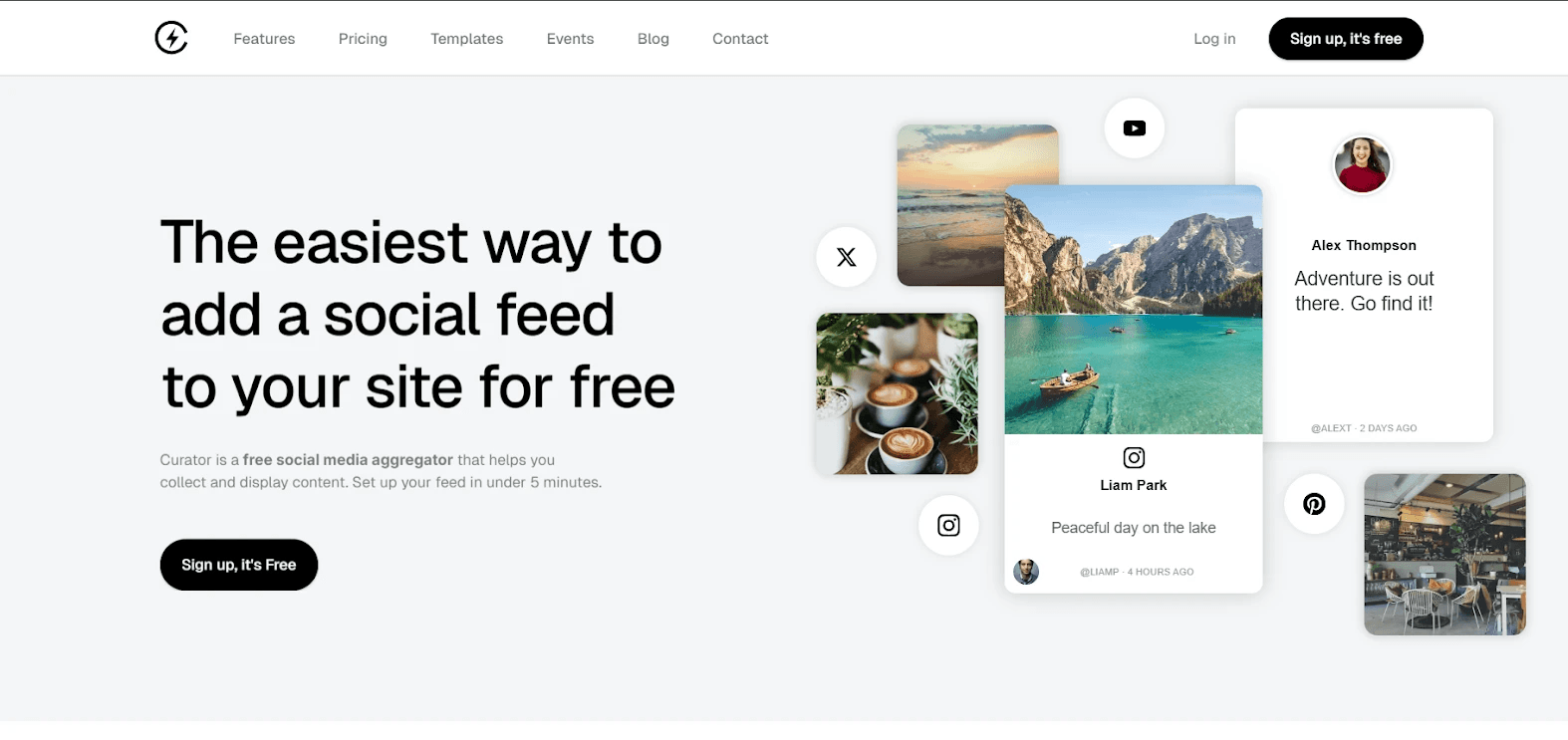
Using Curator as a social media aggregator lets you effortlessly display your YouTube feed and other social channels on your website. It keeps content fresh, boosts engagement, and encourages visitors to stay longer. With easy customization, automatic updates, and optional manual approval, Curator ensures your videos appear professionally, align with your brand, and enhance your site’s overall user experience.
Top features:
20+ stunning templates
Multiple layouts
Approval and moderation rules
Advanced styling and full CSS control
SEO-friendly and lightweight code
Analytics and reporting
Mobile-friendly feeds
Embedded feed with simple copy-paste code
Notifications and unlimited admin users
Pricing:
Curator offers plans starting at $0/month for basic features, with Pro at $23/month and Business at $54/month. Higher tiers unlock faster updates, more sources, unlimited views, and advanced tools.
2. CommonNinja
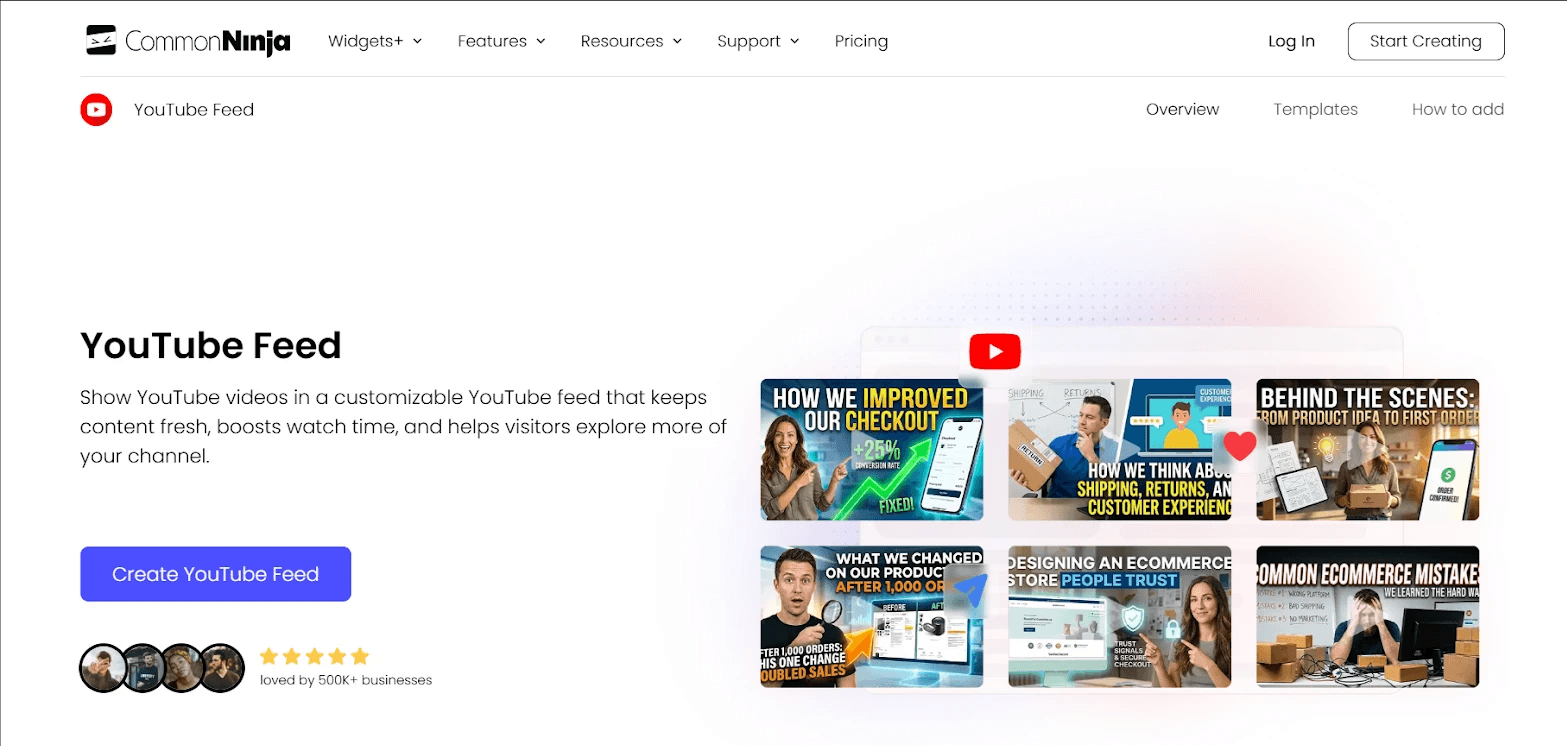
With Common Ninja’s YouTube Feed widget, you can easily embed a fully customizable YouTube feed on your website. It supports multiple layouts, auto-refresh, tabs or mixed feeds, custom skins, and is mobile-responsive, requiring no coding to set up. Just copy a single line of code, and your feed stays automatically updated.
Top features:
Multiple feed types (Tabs & Mixed)
Auto-refresh to keep content up-to-date
Multiple layouts and skins for customization
Fully responsive and mobile-friendly
Customizable date, time, and character display
Easy embed with a single line of code
Full customization with colors, fonts, spacing, and custom CSS
Pricing:
Common Ninja offers a Free plan with basic features, while paid plans start at $10/month for Essentials, unlocking more widgets, collaborators, and customization.
3. Smash Balloon YouTube Feed Pro
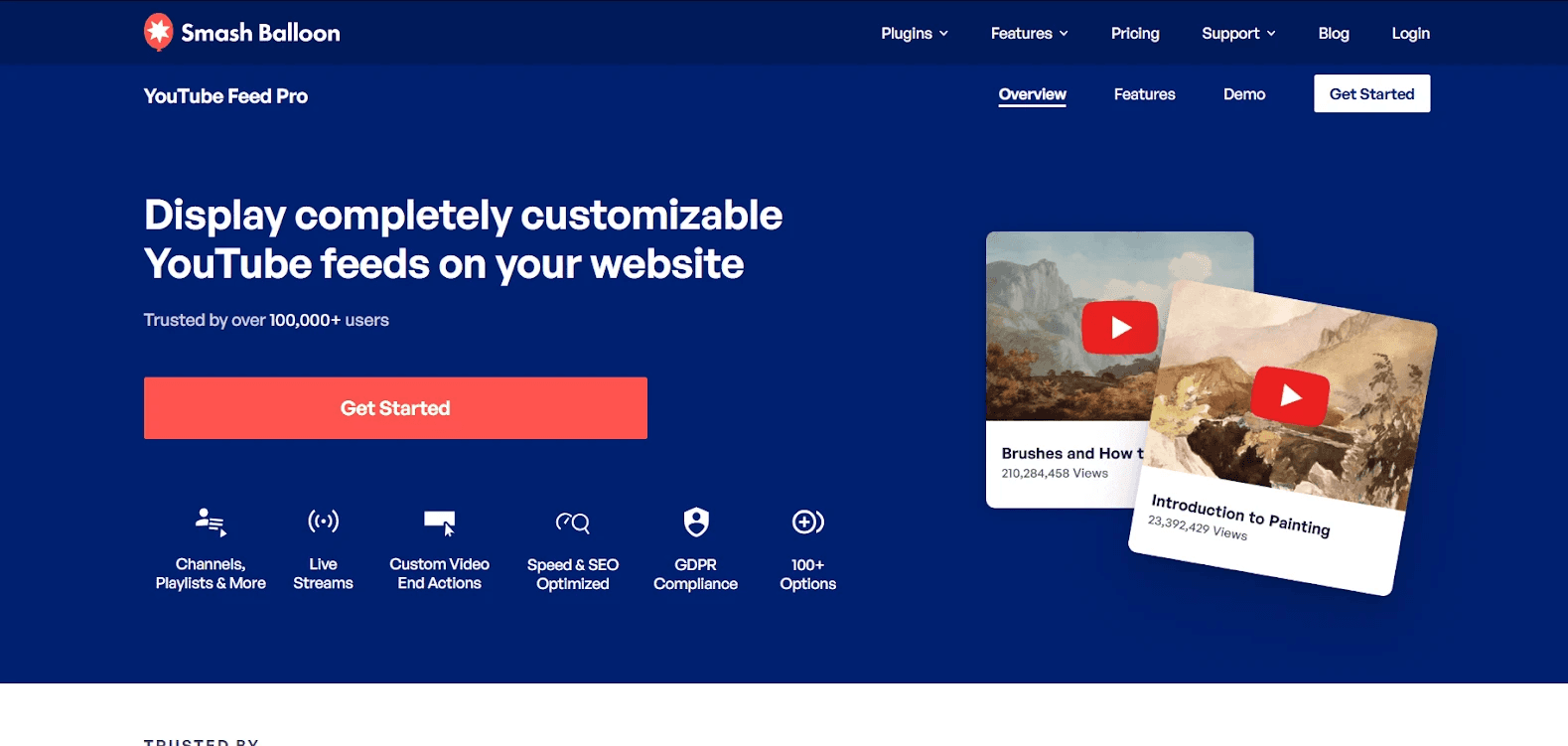
Smash Balloon’s YouTube Feed plugin lets you automatically embed and customize your YouTube content on WordPress. It supports channels, playlists, and live streams, with multiple layouts, filters, smart loading, and full responsiveness, boosting engagement without slowing your site.
Top features:
Displays YouTube channels, playlists, and live streams
Automatic video updates from your channel
Multiple feed layouts: Grid, Gallery, List, Carousel
Customizable video display, including pause and end actions
Filter videos by keywords in title or description
Combine multiple feeds from different channels
Smart loading of YouTube players for faster page speed
Fully responsive and mobile-friendly
Pricing:
Smash Balloon has no free plan. Paid plans start at $49/year, offering channel feeds, playlists, video filtering, live streams, and more.
4. SociableKIT

Brands choose SociableKIT for embedding YouTube on websites because it makes showing videos on your site effortless. Feeds stay fresh automatically, match your brand’s look, load smoothly, and keep visitors engaged—all without any coding headaches.
Top features:
Fully customizable channel widgets
Multiple layouts: Grid, Carousel, Masonry
Live stream integration and YouTube Shorts embed support
Custom colors, fonts, and branding
Auto-refresh for new videos
Responsive and mobile-friendly
Lazy loading for faster performance
GDPR compliant
Pricing:
SociableKIT offers a free plan for basic widgets, with Pro ($110/year) and Business ($440/year) unlocking more sources, unlimited widgets, advanced features, customization, and priority support.
5. Elfsight

Elfsight is a popular choice for embedding YouTube feeds because it’s no-code, easy to set up, fully customizable, and mobile-responsive. Its fast, helpful support lets businesses showcase videos seamlessly while boosting engagement and trust.
Top features:
Mobile-responsive and works on all devices
Display videos from channels, playlists, or single videos
Customizable colors, fonts, and spacing
Option to show or hide video titles, descriptions, and dates
Combine multiple YouTube feeds into one
GDPR compliant for user privacy
Compatible with all major website builders (WordPress, Wix, Shopify, etc.)
Pricing:
It’s one of the most budget-friendly options, with plans starting free for testing, then range from $5/month for small sites to $20/month for high-traffic websites.
6. Tagembed

Tagembed sets itself apart by making YouTube embedding effortless and meaningful. It doesn’t just show videos—it lets businesses curate content, highlight top posts, and even turn videos into shoppable experiences. With real-time updates and seamless integration, websites stay fresh, engaging, and visually aligned with their brand.
Top features:
Collect content from YouTube channels, playlists, or hashtags
Curate and moderate feeds before publishing
Shoppable video integration for product tagging
Automatic real-time updates
Embed via iFrame, JavaScript, shortcode, or block
Advanced content filtering & profanity control
Analytics dashboard to track engagement and performance
Team collaboration with role-based access
Mobile-responsive and fast-loading widgets
Compatible with all major CMS platforms
Pricing:
It’s a budget-friendly YouTube aggregator. Plans start free for basic use, while paid plans add advanced customization and analytics, and start at $19 per month.
7. Juicer.io

Juicer simplifies embedding YouTube by acting as an aggregator that collects all your videos, playlists, or hashtags into a single, unified feed. You can moderate, style, and embed it effortlessly, keeping content fresh, engaging, and consistent across your website without sending visitors offsite.
Top features:
Aggregate videos from channels, playlists, or hashtags
Automatic real-time content updates
Customizable themes, colors, fonts, and banners
Embed via iFrame, JavaScript, shortcode, or block
Analytics dashboard to track engagement and performance
Mobile-responsive and fast-loading widgets
Display YouTube content alongside other social channels on a unified social wall
SEO-friendly video embeds with clean markup
Pricing:
Start free with basic features, then upgrade to Lite for $13.50 per month or Starter for $22.50 per month for faster updates and more sources.
8. Walls.io

Walls.io turns your YouTube content into a living part of your website. It gathers videos automatically, updates them in real time, and lets you showcase only the best content to keep visitors engaged without extra work.
Top features:
Automatically update your website with new content
Moderate videos using language, keyword, and spam filters
Customize widget layouts, colors, borders, and branding
Ensure mobile-responsive and fast-loading video feeds
Combine YouTube with other social feeds like Instagram, TikTok, and Twitter
Allow unlimited moderators for team content management
Curate content to highlight top videos and hide irrelevant posts
Boost SEO by increasing dwell time and engagement
Pricing:
Walls.io is a pricier option, starting at $215/month, offering multiple sources, frequent updates, unlimited embeds, broad platform support, and full email/chat support.
FAQs
How do I embed a YouTube channel on my website using a widget?
Embedding a YouTube channel is easy with a widget. Tools like Curator let you pull your channel videos into a stylish feed, customize the layout, and paste a simple embed code—no coding needed. Your website will automatically display new videos as they’re posted.
Can I generate an embed code for my YouTube channel easily?
Yes! Platforms like Curator create a ready-to-use embed code for your YouTube channel in seconds. Just choose your videos or playlists, pick your layout, and copy the code into your website. It’s faster than manually creating iframes and fully customizable.
What is the best YouTube embed code generator for websites?
For simplicity and flexibility, Curator stands out. It’s a generator that lets you embed your YouTube content while customizing appearance, layout, and moderation. You can easily update content and style without touching code. Perfect for websites of any size.
How do I customize a YouTube widget before embedding it on my site?
With Curator, you can tweak your widget’s colors, fonts, borders, layout style, and even banners. This ensures the YouTube feed blends seamlessly with your site’s design, giving a professional, branded look while keeping your videos front and center.
Is there a free tool to embed a YouTube channel on a website?
Yes! Curator offers a free plan that allows you to embed a YouTube channel, display videos in a clean feed, and even moderate content. It’s a simple way to start showcasing videos without investing in a premium plan.
Can I embed multiple YouTube channels using one widget?
Absolutely. Curator lets you aggregate multiple channels into a single feed. You can showcase content from several creators, playlists, or your own channels in one widget, making it easier to engage visitors without cluttering your website with multiple embeds.
How do I update the embed code when my YouTube channel posts new videos?
If you use Curator, there’s no need to touch the embed code. The widget updates automatically as new videos are published, keeping your website fresh and engaging. It’s a set-and-forget solution that ensures your feed always shows the latest content.
Are there responsive YouTube widgets that work on all devices?
Yes! Curator’s widgets are fully responsive. Whether visitors are on desktop, tablet, or mobile, your embedded YouTube feed will adapt, keeping videos readable and visually appealing without slowing down your website or breaking layouts.
Can I moderate which videos appear in my embedded YouTube channel widget?
Definitely. Curator includes moderation tools so you can approve, filter, or hide videos before they appear on your site. You can block unwanted content, highlight top videos, and ensure your feed reflects your brand’s quality standards.
How do I embed a YouTube channel without affecting website speed?
Using Curator, the widget is optimized for performance. It loads asynchronously, so videos appear smoothly without slowing down your site. You get a dynamic feed with all your content while keeping page speed fast, improving both user experience and SEO.
Is it better to embed or link YouTube videos on your website?
It’s usually better to embed YouTube videos rather than just link to them. Embedding keeps visitors on your website, increases dwell time, and improves engagement. Linking sends users away to YouTube, which can hurt conversions. An embedded video feels seamless and keeps your content experience in one place.
Ready to add YouTube content to your website? Try our free plan.
Previous post: