You found the perfect TikTok for your website. Maybe it's a customer raving about your product, or a tutorial that explains things better than your copy does. TikTok is more than a social platform. It's a content channel that can enhance your website, drive engagement, and support marketing goals.
Here's the short version. Open the video on tiktok.com in a desktop browser. Click Share, then Embed, and copy the code. Paste it into an HTML block on your page, and you're done.
Embedding TikTok content is especially valuable for strategies like affiliate marketing and influencer marketing, where showcasing authentic, social-first videos can boost conversions and build trust.
In this guide, you'll learn four ways to get a TikTok embed code. You'll see exactly where to paste it on six popular platforms. Then we'll cover customizing the player, fixing an embed that won't load, and knowing when a feed makes more sense.
What a TikTok embed code actually is
Before you paste anything, it helps to know what you're actually copying.
A TikTok embed code is a snippet of HTML that displays a TikTok video directly on your website. Paste it into your site's backend, and the video appears much like it does in the app. Visitors get playback, the caption, the sound, and a clickable link to the creator's profile.
With the embed code, you can showcase:
Your own TikTok creations
User-generated content (UGC) from customers
Influencer posts and creator collaborations
You've likely seen embedded content before, from YouTube videos in blog posts to tweets in news articles. TikTok's embed works the same way. TikTok hosts the video, so it doesn't eat into your own storage or bandwidth.
What's inside the code you copy
Copy a TikTok embed code, and you get two pieces:
<blockquote class="tiktok-embed" cite="https://www.tiktok.com/@username/video/VIDEO_ID" data-video-id="VIDEO_ID">
<section>...</section>
</blockquote>
<script async src="https://www.tiktok.com/embed.js"></script>
The blockquote holds the video's URL and ID. The script does the real work: it loads TikTok's player in place of the blockquote. If your page builder strips that script, visitors see a plain link instead of a video. (The troubleshooting section below covers the fix.)
According to TikTok's Embed Videos docs, the player includes volume control and suggests more videos when playback ends. It also shows a "Discover more on TikTok" button that sends viewers to TikTok.
Types of TikTok embeds
TikTok content can land on your site in three forms:
Single video embeds. One specific video, from TikTok's Share → Embed option. This is the focus of this guide.
Creator profile embeds. A profile card for one account. This is also an official option, per TikTok's Embed Creator Profiles docs. We cover this on our TikTok profile embed page.
Hashtag and account feeds. Collections of videos that update on their own. These need a third-party tool, and our TikTok feed guide walks through the options.
Need Instagram on your site too? Here's our guide to embedding Instagram Reels.
7 reasons to embed a TikTok video on your website
If you're active on TikTok, or even if you're just starting to explore the platform, embedding TikTok videos on your website can unlock serious value. Whether you're a small business, creator, or marketer, using a TikTok embed code lets you tap into the platform’s visual storytelling while keeping your site fresh, social, and engaging.
Here are seven compelling reasons to embed TikTok content directly on your site:
1. Increase time on site
TikTok videos are naturally captivating. They're short by design, easy to start, and hard to stop watching. By embedding this content directly onto your site, you can keep users engaged for longer periods. This increased time on site not only helps lower bounce rates but can also boost overall user experience and SEO performance.
2. Leverage social proof
Embedding TikTok videos that showcase real people using your product builds instant credibility. Those people can be influencer collaborations or organic UGC. Social proof is a powerful persuasion tool, and video makes it even more effective. Check out how UGC can elevate your site’s trust factor in our TikTok UGC guide.
3. Showcase fresh, dynamic content
Is your homepage still showing last year's launch video? Swapping your featured TikTok for a new one takes about two minutes. Try a seasonal promo, a fresh customer review, or your latest product demo. If your brand posts regularly, this is one of the easiest ways to keep your site feeling alive. Want it fully hands-off? A TikTok widget refreshes automatically as you post.
I like rotating one featured TikTok each season instead of leaving the same clip up all year. It's a quick swap that keeps a page feeling current.
4. Highlight UGC without extra hosting
With a TikTok embed code, you don’t need to download or re-upload videos to your website or content management system. Instead, TikTok hosts the content, and you simply embed it, saving time, storage, and bandwidth. This makes it easy to showcase customer videos, reviews, or product highlights with minimal lift on your end.
5. Support cross-channel growth
If growing your TikTok following is a goal, embedding videos on your website is a simple way to drive traffic to your TikTok profile. Each video embed includes clickable elements (like your username and profile picture), which encourages viewers to follow you on TikTok without needing to search for you manually.
Want to learn more about cross-platform strategy? Start with our TikTok marketing strategy guide.
6. Enhance your SEO strategy
While TikTok embed codes don’t directly influence rankings, the indirect SEO benefits are real. More time on site, higher engagement rates, and lower bounce rates all contribute to better performance in search engine results. You’re also creating richer, multimedia content, which is great for both users and Google.
7. Boost conversions on product or landing pages
Seeing a product in action often drives better conversions than static images. Whether you’re embedding a testimonial, tutorial, or lifestyle video, TikTok content can humanize your brand and help potential customers visualize themselves using your product. This tactic is especially powerful in ecommerce. Our guide to adding TikTok to Shopify shows how it works on product pages.
Keep it focused, though. On a product page, one well-chosen video beside the buy button usually beats a grid of five.
4 ways to get a TikTok embed code
Which route should you take? That depends on how much control you want over the player. All four methods below show the same TikTok-hosted video. What changes is the setup work and how much of the player you can adjust. If you just need a video live today, start with the first one.

Copy the embed code from TikTok.com
TikTok provides a built-in embed feature that lets you grab the code directly from individual videos. This is ideal if you want to embed a single post like a product demo, tutorial, or influencer collaboration.
Here's how it works:
Open the video on tiktok.com in a desktop browser. TikTok's docs say the embed option needs a non-mobile surface, so it won't appear in the app.
Click the "Share" icon (the right-facing arrow) on the video.
Choose "Embed" from the sharing options.
Copy the automatically generated embed code.
Paste it into a Custom HTML, code, or embed block where you want the video to appear. A normal text or paragraph block will break it.
This method is fast, reliable, and doesn't require any additional tools. It handles one video per code, so for several videos at once, jump to the generator option below. Embedding YouTube or Instagram videos too? See our guide on how to embed videos on your website.
Paste the video link instead
What if you could skip the code entirely? On WordPress, Webflow, Squarespace, and Ghost, you usually can. These platforms turn a plain TikTok video URL into an embed through TikTok's oEmbed endpoint.
Copy the full URL from your browser's address bar. It should follow this format:
https://www.tiktok.com/@username/video/VIDEO_ID
Paste that TikTok embed link on its own line in your editor. Avoid links copied from the mobile app, since they can be shortened or carry tracking parameters.
Still seeing plain text after you save? Your platform doesn't support oEmbed for TikTok. Go back to the copied code and paste it into an HTML block instead.
Use TikTok's embed player
Want a video that loops silently on a product page, or plays without TikTok's buttons? The standard embed can't do that. TikTok's Embed Player can.
The Embed Player is a plain iframe that loads a video from this URL: https://www.tiktok.com/player/v1/{video_id}. The video ID is the long number at the end of the normal video URL. Add a few settings to that URL, and you control autoplay, looping, and controls. You'll find the full list in "How to customize an embedded TikTok video" below, based on TikTok's Embed Player docs.
Use a TikTok embed code generator for multiple videos
TikTok's own options handle one video per code. Want several videos, or a gallery that updates itself? A TikTok embed code generator from a third-party platform is the better route. These tools create curated TikTok feeds from profiles, hashtags, or handpicked videos, all in one place.
Tools like Curator.io make this easy by offering:
Automated feed updates
Moderation tools to filter out unwanted content
Custom styling to match your website’s branding
Responsive layouts for mobile and desktop
This is the go-to option if you want to embed TikTok content in bulk or maintain a continuously updated video gallery on your homepage, landing page, or blog. If you're managing a brand or working with influencer content, using a generator can also save time and ensure consistency.
Want to go deeper into how widgets and feeds work? Explore our full guide on embedding your TikTok feed on a website or check out how to create a custom TikTok widget. We also walk through Curator's setup step by step later in this guide.
Where to paste your TikTok embed code
You copied the code. Now where does it go? Every website builder hides its HTML block somewhere different. Paste into the wrong spot, and the embed breaks. Below are the steps for one video on six common platforms, plus links to our deeper guides.
I personally keep one TikTok per section of a page. Two vertical videos side by side rarely look good on a phone.
WordPress
WordPress gives you two easy options in the block editor:
Click + to add a block and search for TikTok. Paste the video URL into the TikTok embed block and click Embed.
For the copied code, add a Custom HTML block instead and paste it there.
On the Classic Editor, switch to the Text tab before pasting the code, because the Visual tab can alter it. Our WordPress TikTok guide covers plugins and feeds too.

Squarespace
Open the page editor and click an Add Block point where the video should go.
Choose a Code block, or an Embed block if you're pasting a link.
Paste the code and click away to save.
Code blocks can show a placeholder inside the editor instead of the video. Save, then preview the live page to confirm it works. You'll use this same block later if you add a feed. Our Squarespace TikTok guide has the full walkthrough.
Wix
In the Wix Editor, click Add Elements.
Select Embed Code, then Embed HTML.
Choose Code, paste the TikTok embed code, and click Update.
Drag the element's handles until the whole video shows.
Wix doesn't resize the frame to fit TikTok's vertical player, so it's easy to end up with a cropped video. Check the mobile view before you publish. Our Wix TikTok guide has more detail.
Shopify
Go to Online Store > Themes and click Customize.
Open the template where the video belongs, such as a product page.
Add a Custom Liquid section or block (the name can vary by theme).
Paste the embed code and click Save.
Want the video inside a product description instead? Open the product and switch the description editor to HTML view first. A single video near the buy button is the placement we recommended back in reason 7. Our Shopify TikTok guide shows more options.
Webflow
In the Designer, drag a Code Embed element onto the page.
Paste the TikTok code and click Save & Close.
Publish to your staging domain to check it.
Webflow runs custom scripts only on the published site, so the video may not appear in the Designer. That's normal. In a Rich Text field, you can also paste the plain video link, as covered in the link method above.
Plain HTML sites
Open the page's HTML file and paste the snippet where the video should appear. Save, upload, and refresh the page to test. Embedding several videos on one page? The embed.js script only needs to load once, so you can drop the repeated script tags after the first.
How to customize an embedded TikTok video
You can't restyle TikTok's standard embed. It looks like TikTok wherever you put it. The iframe Embed Player is the official way to get some control, and a little CSS handles size and placement.
Player settings you can turn on or off
Add parameters to the end of the player URL, joined with &. Here are the most useful ones from TikTok's Embed Player docs:
Parameter | What it does | Default |
|---|---|---|
| Plays the video when the player loads | Off |
| Replays the video when it ends | Off |
| Sets volume to zero and stops viewers changing it | Off |
| Hides the progress bar and all control buttons | Shown |
| Hides just the progress bar | Shown |
| Hides just the play button | Shown |
| Shows the video's caption | Hidden |
| Shows the sound or song info | Hidden |
| Suggests the creator's own videos instead of general recommendations | General recommendations |
Autoplay isn't guaranteed. Browsers can block it, especially with sound on, so pair it with muted=1.
Here's a copy-ready example for a product page video that behaves like a silent GIF:
<iframe src="https://www.tiktok.com/player/v1/VIDEO_ID?autoplay=1&loop=1&muted=1&controls=0" width="325" height="580" allow="fullscreen" title="TikTok video"></iframe>
Swap VIDEO_ID for your video's number and paste it into any HTML block.
I personally prefer the iframe player on product pages. Setting rel to 0 keeps the end-of-video suggestions on your own account.
Size and alignment
TikTok's standard embed sets its own size. In TikTok's example code, the player is styled between 325px and 605px wide (TikTok's Embed Videos docs). On a wide page, that can leave it sitting off-center.
Wrap it in a container to center it and add breathing room:
<div style="max-width: 400px; margin: 24px auto;">
<!-- paste your TikTok embed code here -->
</div>
For the iframe player, set the width and height in a vertical ratio, like 325 by 580. A square or wide frame will letterbox the video. Then check the page on your phone, since vertical video is made for that screen.
How to edit, replace, or remove a TikTok embed
Need to swap a video or take one down? How you do it depends on how you embedded it. A single-video code and a Curator feed work very differently.
Single-video embeds
TikTok's standard embed can't be edited in place. Each code points to one specific video.
To replace a video, delete the old code and paste the new video's code in the same block.
To change player settings, edit the parameters or video ID in the iframe's
srcURL.To remove a video, delete the HTML block or element.
If the creator deletes the original video, it disappears from your page too, according to TikTok's docs. The same applies to videos TikTok removes. A quick check of your older pages every few months is worth it, especially the high-traffic ones.
Curator feeds
If you embedded a feed with Curator, you never need to touch the code again. Here are the steps:
Log into your dashboard - Start by logging into your Curator account.
Select your feed - Go to the feed you previously created. This is where all your TikTok posts are collected and displayed.
Approve or remove posts - Under the “Curate” tab, you can approve new TikTok videos or remove existing ones from the feed and pin videos you want to stay at the top.
Update the layout or styling (optional) - Want to refresh the look of your embedded TikTok feed? Go to the “Publish” tab and tweak layout settings, colors, spacing, or grid options to better fit your website design.
Click “Publish changes” - Once you're happy with your updates, just hit Publish changes. The changes will go live instantly.
That’s it. Your embed stays in place, and your content stays fresh.
How to embed multiple TikTok videos with one code
Single embeds are perfect until your page needs more than one. Here's a simple rule. Once you're maintaining several codes on one page, a feed is less work. The same goes if you want new videos to appear on their own.
A skincare brand had six TikTok reviews on one landing page, each pasted as its own embed code. Every swap needed a developer ticket, and two embeds broke when creators deleted their videos. Moving those reviews into one moderated Curator feed let the marketing team update the page without touching code.
"One embed is a decision. Six embeds on the same page is a maintenance job. That's usually when a feed starts paying for itself." Dave Ganley, Technical Director, Curator
With Curator, you connect TikTok once and paste a single code. New videos flow in, and you approve each one before it goes live. Follow these seven steps to set it up. For more feed options and examples, see our full TikTok feed guide.
Step 1. Sign up for a TikTok embed code generator
The first step is to pick a reliable third-party tool and create an account. We recommend Curator.io because it’s easy to use, offers a generous free plan, and supports a wide range of embed options.
With Curator, you can:
Automatically pull content from TikTok accounts, hashtags, or mentions
Customize layouts and styling to match your site
Moderate posts before they appear on your live feed
Embed TikTok video feeds with just one copy-paste of HTML
It’s designed to give you full control over your embedded TikTok content, whether you're running a campaign, showcasing user-generated content, or building social proof for your brand.
Step 2. Create a new feed
After signing up, log into your dashboard and create a new feed. In the “Organize” tab, click “+ Create new feed.”
Name your feed and choose the default post status. The options are “Needs Approval” and “Approved”. “Needs approval” is helpful if you want full control over what gets published as you will have to manually approve each post.
Step 3. Select TikTok as your content source
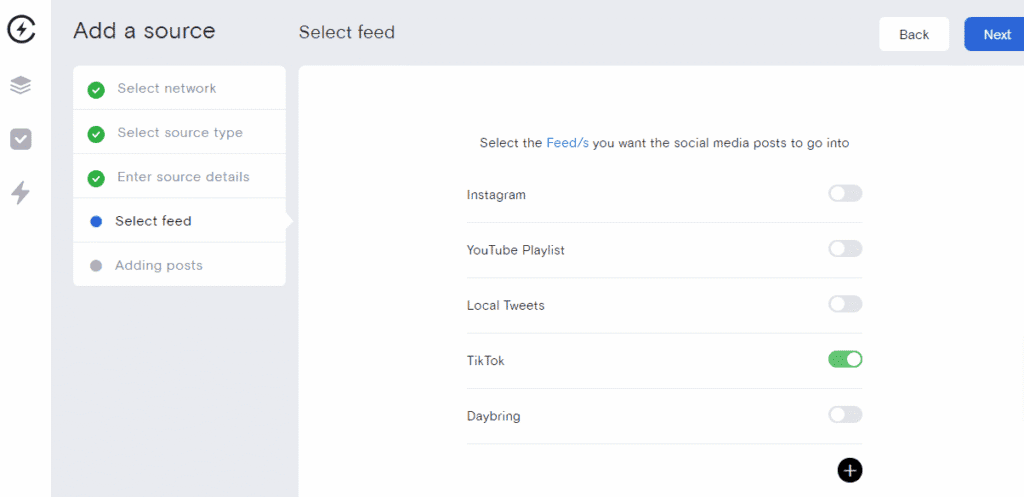
Next, click “+ Add a source”. A list of social media feed options will appear. Select “TikTok" from the list of supported platforms and then click Next to continue.

Step 4. Connect your TikTok account
Follow the prompts to connect your TikTok account to Curator. Choose whether you want to pull videos from your main account feed or from another source like a hashtag. This determines what content will appear in your embedded feed.

Step 5. Moderate and filter the videos
Before embedding anything on your website, you'll want to review and clean up your feed. Depending on your moderation settings, you can either manually approve the posts you want to display or let them auto-publish.

This is particularly useful if you're showcasing UGC or working with creators and influencers as you can curate only the content that fits your brand.
Step 6. Customize your TikTok feed’s design
Once your videos are ready, customize how your embedded TikTok feed will look. There are many template options, including grid, carousel, and masonry, so you can match your site’s aesthetic.
You can also adjust colors, spacing, borders, and more to keep things on brand. Simply scroll through the different tab options to see all the possible customizations.

Step 7. Copy and paste the TikTok embed code into your site
When everything looks good, generate your embed code. A block of HTML is created that you then copy and paste into your website where you want the feed to appear. You can place this code in any section of your site, such as your homepage, a product page, or your blog sidebar.

Not sure where to paste it? The platform steps in "Where to paste your TikTok embed code" work the same way for a feed.
Why your TikTok embed isn't working (and how to fix it)
You hit publish, open the page, and find a bare link or an empty box where your TikTok should be. Start with the first fix below. The problems are ordered from most to least common.

You see a plain link instead of a video
The embed.js script never ran, so TikTok's player never replaced the blockquote. The fix is almost always where you pasted it. Delete the code and re-paste it into a Custom HTML, code, or embed block, not a rich-text or paragraph block.
"Most broken TikTok embeds we see aren't actually broken. The page builder stripped the script tag, so the blockquote never becomes a player. Check that first." Thomas Garrood, Co-founder, Engineering, Curator
The player says the video is unavailable
Embeds only work for public videos. If the video is private or friends-only, or the creator switched their account to private, the player can't show it. Pick a public video instead, or ask the creator whether they'll make that one public.
A video that used to work has disappeared
As covered in the editing section, a deleted video vanishes from your page too. TikTok's docs say embedded videos follow the same moderation results as the app, so a removed video goes dark everywhere. Replace the code with a new video, and add your busiest pages to a quarterly check.
Your pasted link won't turn into a video
Three things cause this. Your platform may not support TikTok's oEmbed links. The link may share a line with other text. Or it came from the mobile app. Copy the full URL from a desktop browser and paste it on its own line. Still stuck? Use the embed code instead.
Nothing loads at all
A blank space with no link means something blocked TikTok's script. Cookie consent tools can hold back third-party scripts until a visitor accepts. Content security policies and some security or caching plugins can do the same. Allow tiktok.com in your consent tool or policy, clear your cache, and test again in a private window.
The video looks huge, cropped, or squashed
The container is too wide, or the iframe has the wrong shape. Go back to "Size and alignment" for the wrapper code and a vertical ratio. Then test while logged out and on your phone, since embeds can render differently from one browser to the next.
Before you embed someone else's TikTok
Is it okay to put a creator's or customer's TikTok on your business site? Embedding your own videos is simple. Other people's videos need a little more care.
TikTok's Terms of Service restrict using another user's content for commercial purposes unless that user permits it. A product page or ad landing page likely counts as commercial use, even with TikTok's own embed code.
So before a customer's video goes near a product page:
Ask the creator for permission in writing. A DM or email they reply to is a good start.
Save that approval somewhere your team can find it later.
Credit the creator wherever the video appears.
Running a campaign that collects customer videos? Our guide to TikTok UGC covers how to find and feature them. This section is general guidance, not legal advice.
3 examples of brands embedding TikTok on their websites
Want to see embedded TikTok in the wild? These three brands use it in different ways, from a wall of love to a recruiting page.
Example 1. Buy Me a Coffee

Buy Me a Coffee created a TikTok “Wall of Love” to showcase reviews and success stories from their user community. Using a clean, carousel layout, they embed TikTok feed featuring creators who share how the platform has helped them grow and receive support.
This is a great example of how brands can use a TikTok embed code to highlight real voices from their audience while keeping the content fresh and visually engaging.
Example 2. Misericordia University

Misericordia University uses a TikTok embed code to spotlight campus culture and student experiences right on their website. With a curated TikTok feed, they give prospective students and visitors a real-time look into university life, from open house promos to behind-the-scenes content and student interviews.
What makes this embed especially effective is the built-in content filter. Visitors can toggle between social platforms like Instagram, Facebook, and YouTube, or view only TikTok content with one click. It’s a simple, organized way to embed TikTok videos alongside other channels without cluttering the page.
Example 3. Thomann

Thomann, a leading European music retailer, uses a vibrant TikTok feed on their jobs page to give potential employees a look behind the scenes of their brand. On their “Tune in” page, they embed TikTok videos featuring everything from rehearsals and gear demos to backstage moments at festivals and fun office culture.
This is a great example of how to embed TikTok content in a way that strengthens brand identity and builds a deeper connection with potential employees.
TikTok embed FAQs
What is a TikTok embed code, and how does it work?
A TikTok embed code is a snippet of HTML that lets you display TikTok videos directly on your website. You simply copy the code and paste it into your site’s HTML or page builder. The video then appears with full playback and interactive features.
What does "embed" do on TikTok?
The Embed option in TikTok's Share menu gives you a short piece of code for a specific video. Paste that code into a website, and the video plays right on the page, credited to its creator. Visitors can watch without leaving your site, and tapping the player's buttons takes them to TikTok. As covered above, the option only shows up in a desktop browser.
Can I embed TikTok videos on any website platform?
Yes, you can embed TikTok videos on most platforms, including WordPress, Squarespace, Wix, Shopify, and custom HTML sites. If your platform supports custom HTML or script blocks, you can paste in a TikTok embed code or use a third-party tool like Curator for added flexibility.
What is the TikTok embed URL format?
A standard TikTok video URL looks like https://www.tiktok.com/@username/video/VIDEO_ID. That's the link you paste into WordPress, Webflow, or another oEmbed-friendly platform. For the iframe Embed Player, the TikTok embed URL format is https://www.tiktok.com/player/v1/VIDEO_ID. You can add settings to the end, like ?autoplay=1&muted=1. The video ID is the same long number in both.
Can I get a TikTok embed code on my phone?
Not from the TikTok app. TikTok only offers the embed option in a desktop browser, so the Embed button won't show on your phone. Away from your computer? Send yourself the video link and grab the code later on a laptop. On WordPress and other oEmbed-friendly platforms, the full link copied from a browser may be all you need.
How do I generate a TikTok embed code for multiple videos?
To embed multiple videos or a live TikTok feed, use a TikTok embed code generator. These tools let you pull content from TikTok profiles or hashtags, organize it into a styled layout, and embed it using a single HTML code block, no manual updates needed.
Will embedded TikTok videos automatically update?
If you're using TikTok's native embed for a single video, it won't add new videos. It does mirror changes to the original, though. If the creator deletes the video or makes it private, your embed stops playing. If you embed a TikTok feed with a third-party tool, new posts are pulled in automatically. You don't need to replace the code, just update your feed in the tool's dashboard.
Can I customize the design of my embedded TikTok video or feed?
Yes. For a single video, the iframe Embed Player lets you autoplay, loop, mute, or hide controls. The customization section shows how. Feeds from third-party tools give you more. You can customize layout, colors, fonts, spacing, and more to match your website branding. You can also filter what shows up, so your feed stays relevant and visually cohesive.
Do embedded TikTok videos slow down my website?
Each TikTok embed loads TikTok's player script plus the video, so a page full of embeds will load more slowly. One or two videos are usually fine. Need several? Keep just one copy of the script tag, or place videos lower on the page. A feed widget is another option. Test the page with a speed tool before and after so you know the real cost.
Is embedding TikTok content legal or allowed?
Yes, embedding TikTok content is allowed when using TikTok's built-in share features or approved third-party tools. However, if you're embedding user-generated content (UGC), it's best to get permission, especially for commercial use, to avoid potential copyright or privacy issues.
What’s the difference between embedding a single TikTok video vs. a TikTok feed?
A single video embed uses TikTok's native code and is static. A TikTok video feed, created with a tool like Curator, displays multiple videos and can update automatically. Feeds are ideal for showcasing UGC, brand campaigns, or ongoing content without manual embedding.